
Setting up your MailerSend SPF record is crucial to ensuring your emails reach inboxes without being flagged or blocked. SPF (Sender Policy Framework) authorizes EngageLab’s mail servers to send emails on behalf of your domain, preventing spoofing attempts while boosting deliverability.
This quick step-by-step guide walks you through configuring SPF in MailerSend and verifying that your DNS is correctly set up.
How to Set Up SPF for MailerSend
Log in to your MailerSend account
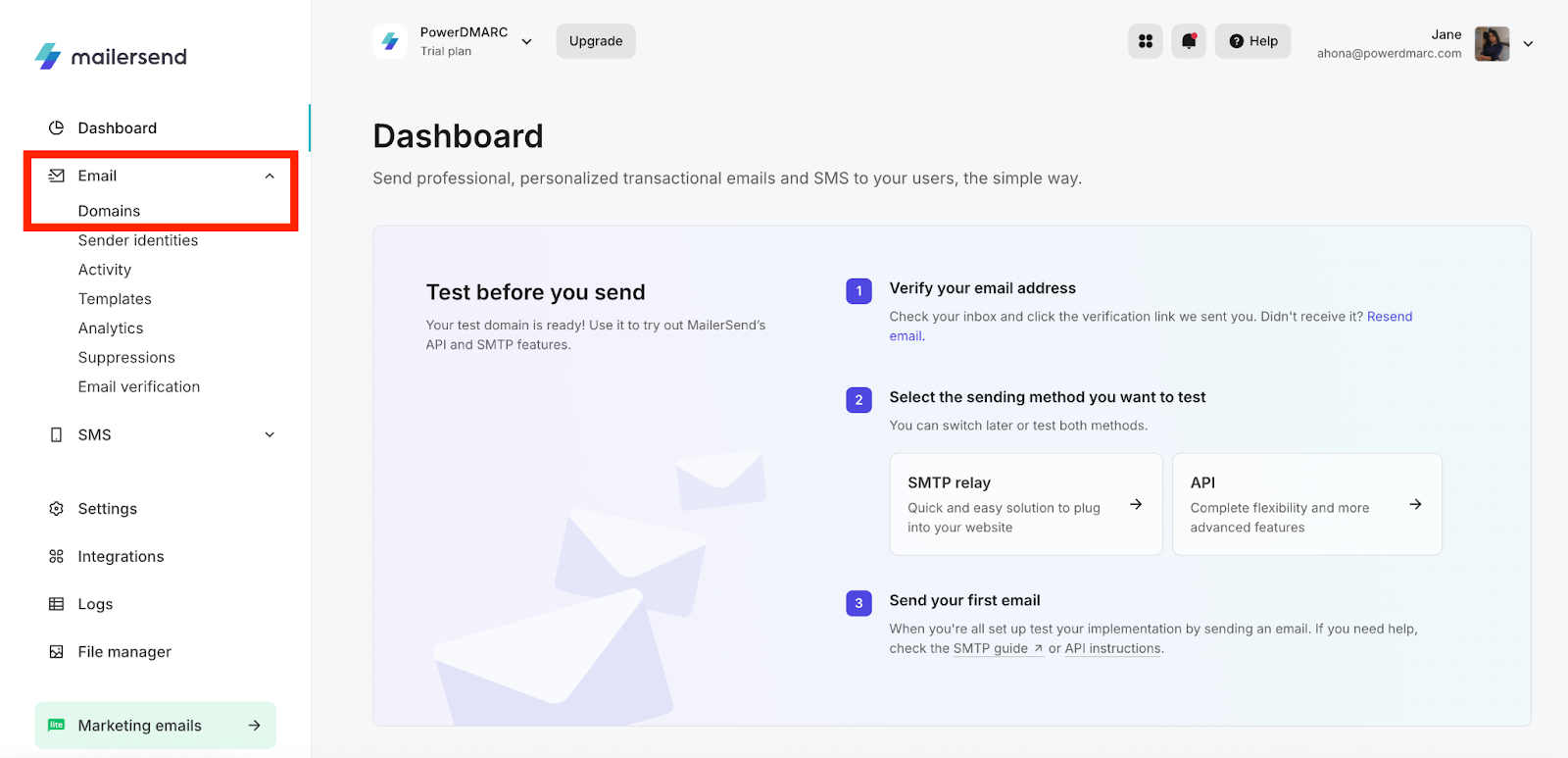
Go to Email > Domains
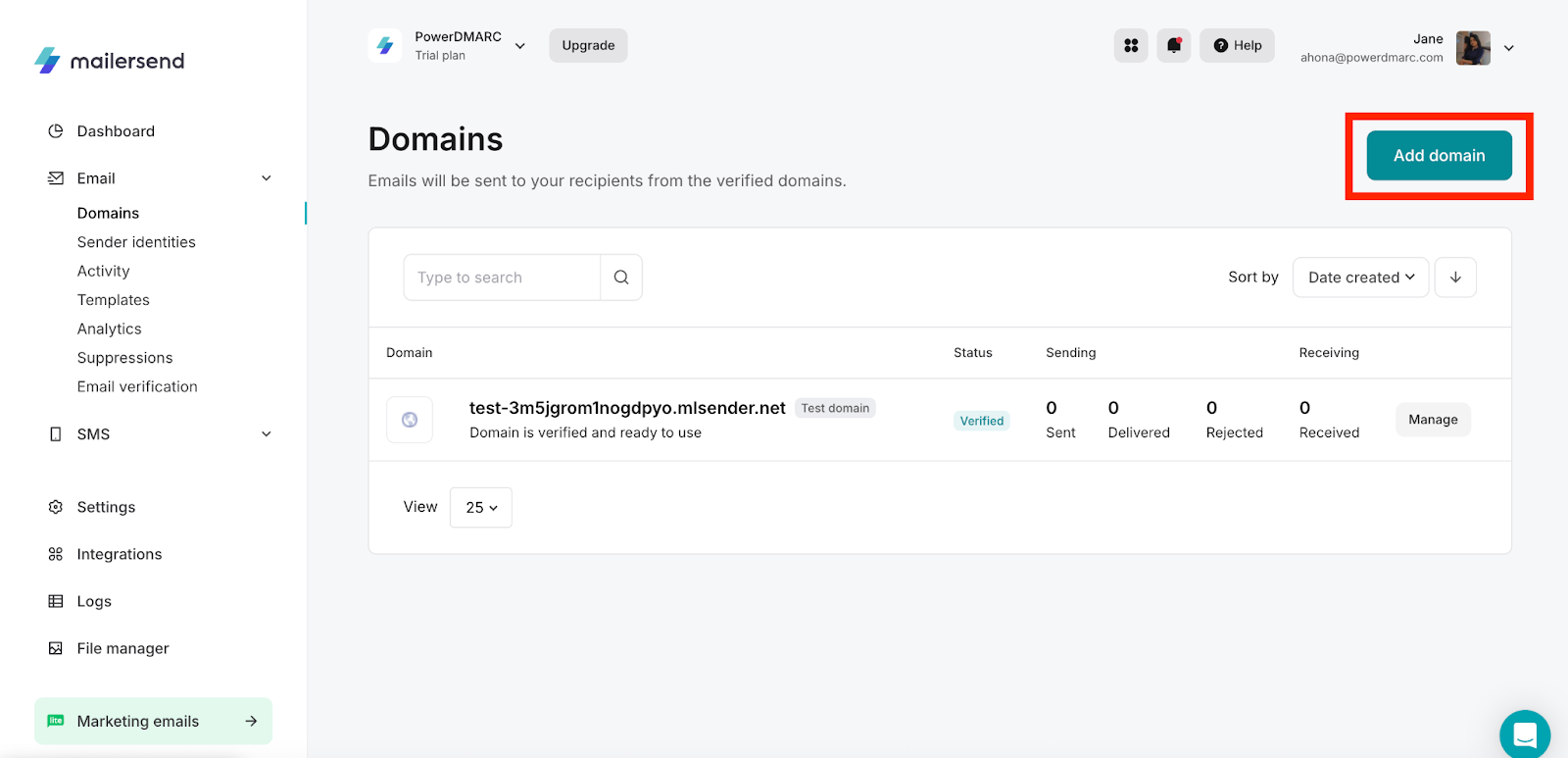
In the Domains page, click on Add Domain
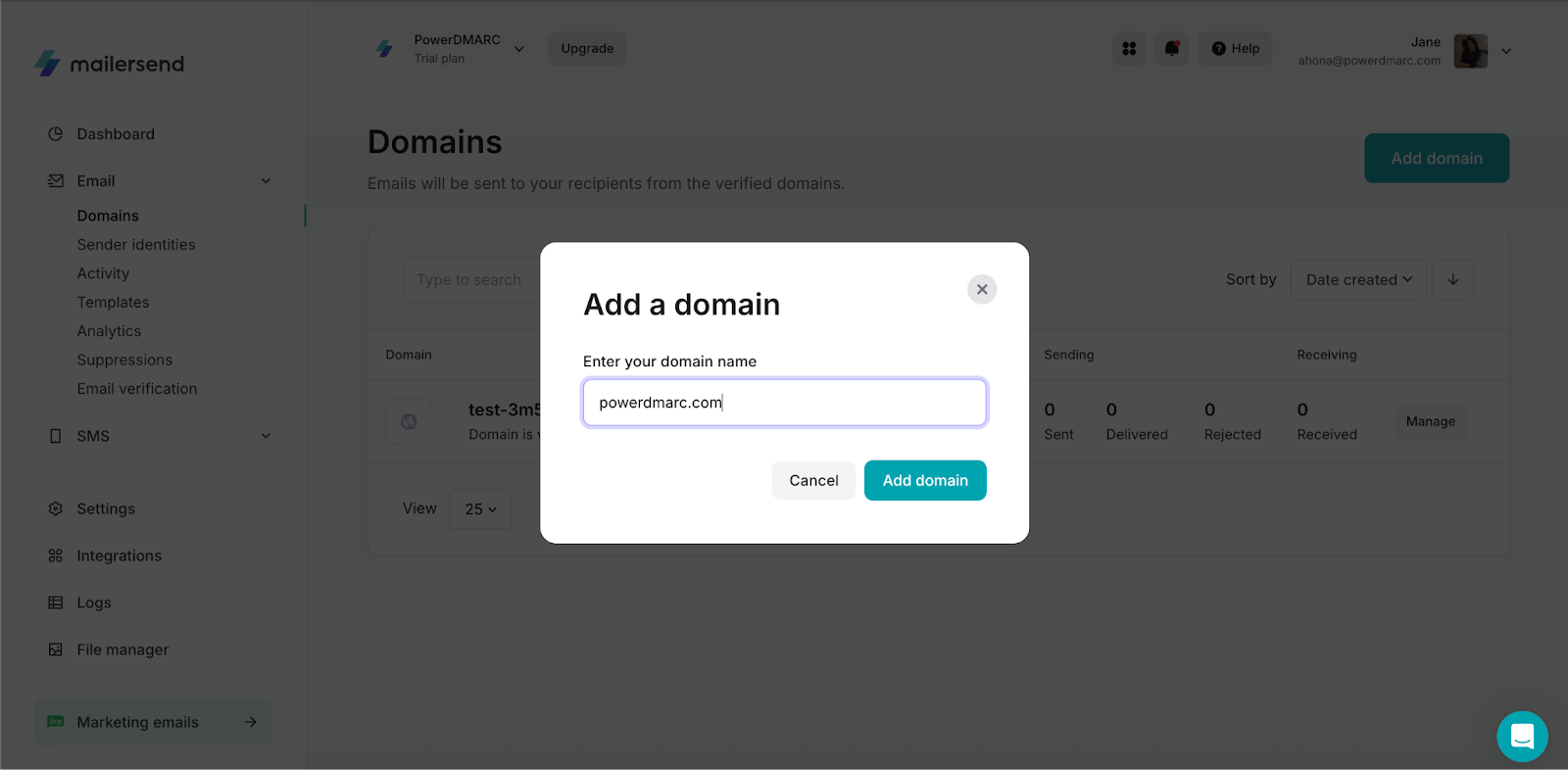
Add your domain name (company.com) and click Add domain.
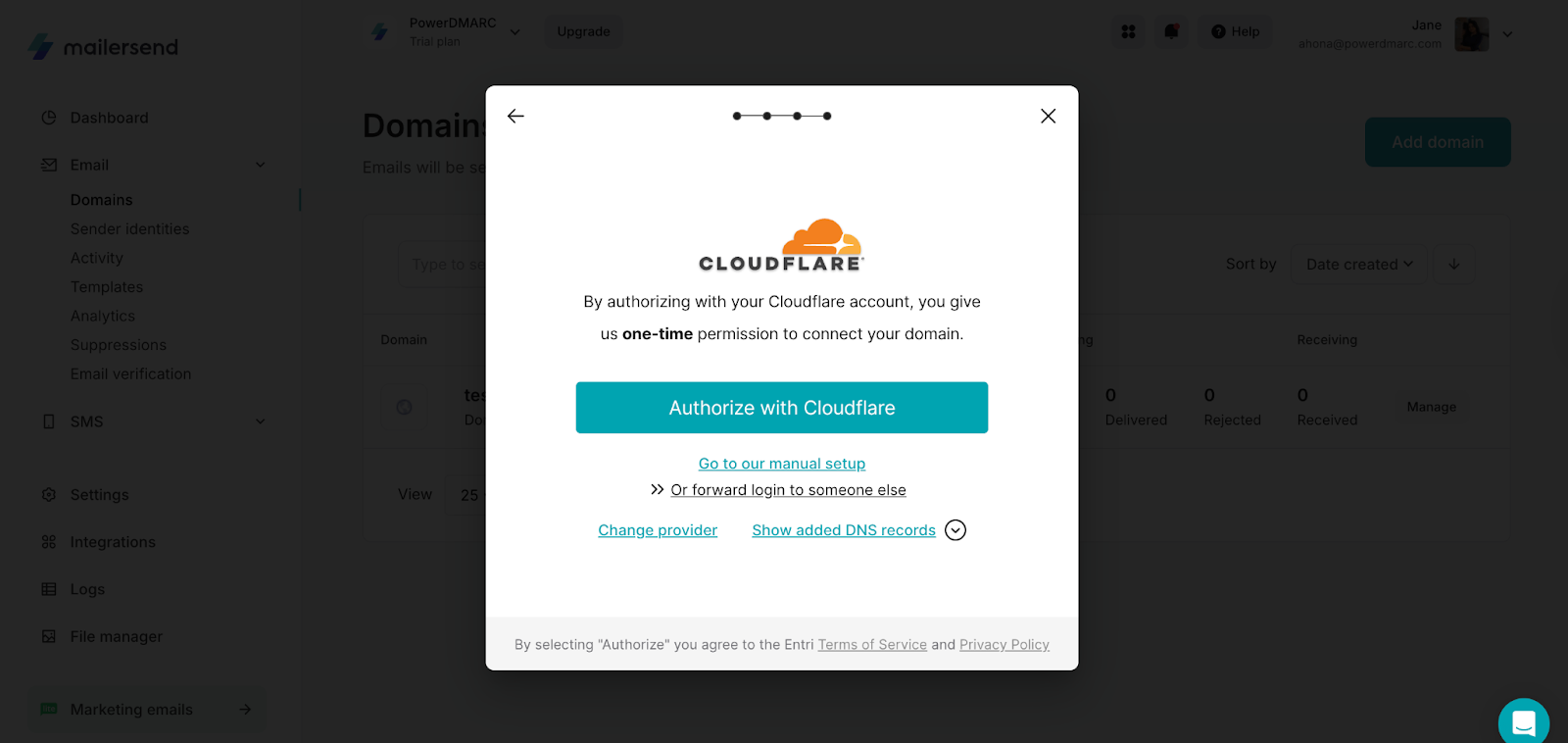
You can choose automatic setup and authorize your hosting provider by giving a one-time permission to connect your domain.
Or choose “manual setup” to continue manual configuration.
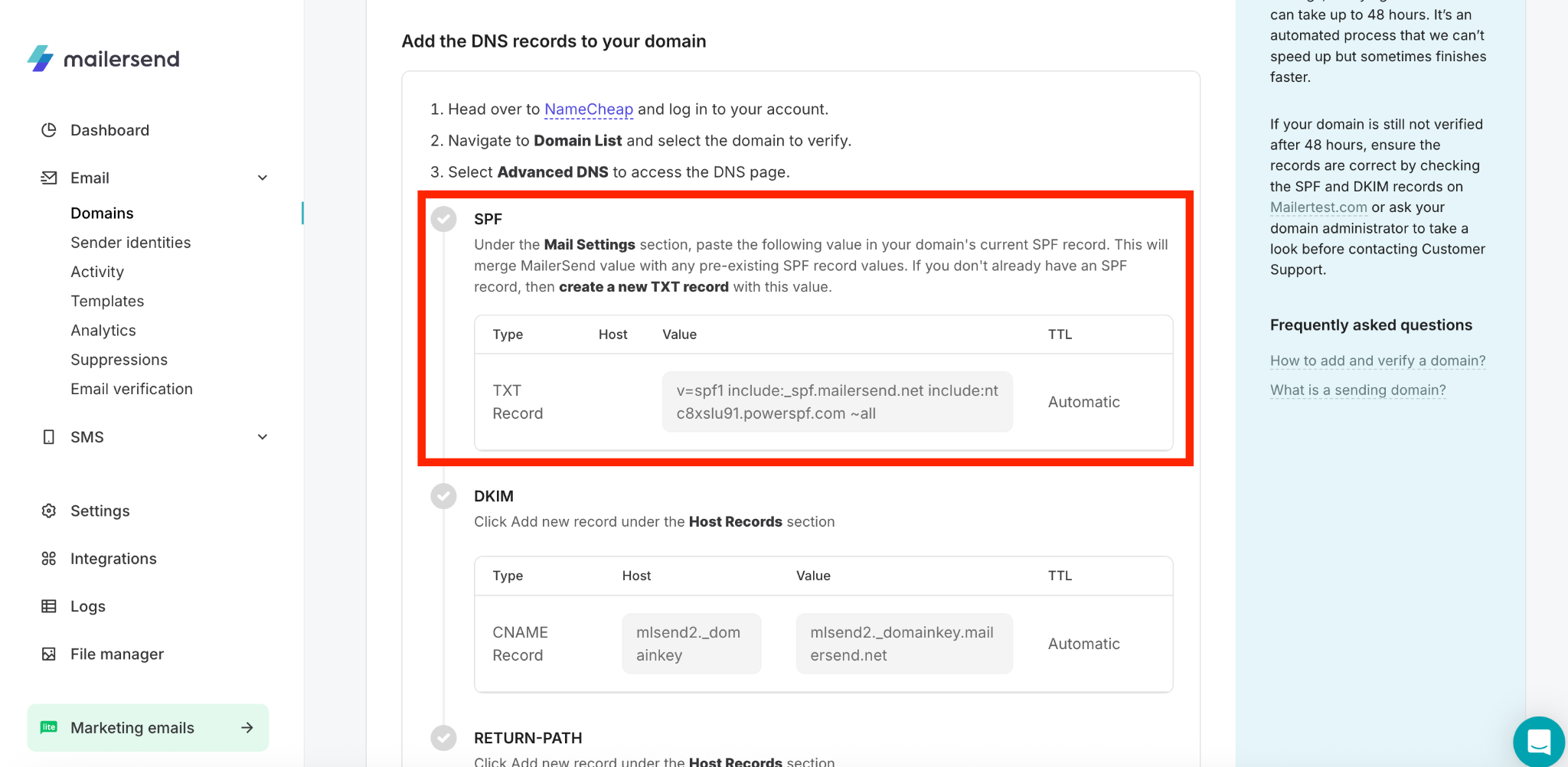
MailerSend will display your SPF record. Copy this record and paste it into your DNS management console.
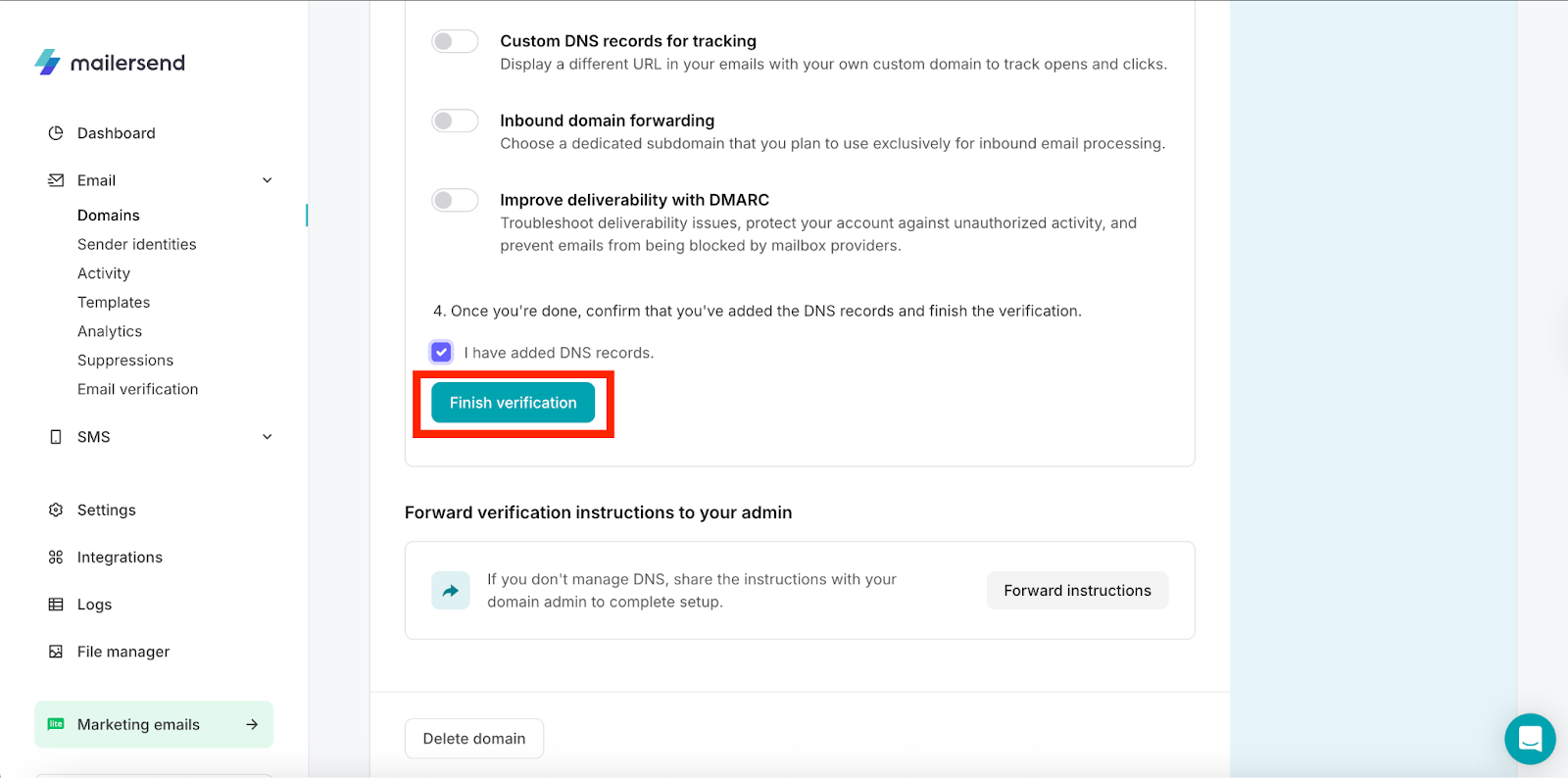
Once your DNS changes have finished propagating, head back to your MailerSend dashboard, check the box labeled “I have added DNS records,” and click “Finish verification.”
Verify Your MailerSend SPF Configuration
Log in to PowerDMARC
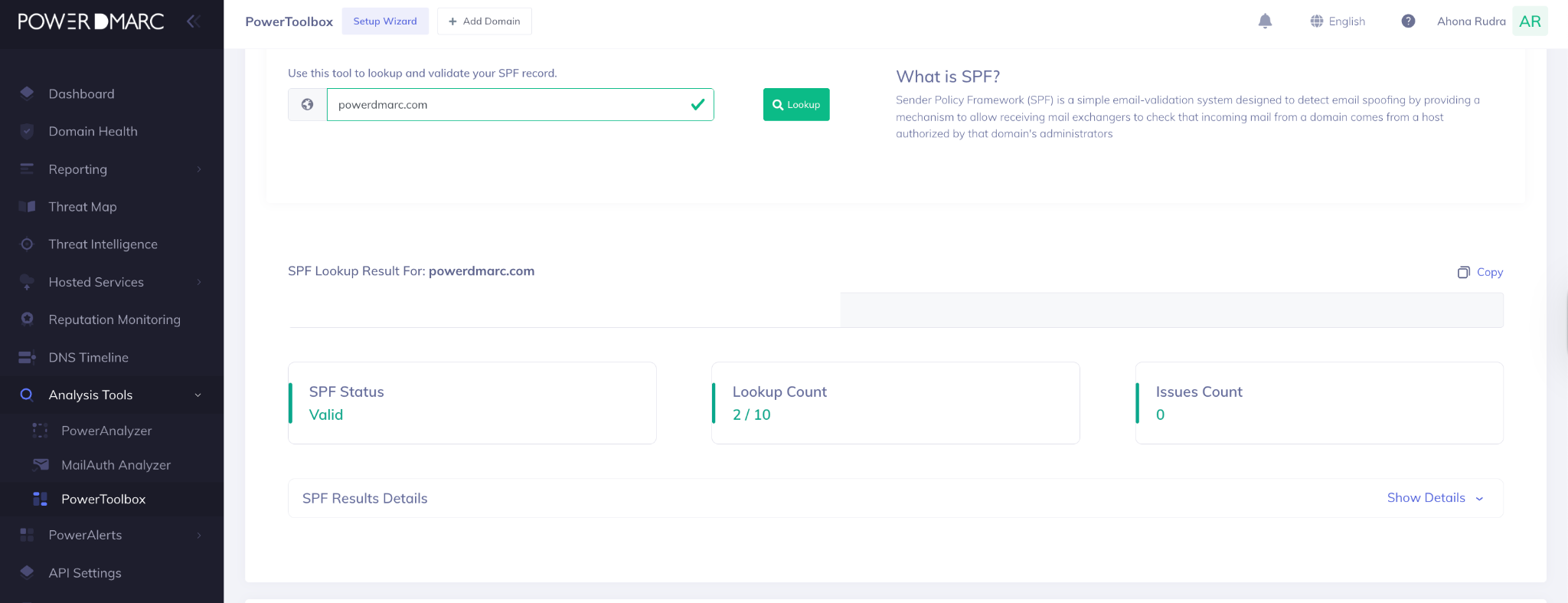
Go to analysis tools > PowerToolbox > Lookup tools > SPF record lookup
Final Words
stronger email authentication. But SPF alone doesn’t protect your domain from all spoofing and phishing threats. To fully secure your sending infrastructure and continuously monitor authentication, PowerDMARC gives you real-time visibility across SPF, DKIM and DMARC - all in one platform.
Take the next step: Sign up for PowerDMARC to validate your records, monitor email traffic, and enforce DMARC confidently without breaking deliverability.