
Overview
The Inbox Placement Analyzer is a self-service deliverability testing tool built into the PowerDMARC platform. It enables organizations to proactively evaluate email deliverability before launching live campaigns — identifying authentication gaps, inbox placement issues, content-level spam signals, and compliance failures — with actionable, prioritized remediation guidance.
Rather than waiting for bounce reports or spam complaints after a campaign goes out, the Inbox Placement Analyzer lets you validate your email sending infrastructure against real mailboxes across major email service providers (ESPs), all from within the PowerDMARC dashboard.
Key Capabilities
Supported Seed Mailbox Providers
The Inbox Placement Analyzer tests deliverability against the following email providers:
Gmail (Google Workspace / personal Gmail)
Outlook / Office 365 (Microsoft)
Yahoo Mail
Amazon Web Services (AWS) Amazon WorkMail
Zoho Mail
Apple iCloud Mail
How It Works — Configuration Steps
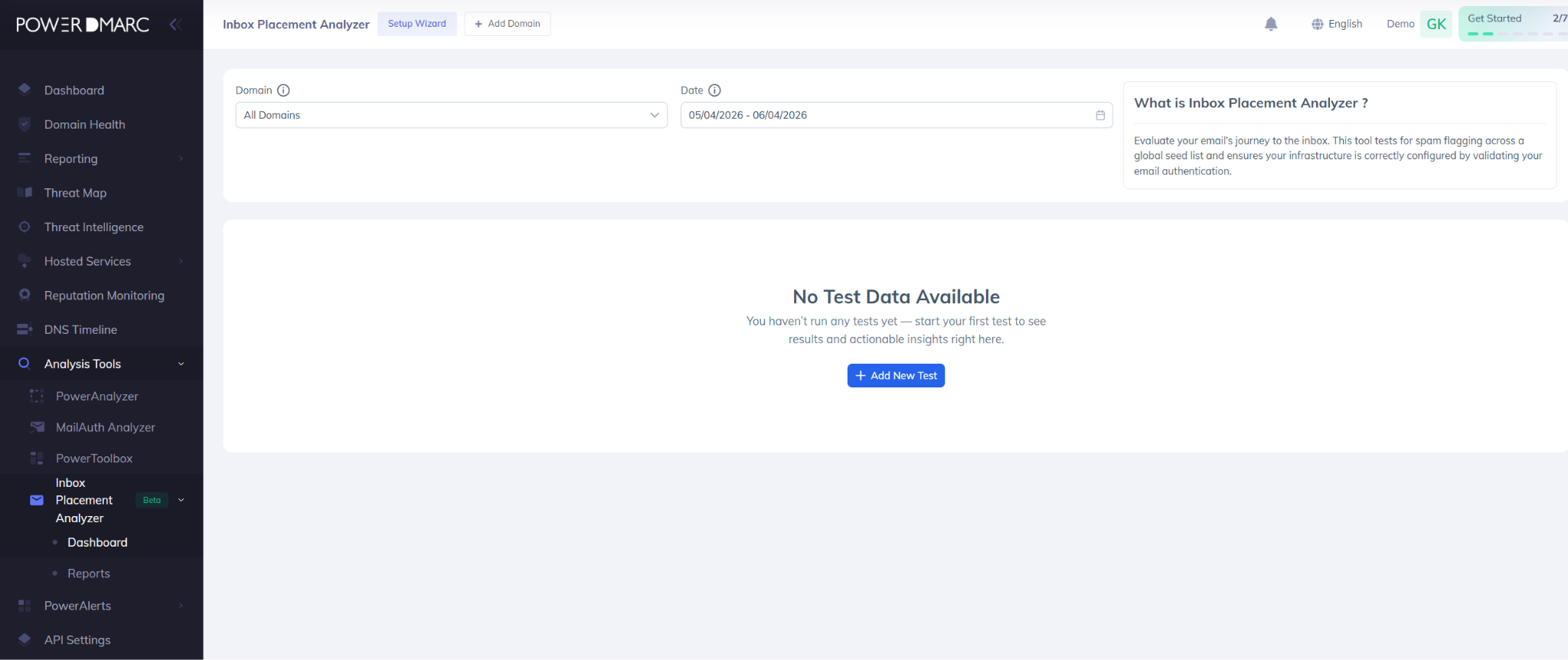
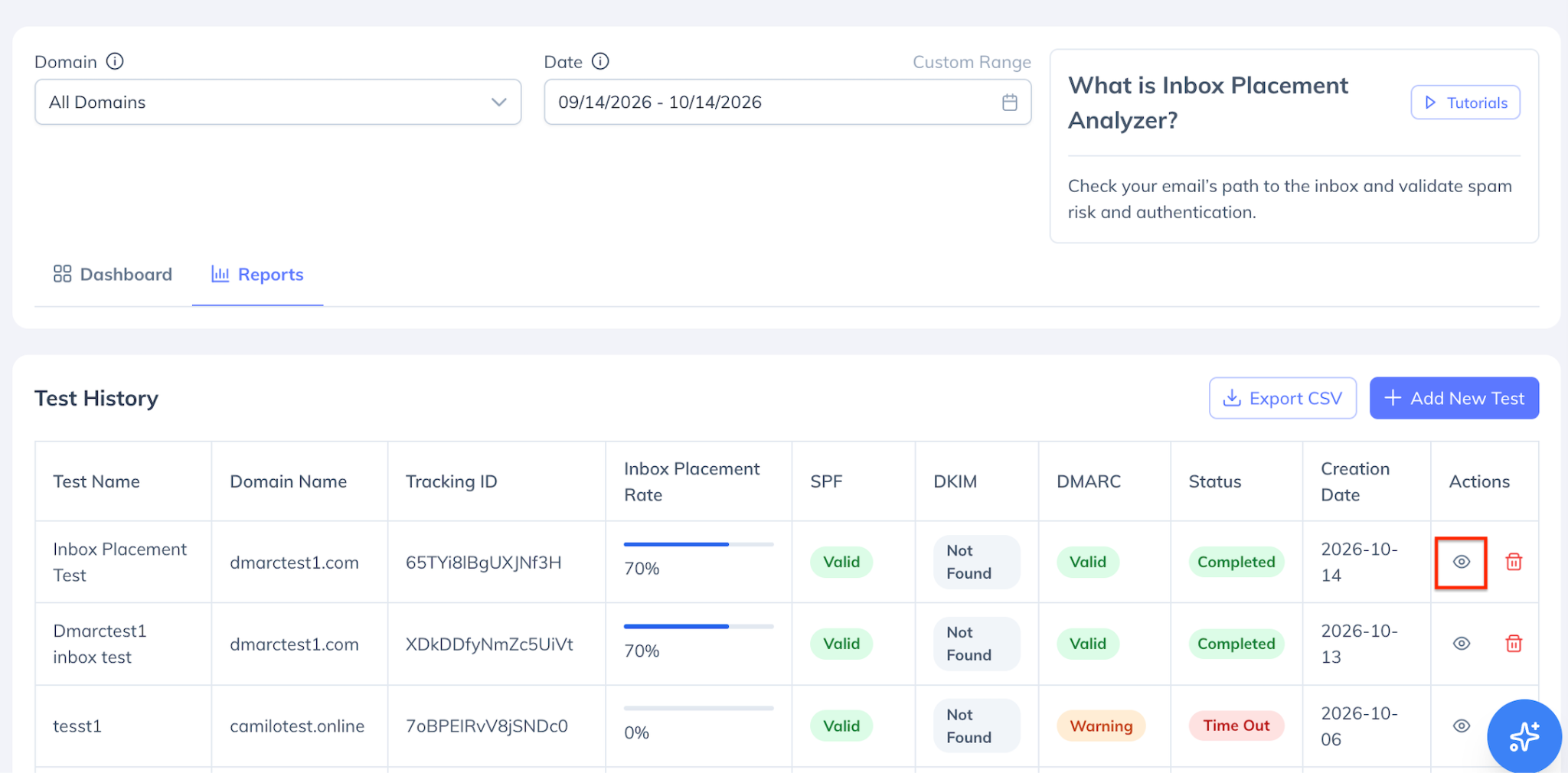
- Launch the Test Creation Wizard — Navigate to Deliverability > Inbox Placement Analyzer and click Dashboard > Add New Test.
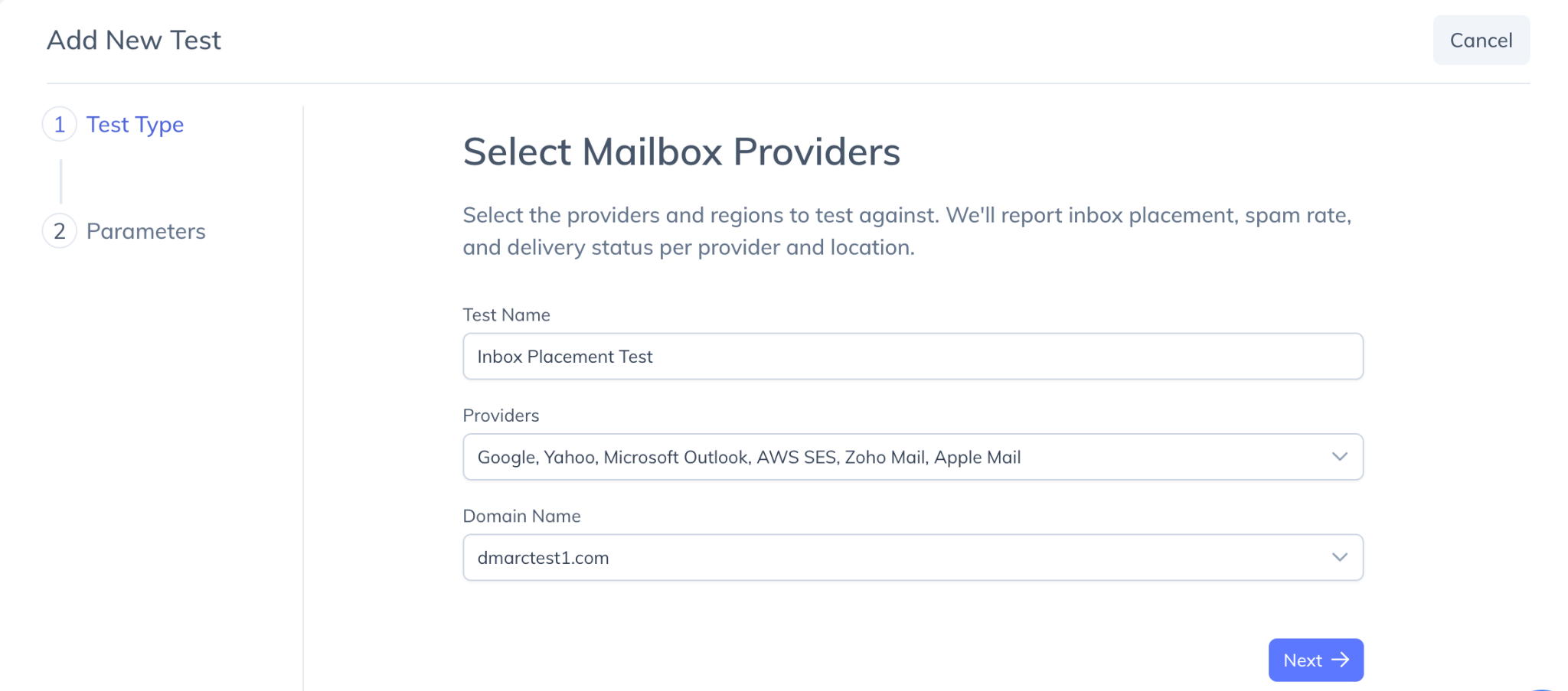
- Fill in the Test Type box with your test name, select one or more providers, and choose your domain name. Click Next.
- Copy the generated tracking ID and seed mailbox addresses.
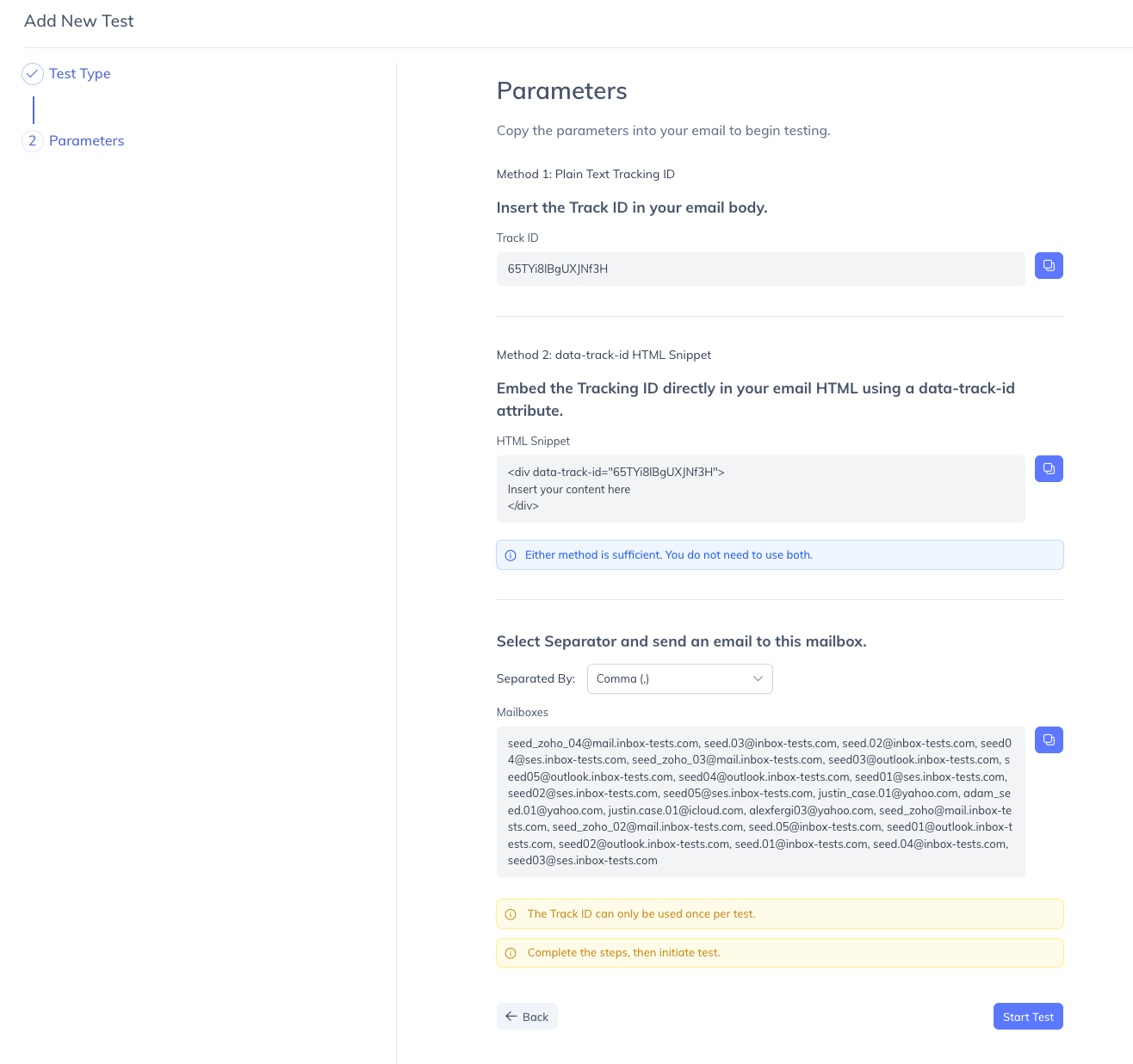
- Choose either of the following methods to include the Tracking ID in your email:
- Method 1 – Plain Text: Insert the Tracking ID directly into the body of your email.
- Method 2 – HTML Snippet: Embed the Tracking ID in your email's HTML using the provided data-track-id attribute. Copy the generated HTML snippet and replace the placeholder content with your email content.
Note: You only need to use one of these methods; using both is not necessary.
- Send your test email, with the Tracking ID included using either of the methods above, to the seed mailbox addresses from your actual sending infrastructure. Once you have completed these steps, click Start Test to begin the test.
- The platform polls seed mailboxes for up to 10 minutes and classifies each delivery as Inbox, Spam, Promotions/Other, or Not Received.
- Navigate back to the Inbox Placement Analyzer dashboard or Reports to view your results.
Dashboard and Analytics
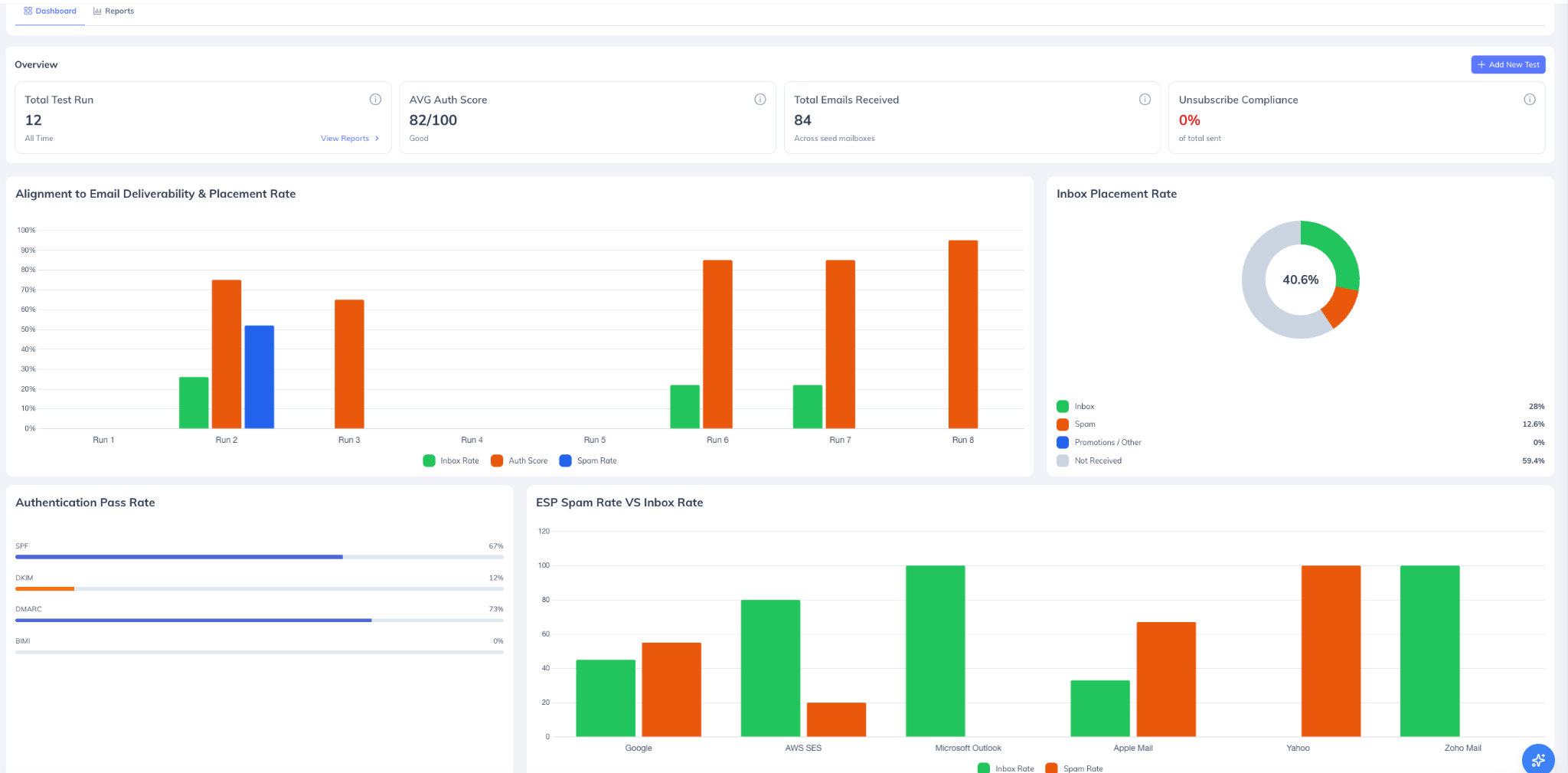
The analytics dashboard aggregates data across all test runs, providing visibility into total tests executed, average authentication score, total emails received, and unsubscribe compliance rate.
Available visualizations include:
Authentication score trends over time
Inbox placement rate trends
Overall placement distribution
ESP-level inbox versus spam placement comparison
SPF, DKIM, DMARC, and BIMI pass-rate analysis
Detailed Test Reports
Select an individual test to access a detailed deliverability assessment.
Issues & Recommendations
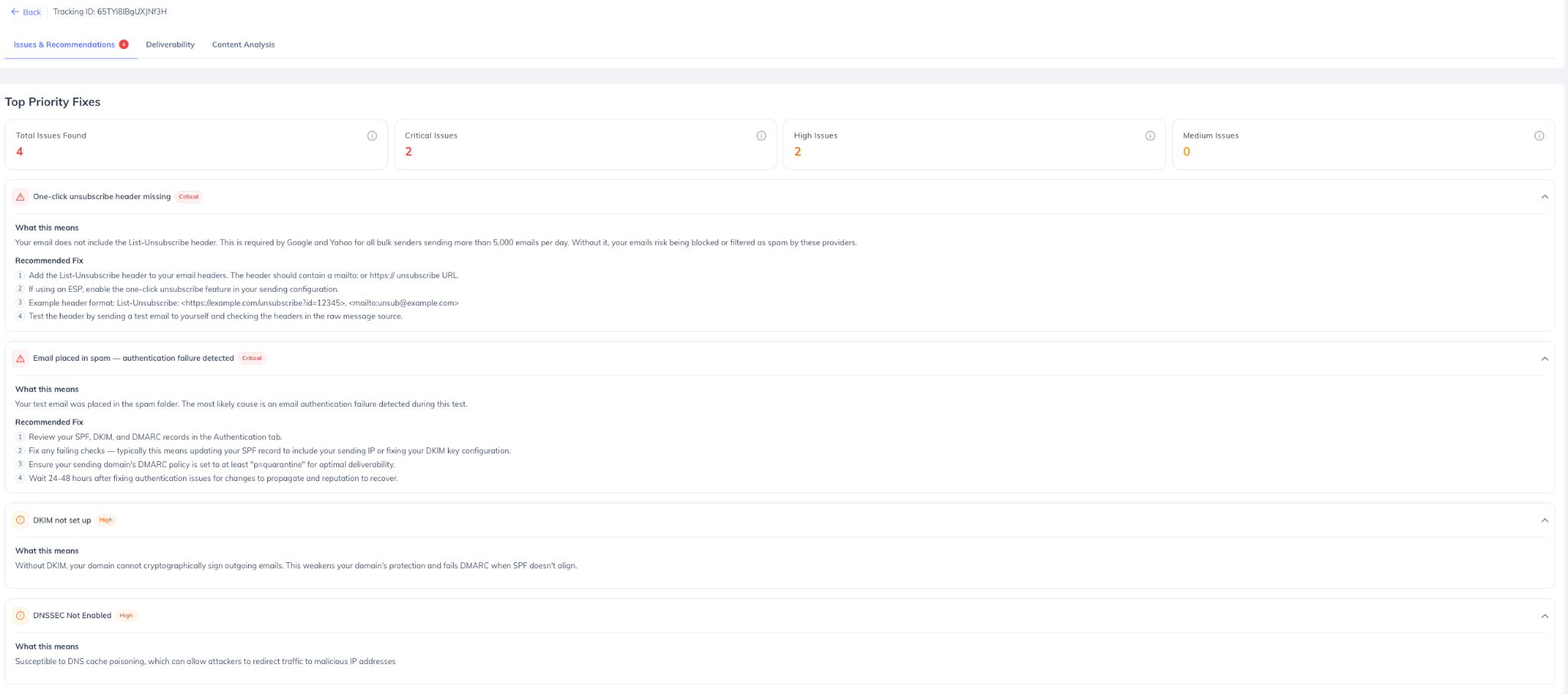
The Issues & Recommendations tab highlights identified deliverability and compliance concerns, categorized by severity: Critical, High, and Medium.
Issues are organized across four primary categories:
One-Click Unsubscribe Compliance
Email Authentication Failures
Authentication Best Practices
Spam Placement Analysis
Each issue includes a plain-language explanation, remediation guidance, and recommended corrective actions. A Fix Priority List automatically identifies the top three remediation actions expected to have the greatest impact on authentication compliance and inbox placement performance.
Deliverability Analysis
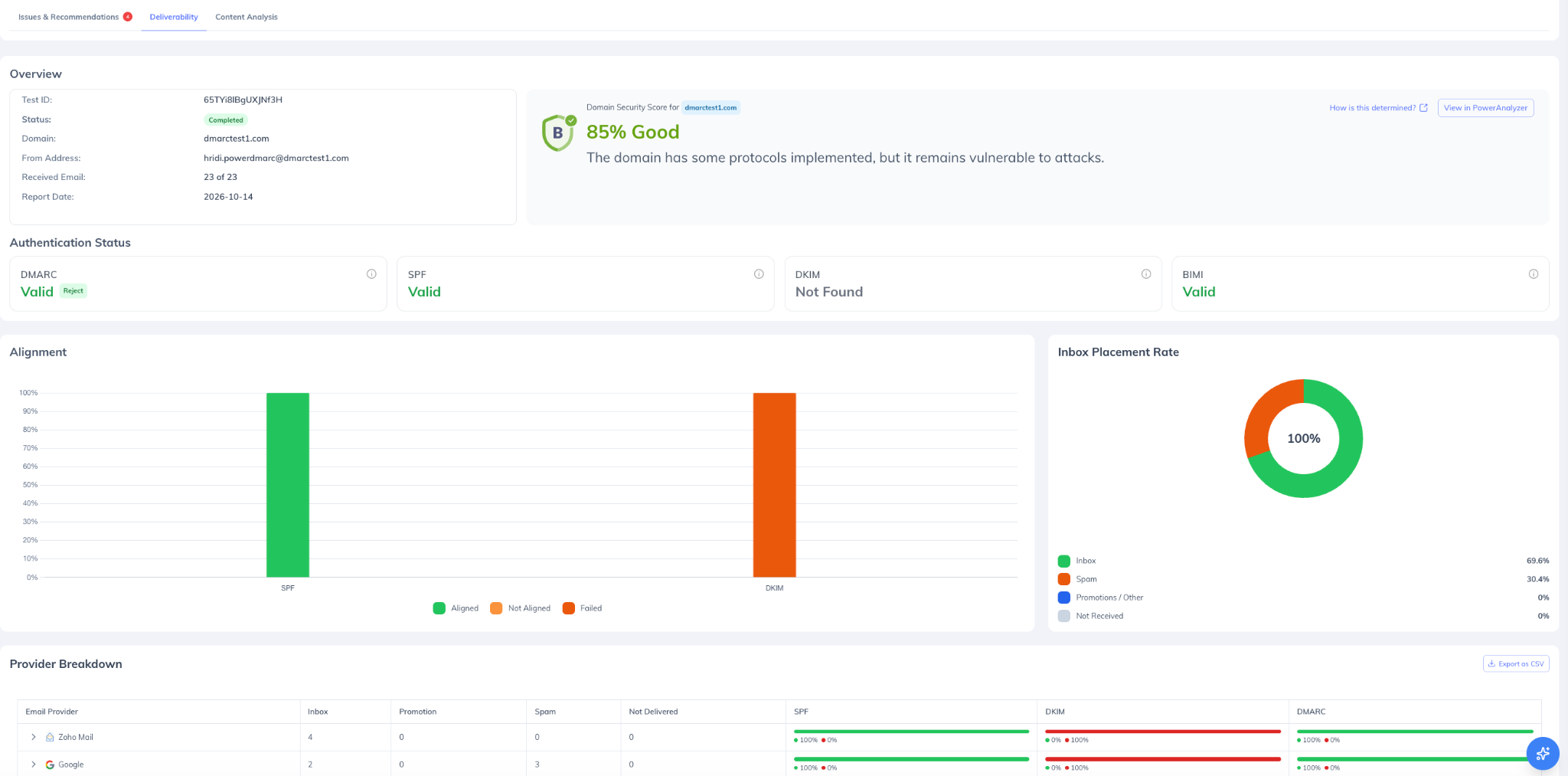
The Deliverability section provides a detailed overview of the tested domain, including:
Domain Security Score
SPF, DKIM, DMARC, and BIMI validation results
Authentication alignment insights
Inbox placement rate and placement distribution
Provider-level deliverability breakdown across Gmail, Outlook, Yahoo Mail, Amazon WorkMail, Zoho Mail, and Apple iCloud Mail
Content Analysis
The Content Analysis section runs automatically on every test — no additional steps required. It scans the body, links, images, and structure of your test email and surfaces content-level signals that may be contributing to spam classification, independently of authentication failures.
Email Information
Displays a size and structure summary of your test email, including plain text size, HTML size, total message size, image count, and link count. A High severity flag is raised if the total message size exceeds 102 KB — the Gmail clipping threshold above which content is cut off and hidden from Gmail recipients.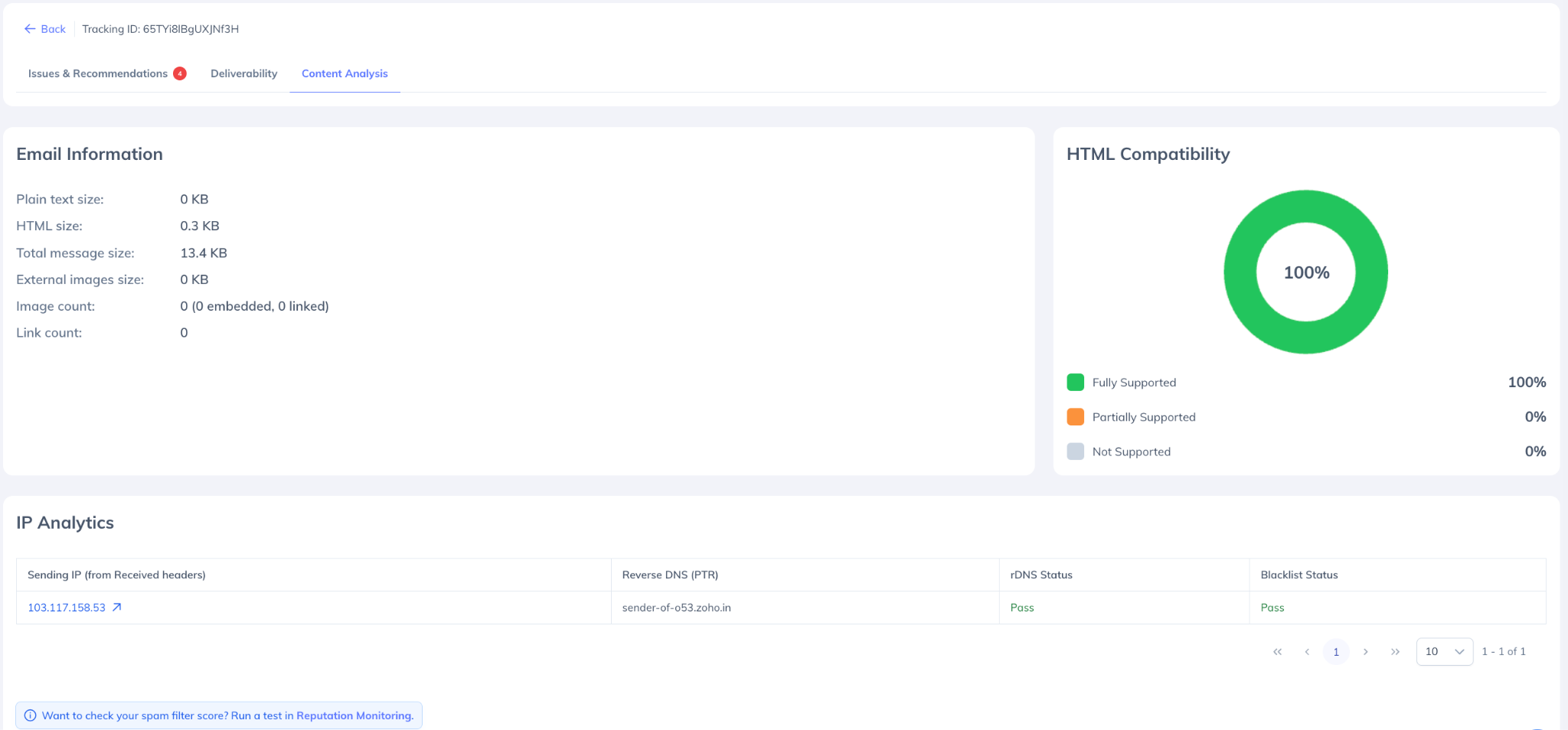
IP Analytics
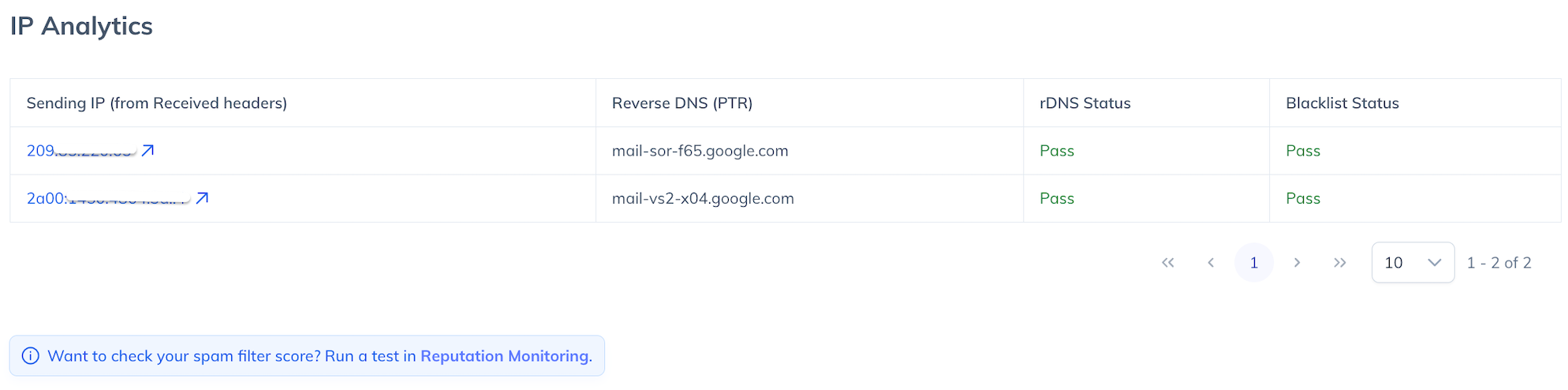
The IP Analytics panel extracts all sending IP addresses from the email headers and checks each one for blacklist status, rDNS hostname, and HELO string. It also shows inbox versus spam delivery counts per IP across the seed mailboxes. Flags include:
Sending IP found on a public blacklist — High
Missing or invalid rDNS — Medium
Links
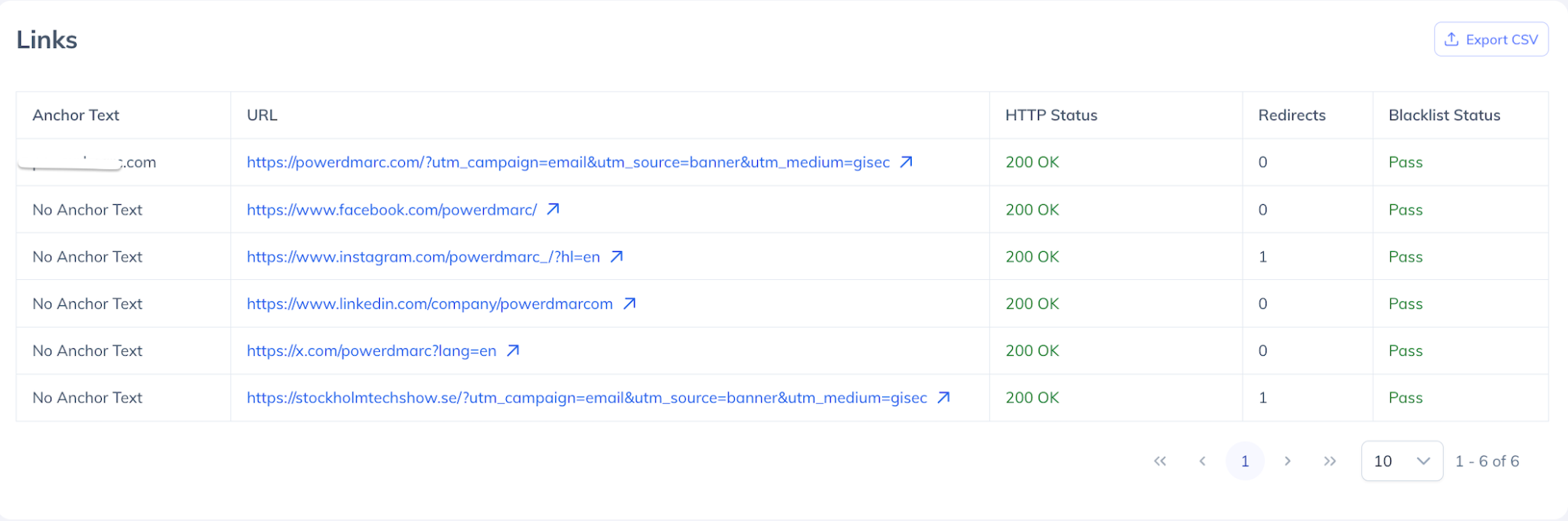
Every URL in your email body is checked and presented in a per-link table showing anchor text, HTTP status, redirect count, and blacklist status (checked against Spamhaus DBL and SURBL).
Flags raised by the Links check include:
Broken links returning a non-2xx HTTP status — High
Insecure HTTP (not HTTPS) links — High
URL shortener domains (e.g. bit.ly, tinyurl.com) — Medium
Domains found on Spamhaus DBL or SURBL — High
Excessive redirect chains (3 or more hops) — Medium
Images
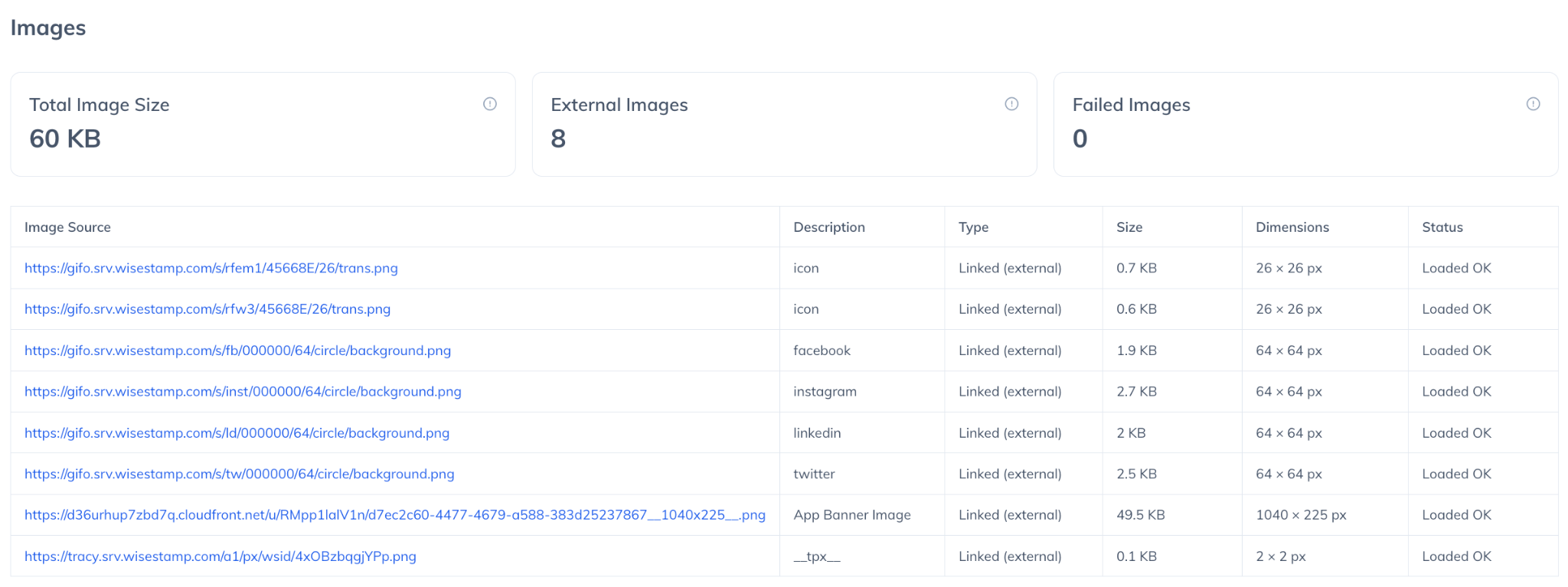
Every image in your email body is evaluated and presented in a per-image table showing load status, ALT text, file size, and response time. Flags include:
Images that fail to load — High
Images with missing or empty ALT text — Low
HTML Compatibility
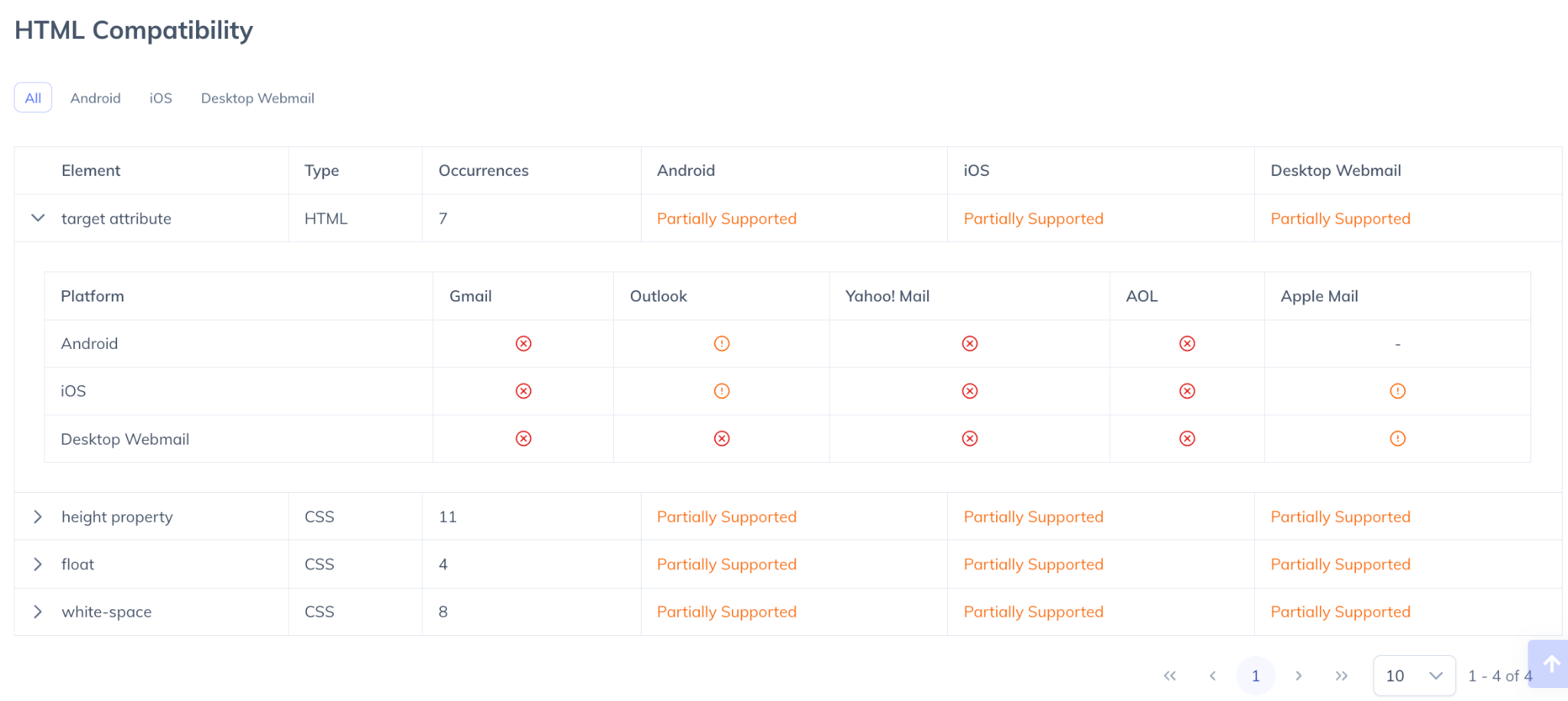
The HTML Compatibility panel calculates how well your email's HTML elements are supported across major email clients — including Gmail (Android, iOS, Web), Outlook (Windows, macOS), Apple Mail, Yahoo Mail, and Samsung Email. Elements with partial or no support are listed with the specific clients that do not support them.
Content Flags
The Content Flags panel evaluates your email body for content-level spam signals, grouped into three categories:
Copy & Subject Line
Spam trigger words or phrases detected — High
Excessive capitalisation in subject line (more than 30% uppercase) — Medium
Excessive special characters or emoji in subject line — Medium
Misleading Re: or Fwd: subject line prefix — High
Unresolved personalisation token detected (e.g. {{first_name}}, *|FNAME|*) — High
HTML Structure
No plain text alternative (HTML-only email) — Medium
Excessive image-to-text ratio — Medium
Hidden text detected — High
JavaScript detected in email body — High
HTML form elements detected — Medium
Gmail clipping threshold exceeded (total size over 102 KB) — High
Attachments
High-risk attachment type detected (.exe, .zip, .js, .xlsm, .docm, etc.) — High
Oversized attachment — Medium
PDF attachment containing embedded links — Low
For a numeric spam filter score, use the Reputation Monitoring feature, linked directly from the Content Analysis section.
Mitigations & Resolutions
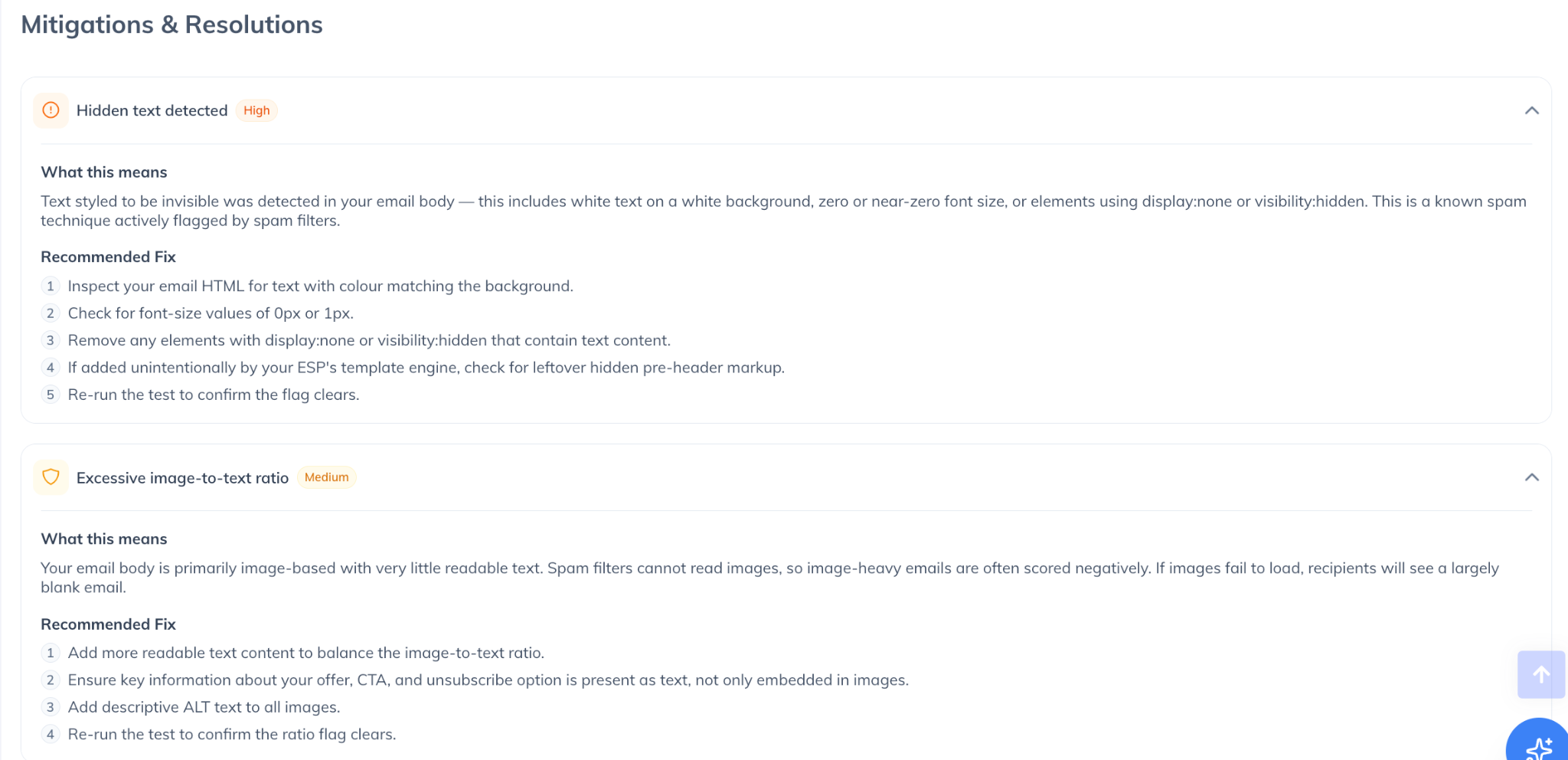
Every flag raised by Content Analysis generates a corresponding entry in the Mitigations & Resolutions panel alongside any authentication and placement issues. Each entry includes a plain-language explanation of the issue and numbered fix steps. Issues are sorted by severity — Critical first, then High, Medium, and Low.
Conclusion
The Inbox Placement Analyzer gives organizations a reliable, pre-send window into their email deliverability posture — eliminating the guesswork that typically comes with launching campaigns blind. By combining real mailbox testing across six major providers with automated authentication validation, content analysis, issue prioritization, and plain-language fix guidance, it enables both technical and non-technical users to proactively resolve deliverability risks before they impact recipients.
Whether you are validating a new sending domain, verifying a recent DNS configuration change, reviewing content for spam signals, or preparing a deliverability report for a client, the Inbox Placement Analyzer provides the visibility and actionability needed to send with confidence.
For further assistance, visit support.powerdmarc.com or contact your PowerDMARC account manager.