
PowerAlerts helps you monitor your domains for specific events and receive notifications when the configured conditions are met.
The enhanced Alert Rules feature allows you to create an alert configuration by selecting the domains or domain groups you want to monitor, choosing the type of alert, defining the conditions that should trigger it, and specifying where the notifications should be sent.
This article explains how to create an Alert Configuration and review the alerts generated from it.
Accessing PowerAlerts
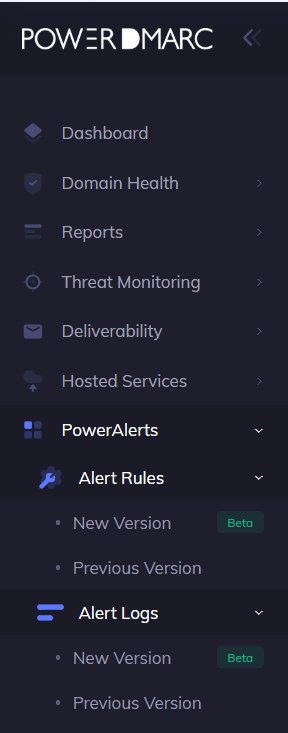
From the PowerDMARC dashboard, navigate to PowerAlerts → Alert Rules → New Version.
The Alert Rules page provides an overview of your existing alert configurations. From here, you can review configured alerts or click Add Alert Configuration to create a new one.
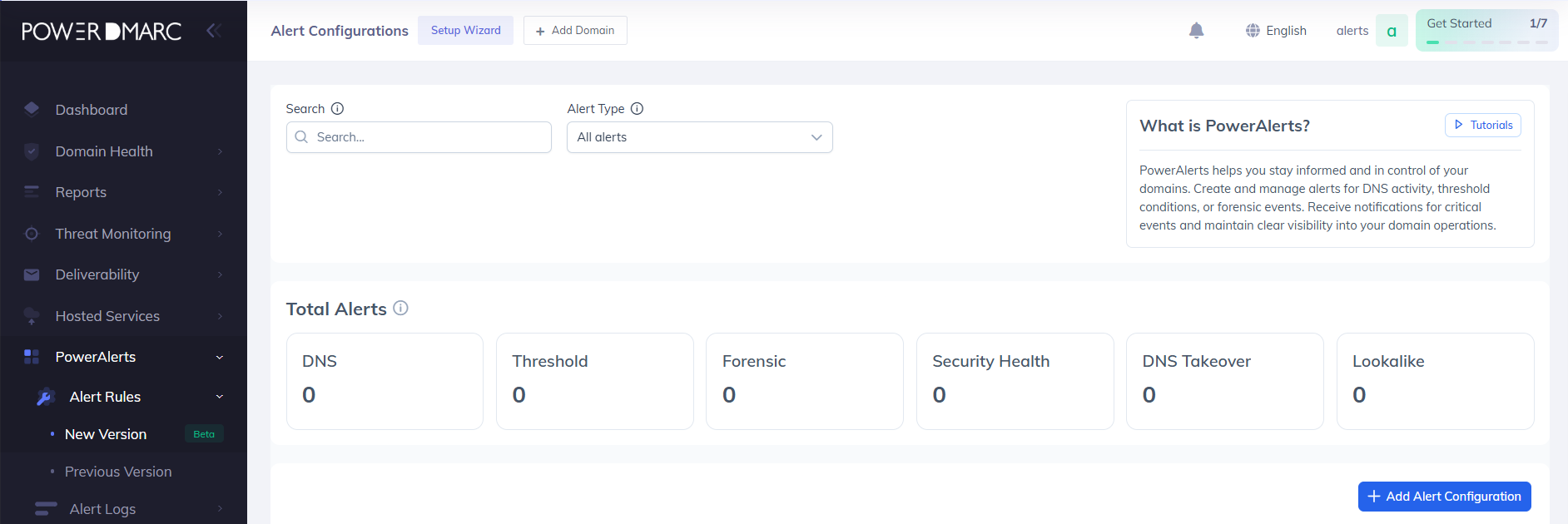
Creating an Alert Configuration
When you select Add Alert Configuration, the configuration wizard guides you through four steps:
Monitoring Entities → Alert Type → Conditions → Notification Groups
1. Select Domains or Domain Groups
Start by selecting the domains or domain groups that you want the alert to monitor.
You can select one or more domains and, where applicable, a domain group. Once the required monitoring entities have been selected, click Next to continue.
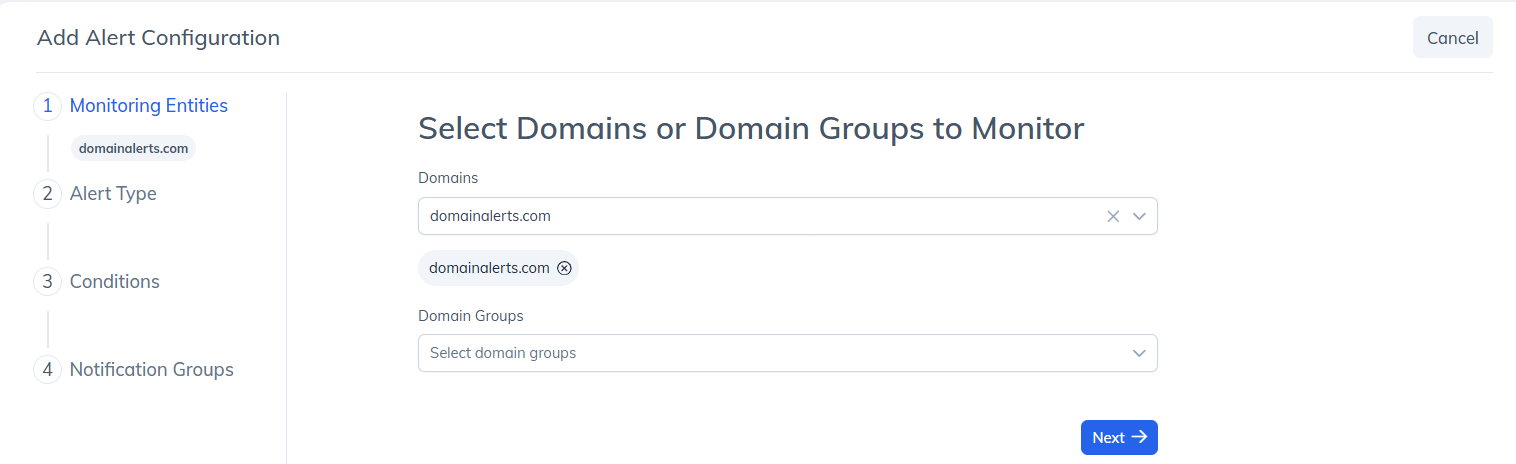
This determines the scope of the alert configuration and ensures that the alert is evaluated against the entities you have selected.
2. Select the Alert Type
Next, select the Alert Type that you want to configure.
The available alert types include DNS, Threshold, Forensic, Security Health, DNS Takeover, and Lookalike alerts.
Select the alert type that matches the event you want to monitor and click Next.
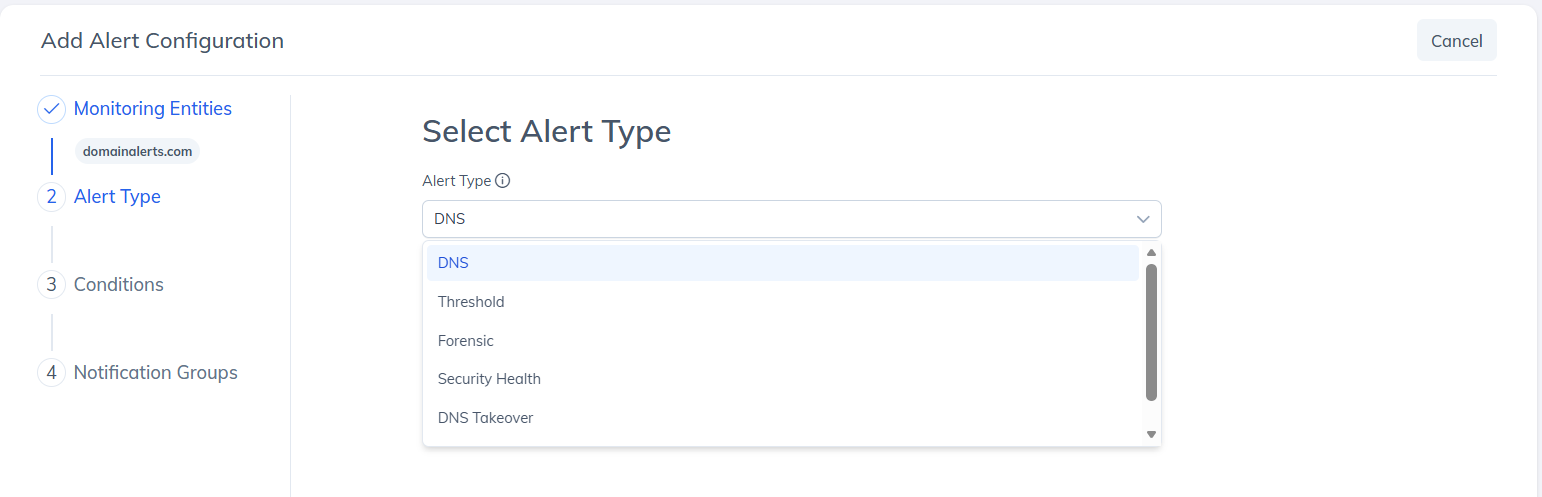
Each alert type has its own purpose and configuration options. For detailed explanation of such alerts, please refer to the below linked articles at the bottom of the page.
3. Configure the Alert Conditions
After selecting the alert type, define the conditions under which the alert should be triggered.
The available fields depend on the alert type you selected. For example, the configuration may require you to select an Event Type, Event Trigger, and Severity. Some alert types may also allow you to add specific events using Add DNS Events.
Configure the required conditions and click Next.
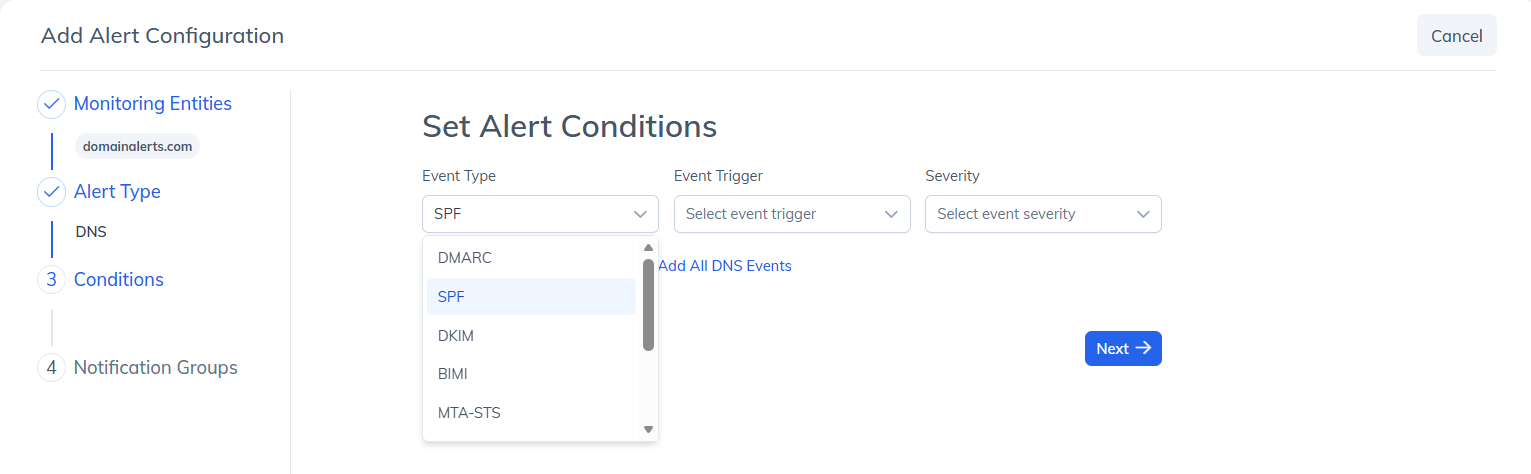
The conditions determine when PowerAlerts should consider an event to be an alert. Therefore, configure them according to the activity you want to monitor.
For more information about the conditions available for a particular alert type, refer to the relevant alert-specific article.
4. Select Notification Groups
The final step is to select the Notification Group that should receive the alert notifications.
Select an existing notification group from the available options. You can also configure the timezone that should be used when displaying timestamps in the alert notifications.
Once the required details have been configured, click Create Configuration.
Note: Make sure the selected Notification Group is configured with the appropriate notification recipients before creating the alert configuration.
Reviewing Alert Configurations
Once the configuration has been created, it appears under Alert Rules → New Version.
The Alert Rules page provides an overview of the configured monitoring entities, alert type, conditions, notification group, timezone, and available actions. This allows you to review the configuration and manage it when required.
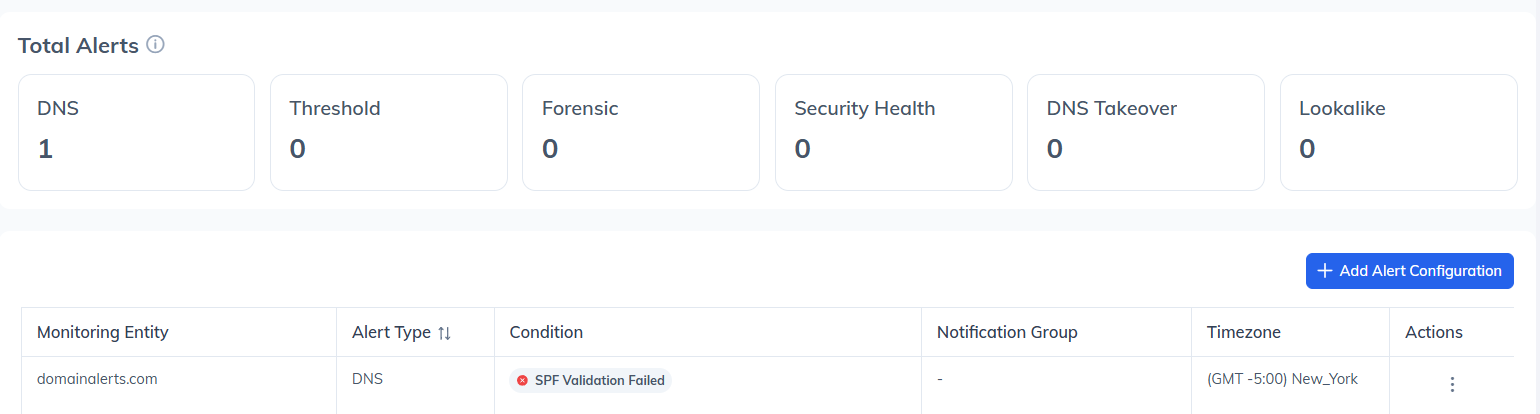
Viewing Alert Logs
After an alert configuration is active, PowerDMARC records events that match the configured conditions.
To review these events, navigate to PowerAlerts → Alert Logs → New Version.
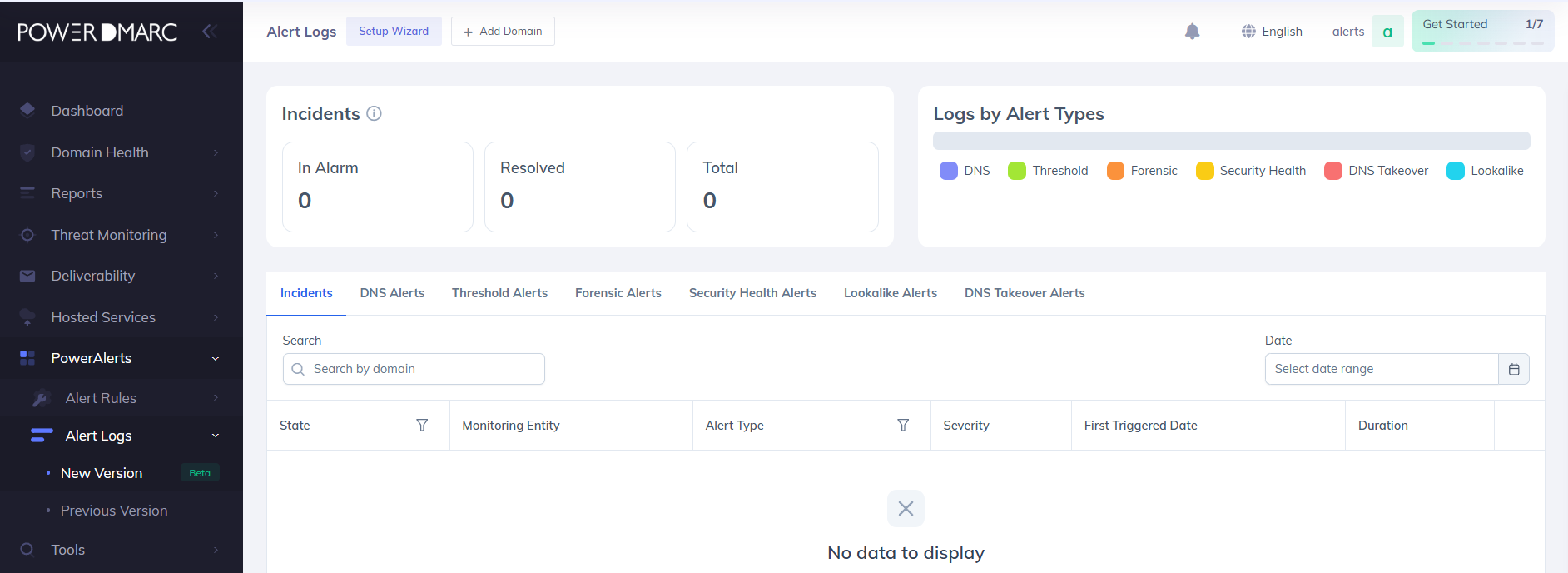
The Alert Logs page provides an overview of the alerts generated across your configured alert rules. The summary section displays the total number of alerts by alert type, while the incident section shows the current alert status.
The incident summary includes In Alarm, Resolved, and Total counts, helping you quickly understand the current state of your alerts.
Summary
The enhanced PowerAlerts workflow makes it easier to configure monitoring and track events from a single interface.
Use the individual Alert-specific articles for a deeper explanation of each alert type and its available configuration options.
Below are a few reference Alert articles for greater reference.
How to configure Domain Threshold Alerts
How to Configure DNS Takeover Alerts
How to Configure Lookalike Domain Alerts