
Threshold Alerts in PowerDMARC
Overview
Threshold Alerts in PowerDMARC allow you to monitor email activity and authentication metrics based on defined limits over a specific time period. These alerts are triggered when a configured threshold is exceeded, helping you proactively detect unusual spikes, compliance drops, or authentication-related anomalies.
With the enhanced PowerAlerts system, Threshold Alerts provide flexible condition building, customizable severity levels, and centralized notification delivery.
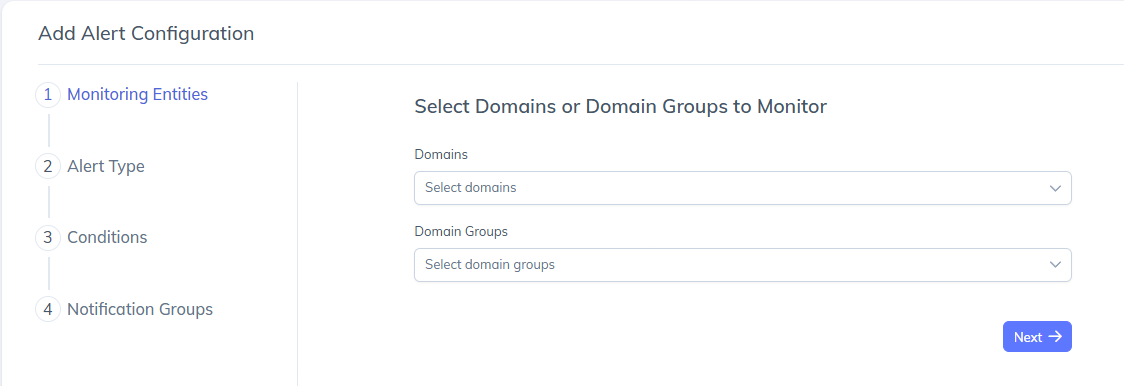
Step 1: Select Monitoring Entities
Navigate to PowerAlerts in your PowerDMARC dashboard.
Click Add Alert Configuration.
Under Monitoring Entities, select one or more domains, or a domain group if you want to monitor multiple domains together.
Click Next to continue.
Monitoring entities define which domains the threshold conditions will apply to.
Step 2: Select Alert Type
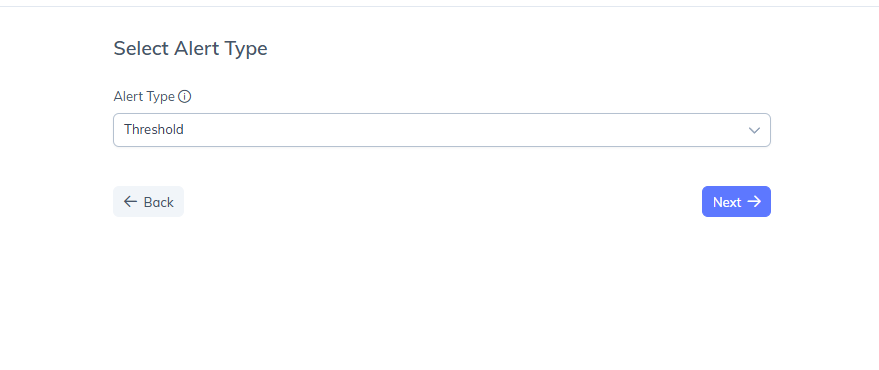
From the Alert Type dropdown, select Threshold.
Click Next.
Threshold alerts are designed to monitor volume-based or metric-based conditions over time.
Step 3: Configure Threshold Conditions
This step defines what metric is monitored, how it is evaluated, and when an alert is triggered.
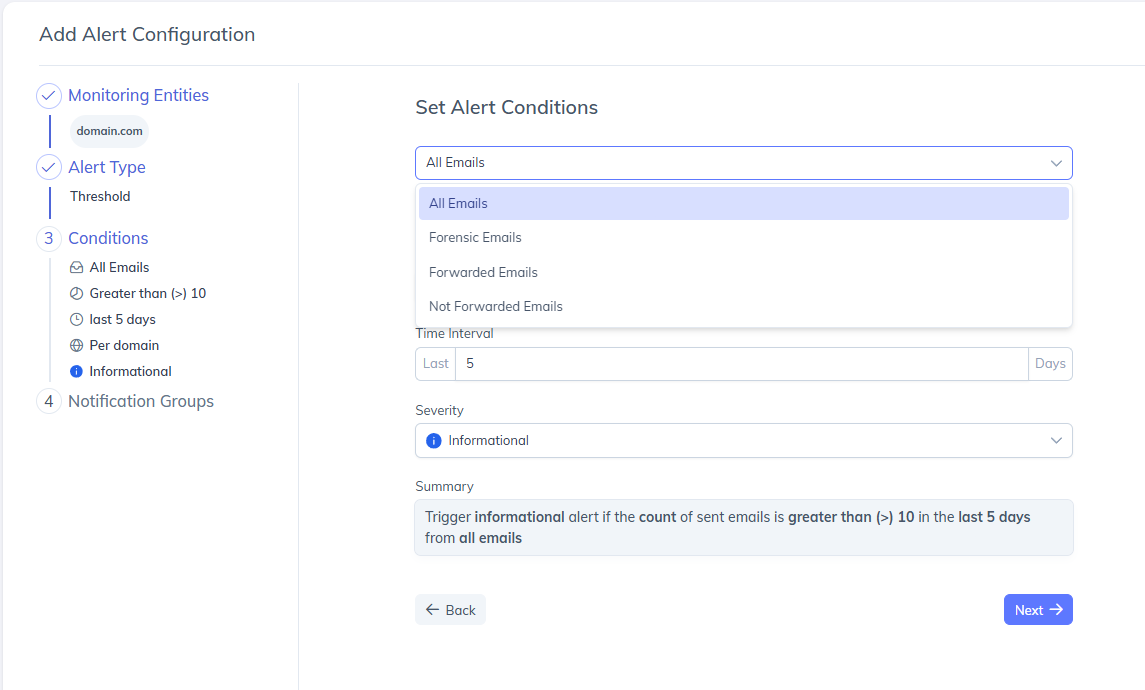
1. Select Email Scope
At the top of the conditions section, choose the email scope, such as:
All Emails
Forensic Emails
Forwarded Emails
Not Forwarded Emails
This determines the dataset against which the threshold conditions are evaluated.
2. Add Filters (Optional)
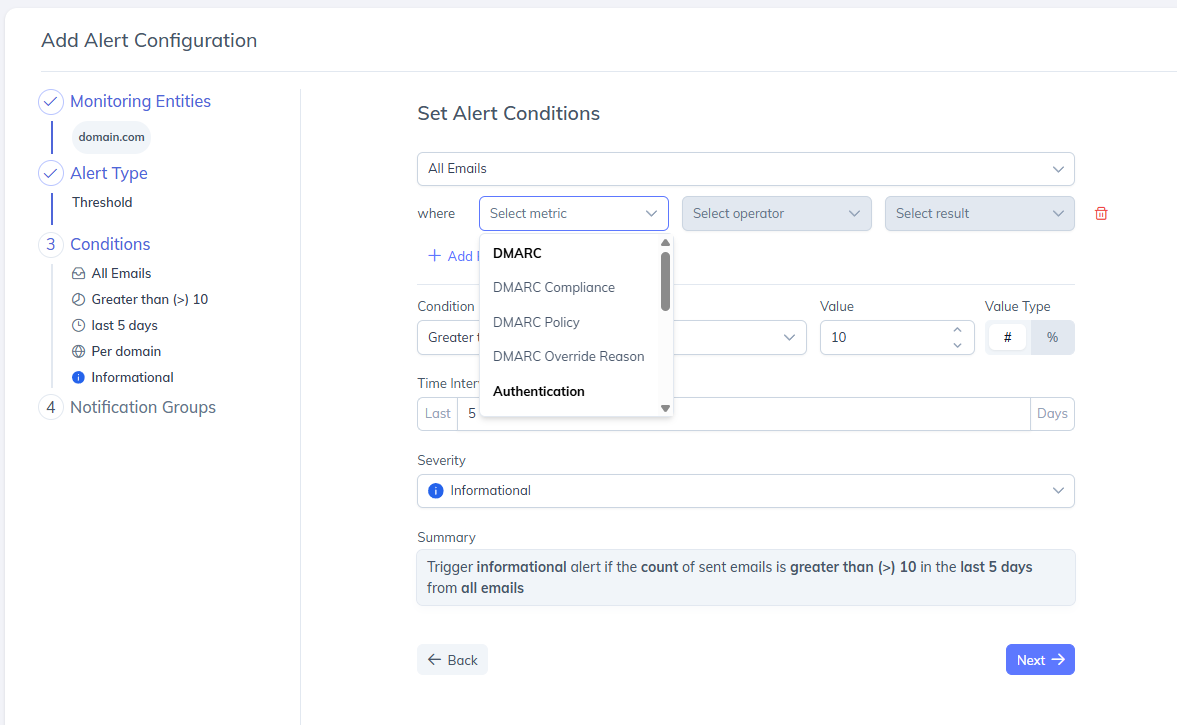
Filters allow you to narrow down the data being evaluated.
Click Add Filter.
Select a metric, such as: DMARC, Authentication, Allignment, Policy Results.
Choose an operator: is, is not.
Select a result, such as: Compliant, Forwarded, Failed.
Filters help refine alert conditions to very specific scenarios.
Filters help refine alert conditions to very specific scenarios.
3. Select Sending Source (Optional)
You can scope a Threshold Alert to specific sending sources instead of evaluating your domain's traffic as a whole.
In the Sending Source field, pick from the supported provider list, type specific IP addresses, or mix both.
If you select two or more sources, a Source Scope option appears:
Per source (default) — each source is checked on its own, so only the provider that actually breached the threshold triggers an alert.
Across all selected sources — the selected sources are combined and evaluated together against the threshold.
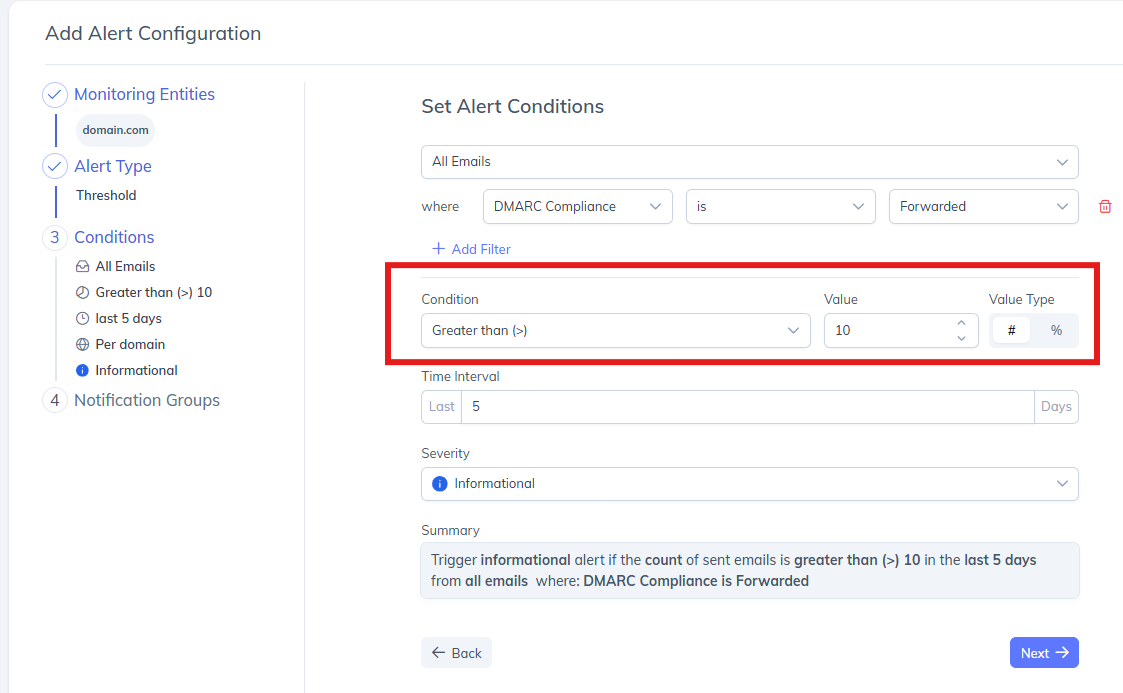
4. Define the Threshold Condition
Set the condition that determines when the alert should trigger.
Condition — Choose how the value should be evaluated (e.g., Greater than (>)).
Value — Enter the threshold limit (for example, 10).
Value Type — # (Absolute count) or % (Percentage-based threshold).
Example: Trigger an alert when the count of emails is greater than 10.
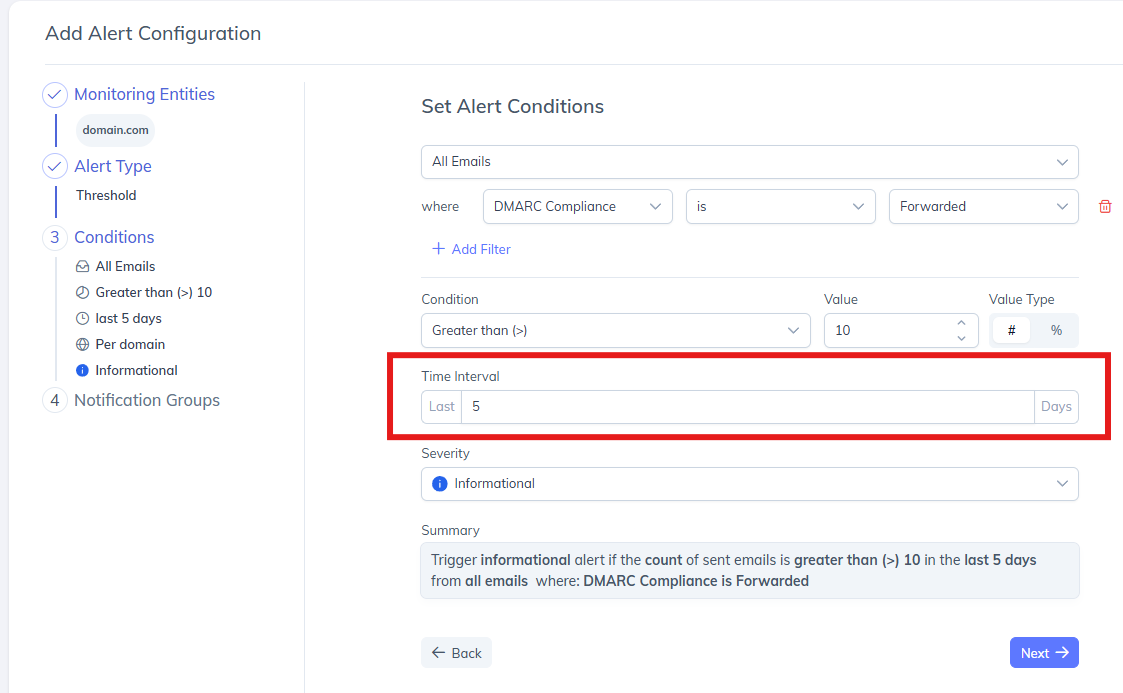
5. Set the Time Interval
Define the time window over which the threshold is evaluated. Example: Last 5 days.
This means PowerDMARC continuously evaluates email activity over the last five days and triggers an alert if the threshold is exceeded within that period.
6. Select Severity Level
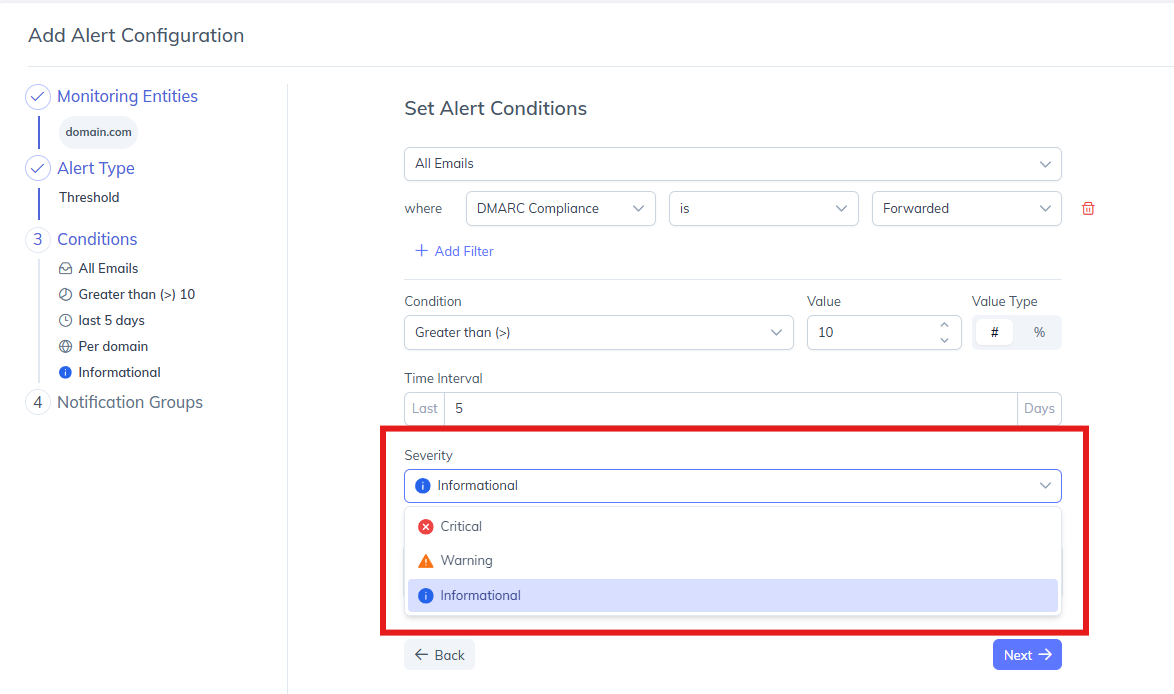
Severity helps prioritize alerts based on their importance. Available severity levels:
Critical – High-impact events requiring immediate attention
Warning – Medium-priority issues that should be reviewed
Informational – Low-risk alerts for visibility only
Severity does not affect alert logic; it helps teams classify and respond to alerts effectively.
7. Review the Summary
A system-generated summary is displayed, clearly describing the alert condition in plain language.
Example: Trigger informational alert if the count of sent emails is greater than (>) 10 in the last 5 days from all emails.
This summary helps validate that the configuration matches your intent. Once complete, click Next.
Step 4: Configure Notification Groups
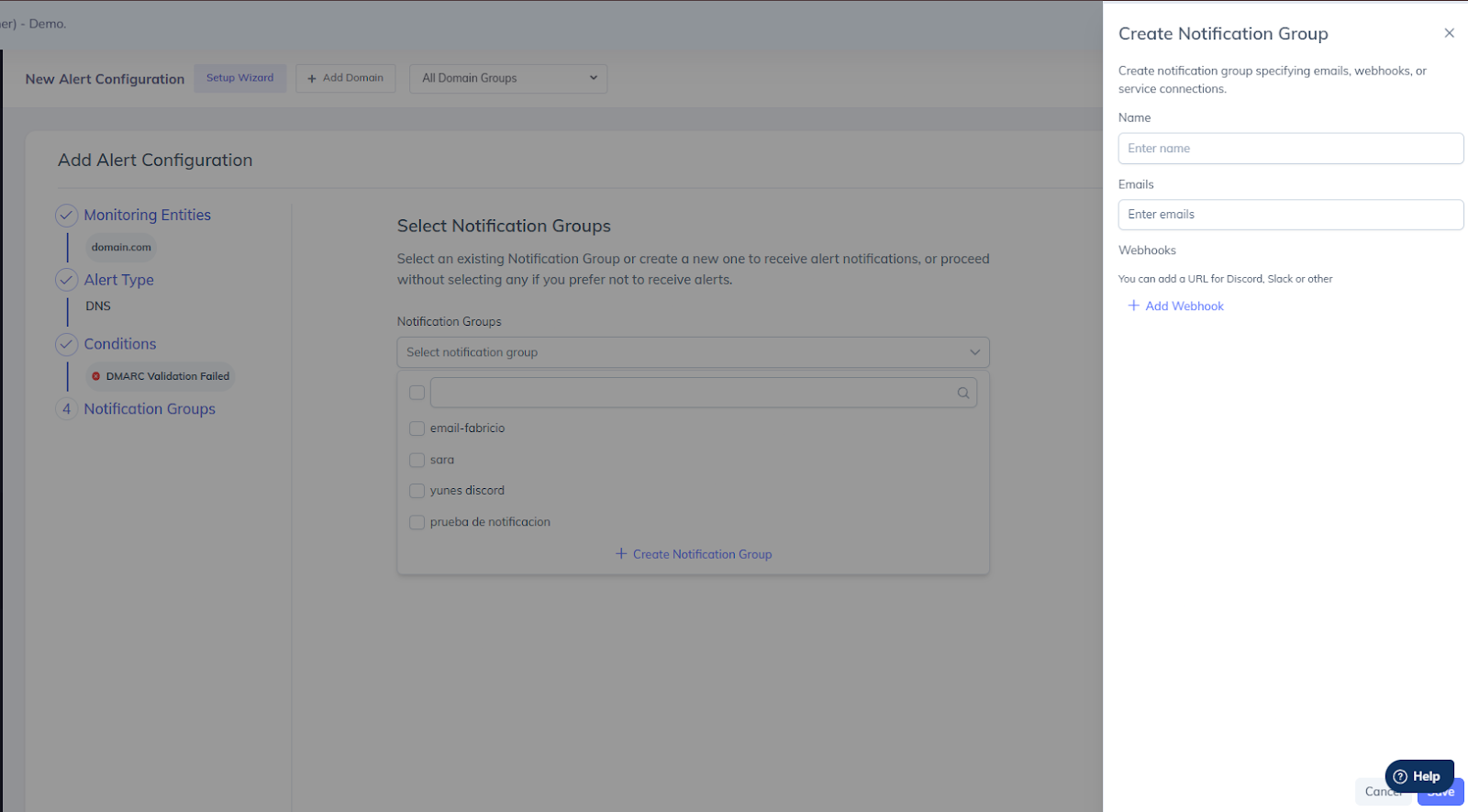
Notification Groups define who receives alert notifications and how they are delivered. PowerDMARC allows you to either select an existing notification group or create a new one during alert configuration.
Option 1: Create a New Notification Group
If no suitable notification group exists, you can create one directly from the alert configuration flow.
Click Create Notification Group.
In the Create Notification Group panel, provide the following details:
Name — Enter a name to identify the notification group. This name will appear when selecting notification groups for alerts.
Emails — Add one or more email addresses to receive alert notifications. Multiple email addresses can be added as recipients.
Webhooks (Optional) — Use Add Webhook to configure webhook-based notifications, e.g. Slack, Discord, or other supported service connections. Click Save to create the notification group.
Once created, the new notification group becomes available for selection and can be reused across multiple alert configurations.
Option 2: Select an Existing Notification Group
In the Notification Groups section, click the dropdown.
Select one or more existing notification groups from the list.
Proceed to create the alert configuration.
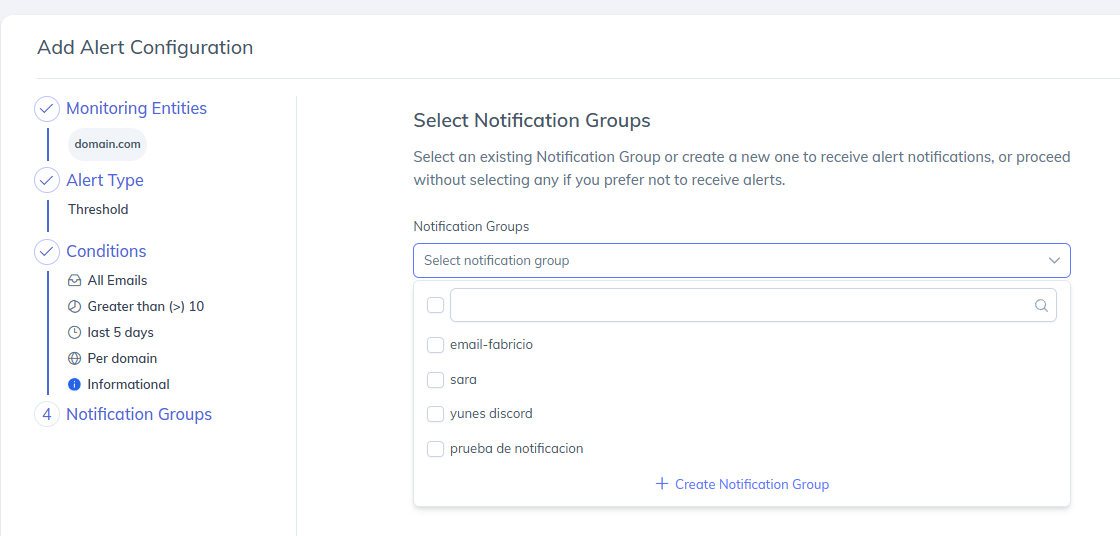
Selected notification groups will receive alerts through their configured delivery channels. You may also proceed without selecting a notification group if you only want alerts logged in the platform.
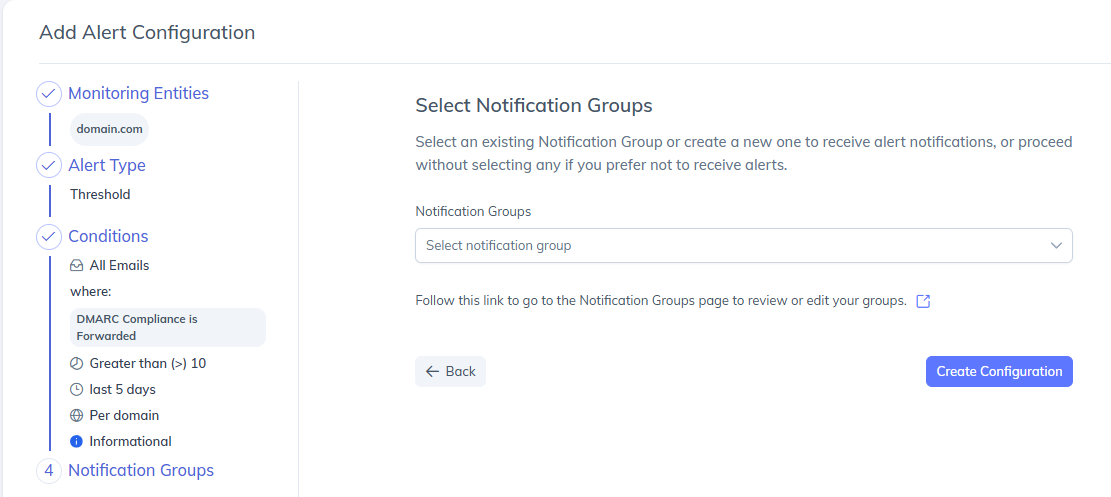
Step 5: Create the Alert Configuration
Review all selected settings.
Click Create Configuration to save the Threshold Alert.
The alert will now continuously monitor activity based on the configured threshold.
How Threshold Alerts Work
Threshold Alerts evaluate metrics over a defined time interval.
When the monitored value exceeds the configured threshold, the alert enters an In Alarm state.
Once the value returns to normal, the alert moves to In Alarm (Resolved).
Alerts are logged and optionally sent via notification groups.
If a Sending Source was configured, triggered alerts show which source fired in a Sources column in the Threshold Alerts logs, with a matching filter. MSSP admins can see and filter by source across sub-accounts.
You will be able to see your configured alert now on the Alert Configurations page under the DNS and Threshold Alerts section, along with the date of configuration, as shown below:
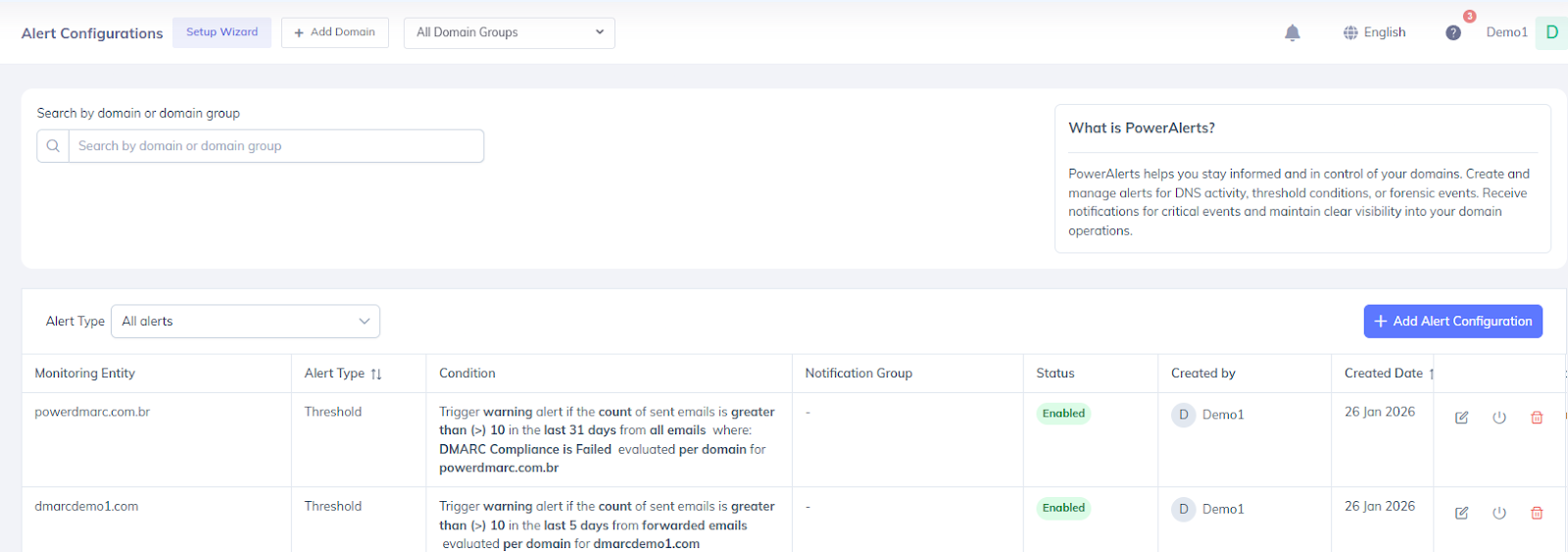
You can Right Scroll the Configured alert to reveal details about the alert configuration, such as the date of configuration, the notification group, and action buttons for deleting or modifying the created alert.
Deleting/Modifying Your Threshold Alert
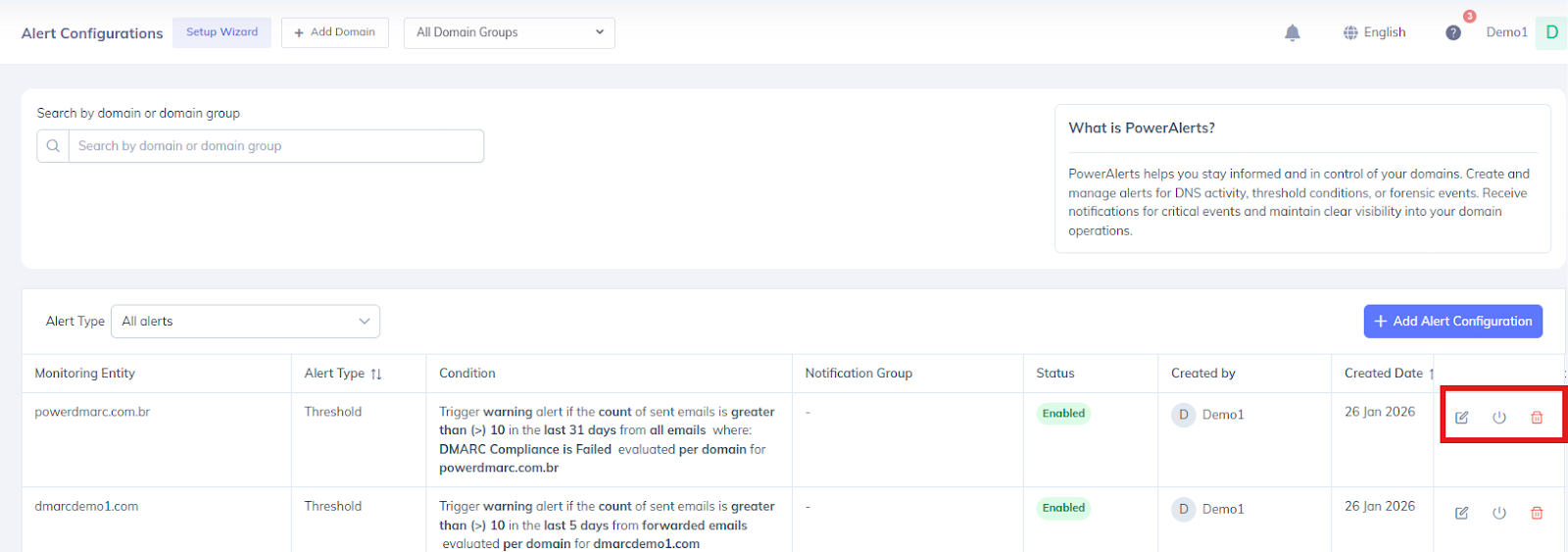
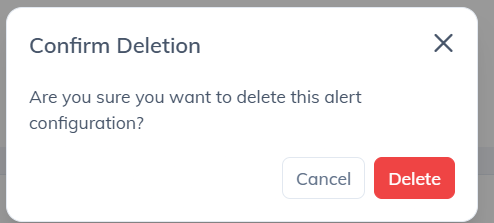
You can delete your Threshold Alert with a single click by clicking on the delete icon under Actions.

A prompt will appear asking you if you're sure that you want to delete the alert. Click on Yes, delete it.
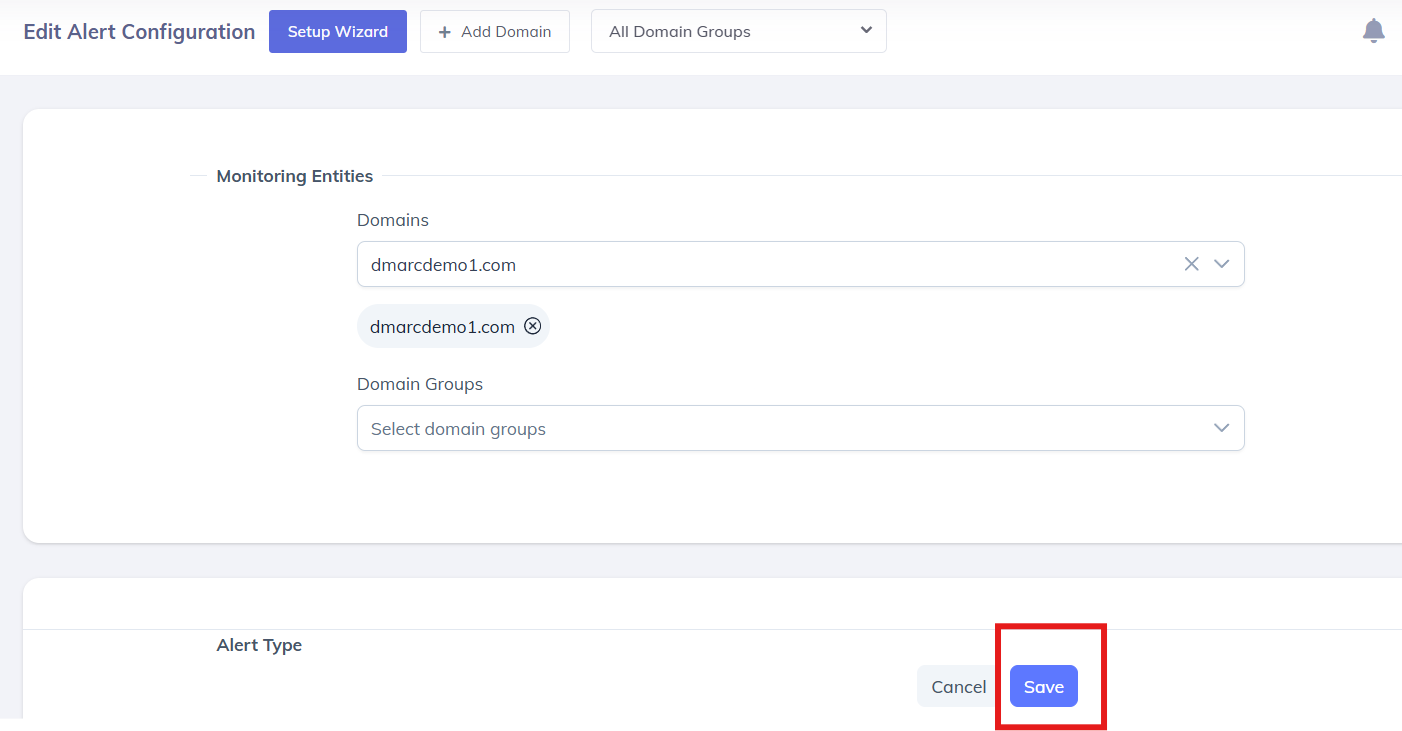
Similarly you can also modify your Threshold Alert by clicking on the icon specified for it under Actions, as shown below. After making modifications simply click on Update to save changes.
Given below is an example of a Threshold email alert:
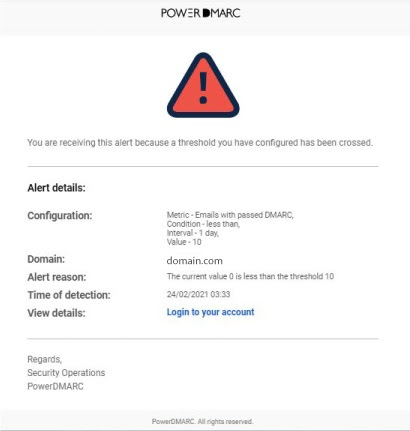
As you can see, the email provides you with important details at a glance, like:
The configuration details pertaining to the alert, such as the specified metric, condition, interval and value
The domain for which the alert was triggered
The sending source that triggered the alert, if one was configured — shown in the subject line and details
The reason why the alert was triggered
The time of detection
Option to view details by logging into your PowerDMARC account
For further assistance, visit support.powerdmarc.com or contact your PowerDMARC account manager.