
Overview
PowerDMARC’s PowerAlerts supports TLS-RPT Threshold Alerts, enabling organizations to proactively monitor TLS-related email delivery issues and receive notifications before they impact email flow.
When MTA-STS is enforced, TLS failures can prevent successful email delivery. Previously, administrators needed to manually review TLS-RPT reports to identify these issues. With Threshold Alerts, PowerDMARC automatically monitors TLS-RPT activity and alerts you when failures cross your defined limits.
This helps organizations identify and resolve mail delivery problems before they affect users, customers, or business communication.
What Are TLS-RPT Threshold Alerts?
TLS-RPT Threshold Alerts allow you to create customized alert rules based on TLS report activity.
Instead of generating notifications for every individual TLS event, you can define acceptable limits and receive alerts only when a specific threshold is exceeded.
Examples:
- Alert when TLS failures exceed 5 failures within 1 day
- Alert when TLS failures exceed 2% of total TLS attempts over 5 days
- Monitor successful TLS connections to confirm secure mail flow
This provides meaningful visibility while reducing unnecessary alert noise.
Set a specific number of failures that should trigger an alert.
Example:
Notify me when TLS failures are greater than 5 within 24 hours.
Failure Percentage
Monitor TLS failures as a percentage of overall TLS activity.
Example:
Notify me when more than 2% of TLS connections fail within 5 days.
Custom Time Range
Choose the evaluation period that best matches your monitoring requirements.
TLS-RPT Threshold Alerts support flexible conditions to help you track domain health.
When creating a rule, you can configure conditions using:
- is
- is not
You can monitor:
- TLS Passed events
- TLS Failed events
based on how your team manages email delivery monitoring.
Detailed Failure Insights in Notifications
When a threshold is triggered because of TLS failures, the notification email includes the failure reason within the alert details.
This allows administrators to quickly understand the issue and begin troubleshooting without immediately accessing the PowerDMARC portal.
Failure details provide additional context such as:
- TLS connection failures
- Certificate-related problems
- MTA-STS policy enforcement issues
PowerDMARC’s hosted TLS-RPT monitoring provides visibility into TLS reports and delivery-related insights from the dashboard.
How to Configure a TLS-RPT Threshold Alert
Follow the standard PowerAlerts setup workflow.
Step 1: Select Domains or Domain Groups
Choose the domains or domain groups you want to monitor.
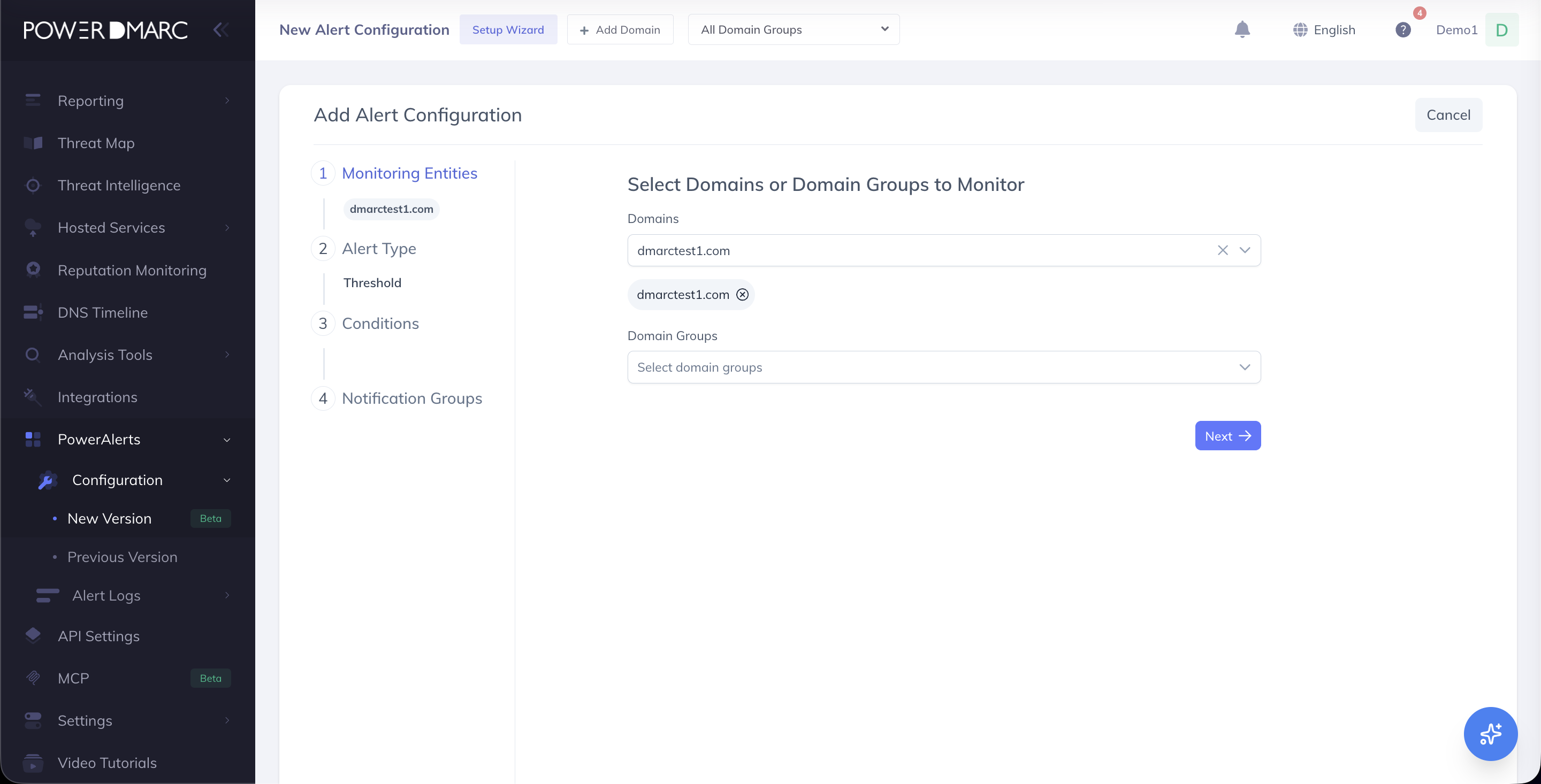
Step 2: Select Alert Type
From the alert configuration page:
- Open the alert wizard
- Select Threshold as the Alert Type
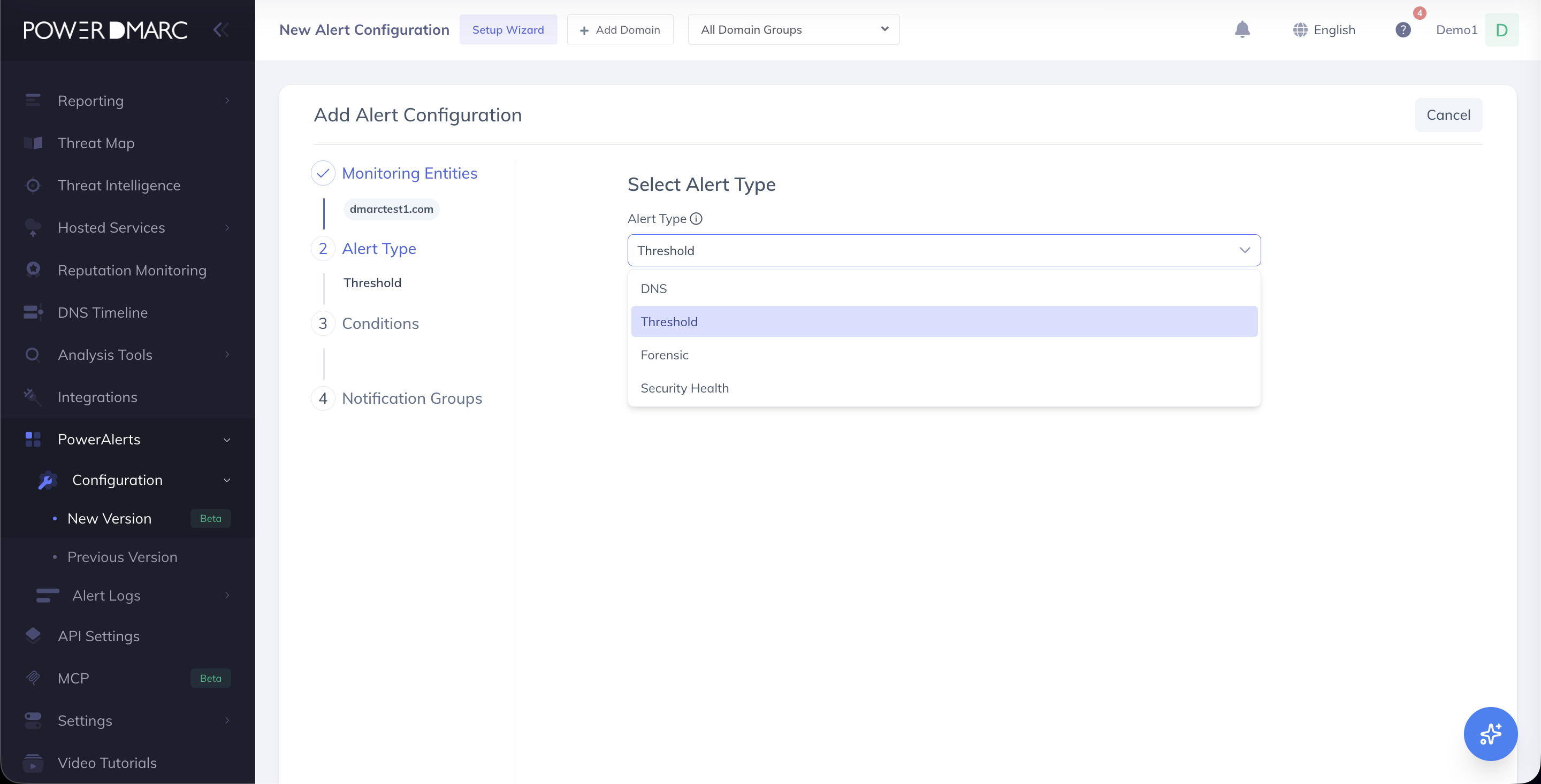
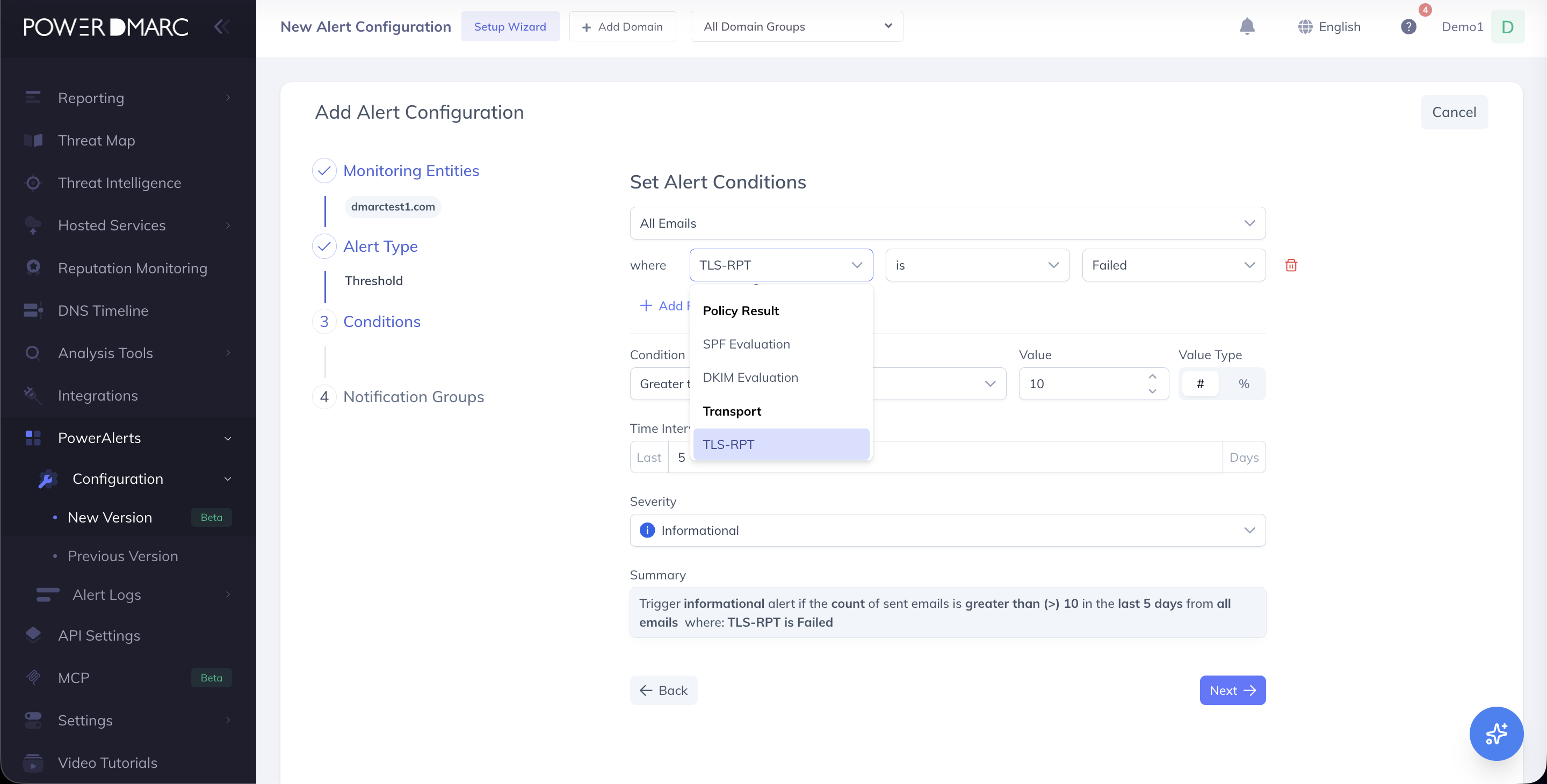
Step 3: Add TLS-RPT Conditions
Under Conditions:
- Click + Add Filter
- Navigate to the Transport filter group
- Select TLS-RPT
- Configure your preferred:
- TLS state
- Failure/pass condition
- Threshold value
- Percentage or count
- Monitoring time window
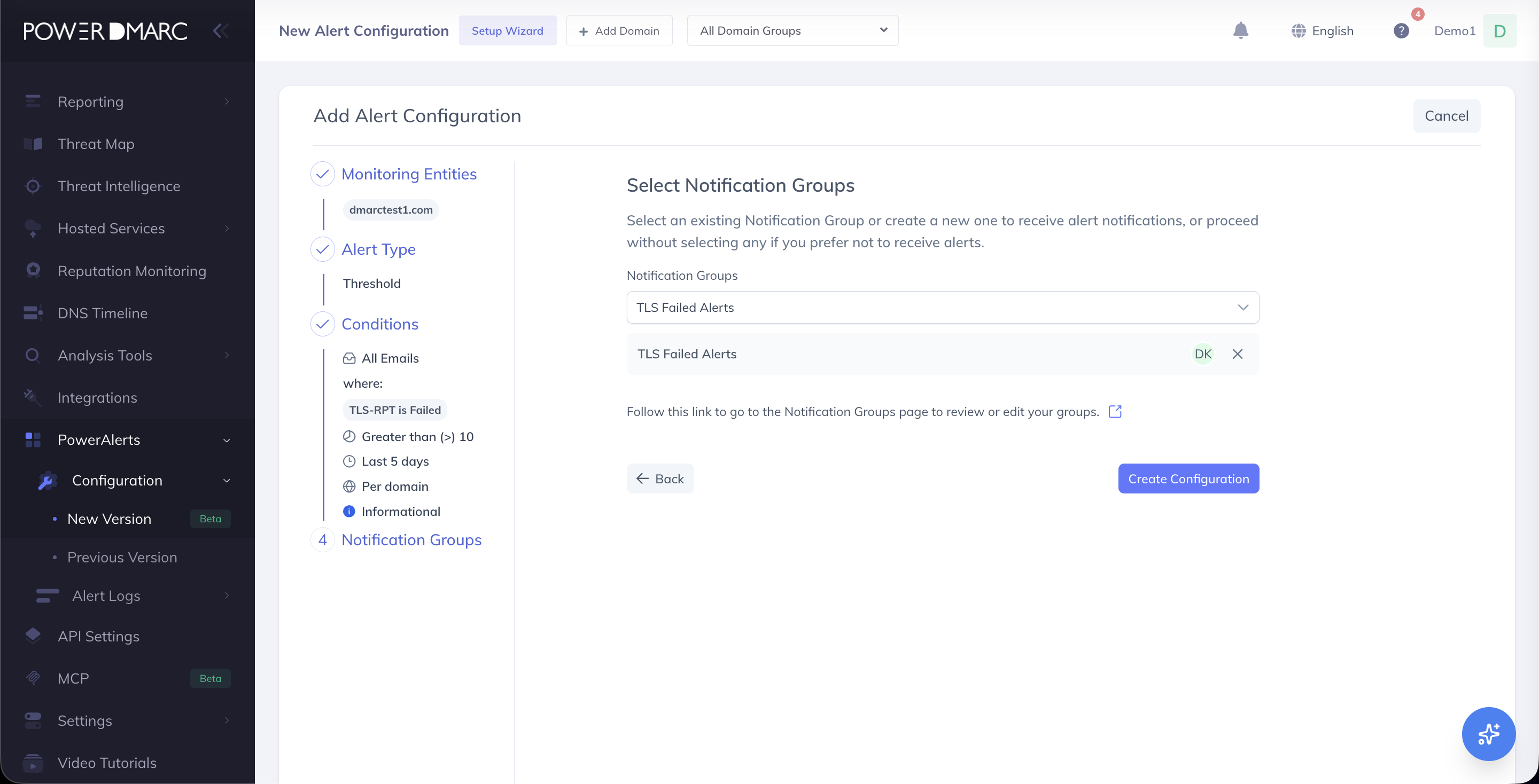
Step 4: Configure Notifications
- Select the notification groups that should receive the alert.
- Save the configuration to activate TLS-RPT Threshold Monitoring.
Benefits of TLS-RPT Threshold Alerts
| Benefit | Description |
|---|---|
| Prevent email outages | Detect TLS issues before delivery failures impact users |
| Reduce manual checks | No need to continuously review TLS reports |
| Avoid alert fatigue | Receive notifications only when thresholds are exceeded |
| Faster troubleshooting | Get failure context directly in alert emails |
| Improve email reliability | Maintain secure and consistent email delivery |
For further assistance, visit support.powerdmarc.com or contact your PowerDMARC account manager.