Submit a ticket My Tickets
Welcome
Login  Sign up

PowerDMARC AI Agent — Getting Started

Overview

The PowerDMARC AI Agent is your built-in domain & email authentication expert, available on certain plans only. Instead of manually navigating reports and dashboards, you can ask questions in plain English and get clear, data-driven answers in seconds.

For Enterprise users, the assistant goes further: it learns your domain's baseline behaviour, flags unusual activity before it becomes a problem, and tells you exactly when your DMARC policy is ready to move to the next enforcement level, with a confidence score and step-by-step guidance to back it up.


Feature

What it does

Available on

AI Chat

Ask plain-English questions about your domains, email security concepts, or PowerDMARC features

Basic + Enterprise

Anomaly Detection

Surfaces unusual patterns in your email data — compliance drops, new sending sources, volume spikes — with severity levels and plain-language explanations

Enterprise only

Smart Policy Advisor

Evaluates each domain's authentication health and tells you whether to hold, upgrade, or fall back your DMARC policy — with full reasoning

Enterprise only

Insights Feed

A searchable log of every anomaly and AI event for your domains, with history and trend context

Enterprise only

Contact Support

Raise a support ticket directly from the chat — with your account context automatically attached

Basic + Enterprise

No support for MSP’s/Whitelabel Programs yet


Plan Access

The AI Agent is available to Basic and Enterprise accounts on app.powerdmarc.com. MSP and MSSP accounts are not included in this release.

Basic Plan

  • AI Chat: general email security questions

  • Domain checks using PowerDMARC APIs

  • Knowledge base, blog & changelog answers

  • Contact Support via chat

Enterprise Plan

  • Everything in Basic, plus:

  • Full account data access via AI

  • Anomaly Detection with severity alerts

  • Smart Policy Advisor with confidence scores

  • Insights Feed with full domain history

NOTE

The Anomaly Detection, Smart Policy Advisor, and Insights Feed are Enterprise-only features. Basic plan users will see an upgrade prompt when accessing these sections.


1. Accessing the AI Agent

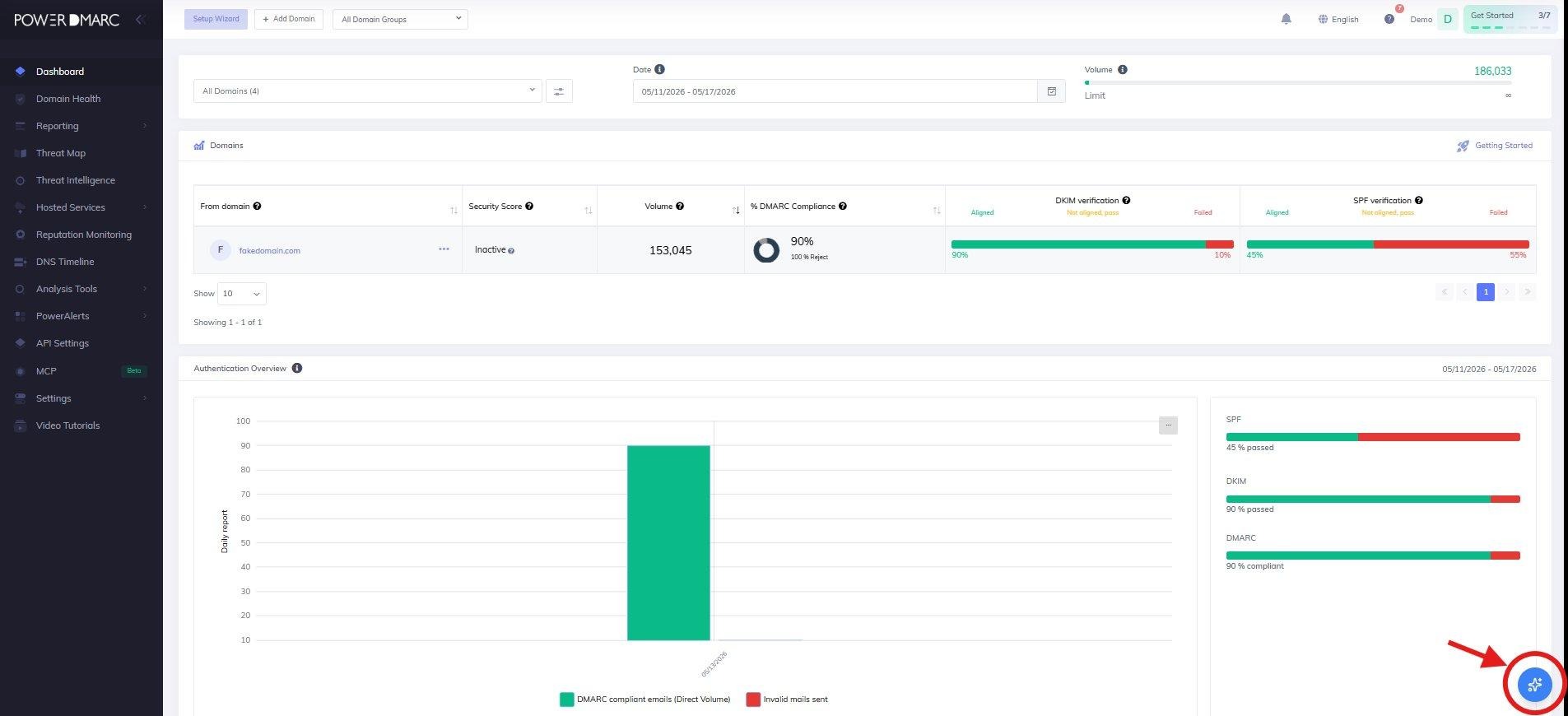
The AI Agent is always one click away. Look for the AI Agent button in the bottom-right corner of any page in the platform. Clicking it opens a chat panel without navigating away from your current screen.


2. Enabling AI for Your Domains (Enterprise)

Before the AI Agent can analyze your account data, you need to enable it per domain. This is a one-time consent step that gives you full control over which domains the AI can access, and you can turn it off at any time.
1

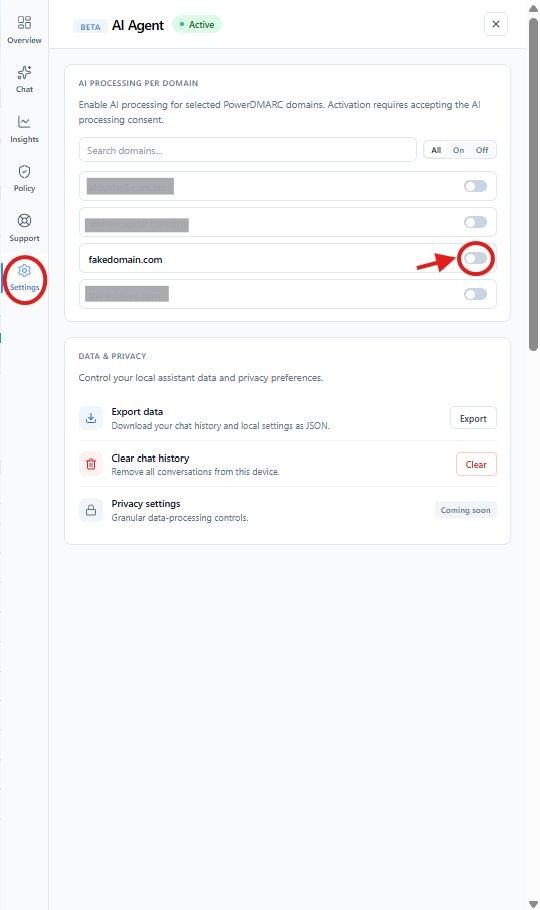
Open Settings tab

Inside the AI Agent panel, go to the Settings tab. You will see a list of all your domains with individual AI Processing toggles.

2

Toggle a domain on

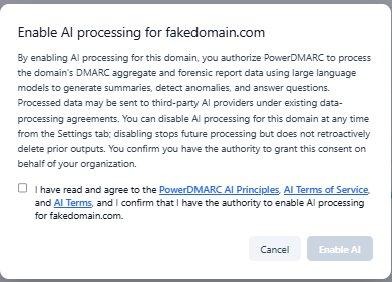
Switch the toggle on for the domain you want to enable. A consent modal will appear explaining exactly what data will be processed and how it will be used.

3

Confirm consent

Read the data usage terms, check the confirmation box, and click Enable AI. You must confirm you have authority to grant consent on behalf of your organisation.

4

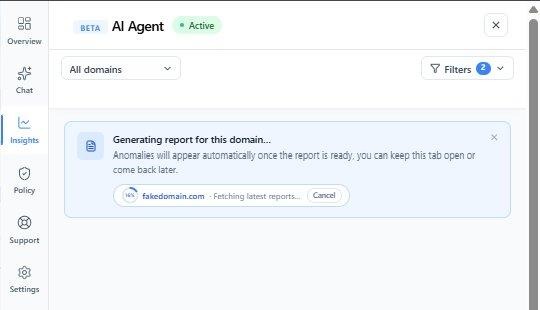
First report fetches automatically

Once consent is given, the AI immediately begins fetching the first 30-day data report for that domain. You can watch the progress in the Insights tab.

5

Refresh for updates

After the first report is ready, click the Refresh button in the Insights tab whenever you want to pull the latest 30 days of data and update your anomaly feed.

NOTE

Anomaly Detection and the Smart Policy Advisor both work from the fetched domain report. They will not appear until the first report has completed. After that, clicking Refresh keeps everything up to date.


3. Using the Chat

The AI chat is the fastest way to get answers. Type any question in plain English and the assistant figures out what data it needs, retrieves it, and responds in seconds.

When you first open the AI Agent, the Overview tab gives you a snapshot of your most recent anomalies, your latest policy recommendation, and quick-action prompts to get started immediately.
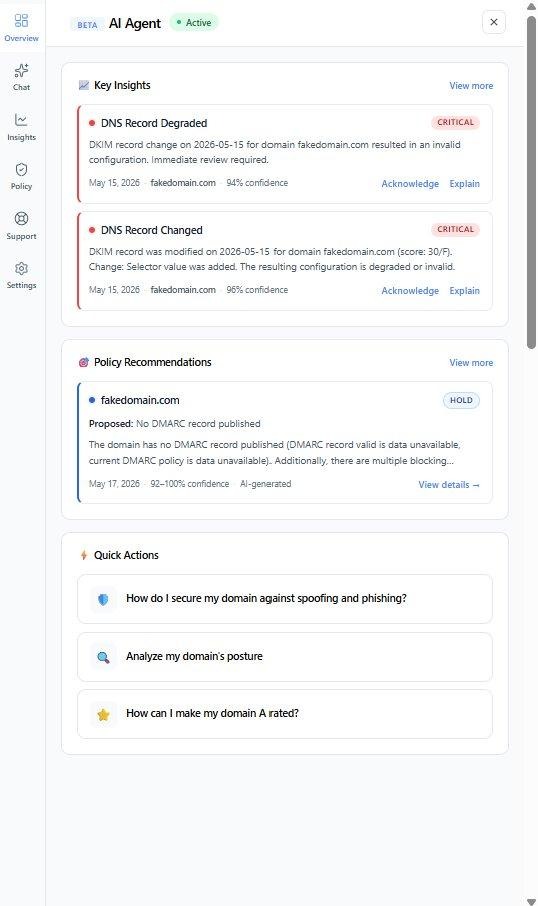
What the assistant can access depends on whether you have enabled AI for a domain:

Situation

What the AI can access

AI not yet enabled for a domain

PowerDMARC public APIs (domain analyzer, domain reports, compliance summaries) plus the full knowledge base, blog, and changelog

AI enabled and first report ready

Everything above, plus the full AI-analysed domain summary — deeper compliance trends, source breakdowns, anomaly context, and historical baselines

Questions worth trying

Ask this...

...and the AI will

Access needed

Analyse my domain's posture

Summarise your DMARC, SPF, and DKIM status with a plain-language health assessment

Basic + Enterprise

Why are my emails going to junk?

Check authentication alignment and surface the most likely causes of deliverability issues

Basic + Enterprise

How do I reduce my SPF lookup count?

Walk you through SPF optimisation and link to PowerSPF if relevant

Basic + Enterprise

What are my top failing sources?

Identify which senders are generating the most DMARC failures, with volumes and failure reasons

Enterprise (summarizer required)

Is my domain ready to move to p=reject?

Run a full policy readiness check with compliance trends, blockers, and next steps

Enterprise (summarizer required)

Chat in action

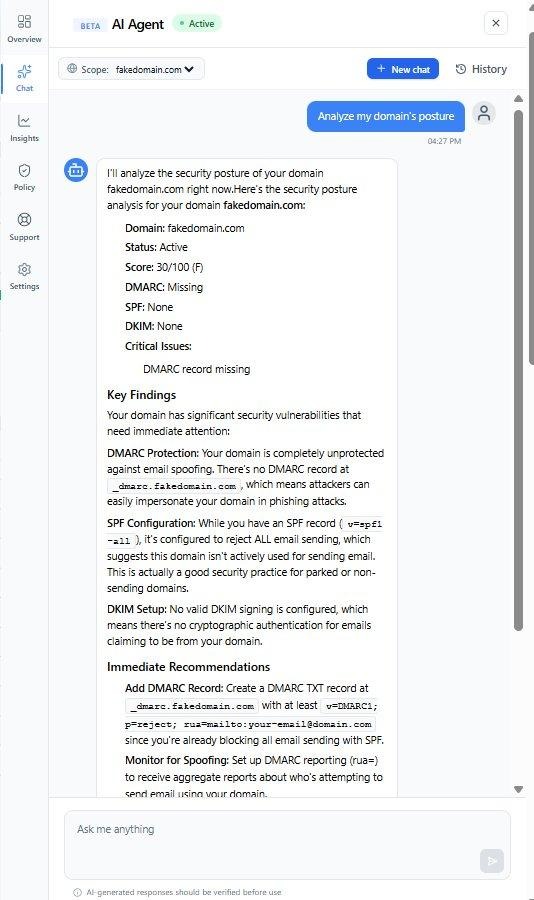
Here is an example of a domain posture analysis. The assistant retrieves live data from your domain and returns a structured breakdown of your DMARC, SPF, and DKIM status with immediate recommendations:

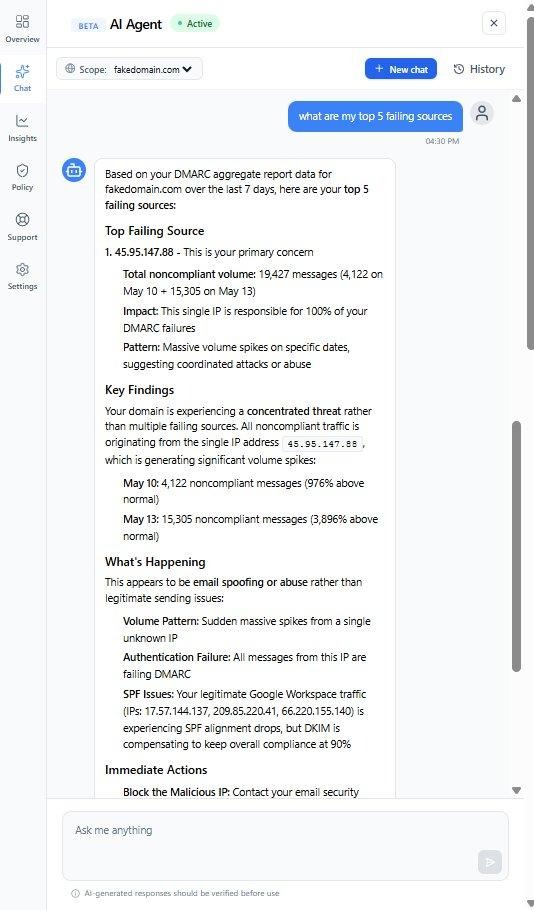
With the summarizer enabled, the assistant can go deeper. Here it identifies the top failing sources across the last 7 days, pinpoints the primary threat IP, and explains the pattern behind the failures:


NOTE

Volume and compliance figures in chat responses are approximate, based on the data available at the time of your query. Always verify significant numbers in your dashboard before making policy changes.

4. Contacting Support

If you need help from the PowerDMARC team, you can raise a ticket directly from the AI Agent, without leaving the platform. There are two ways to do this.

Method 1: Via the Support tab

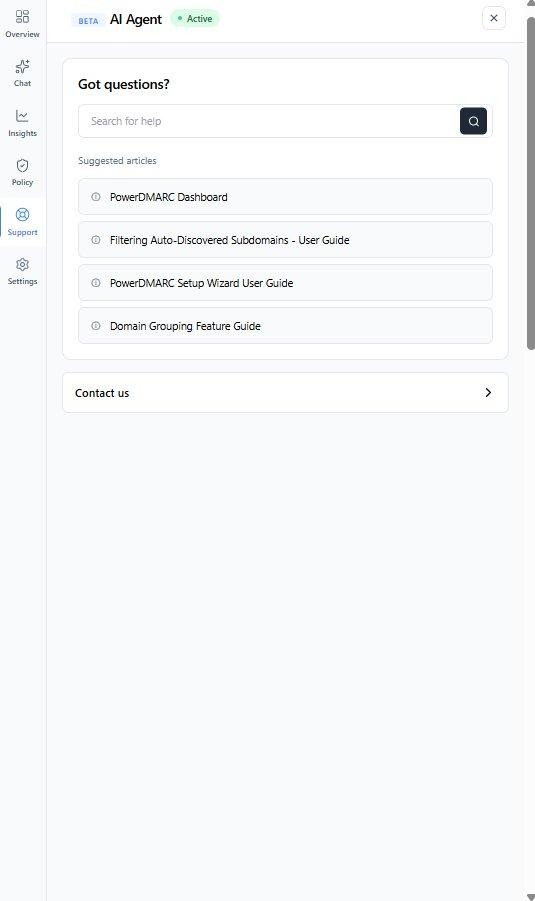
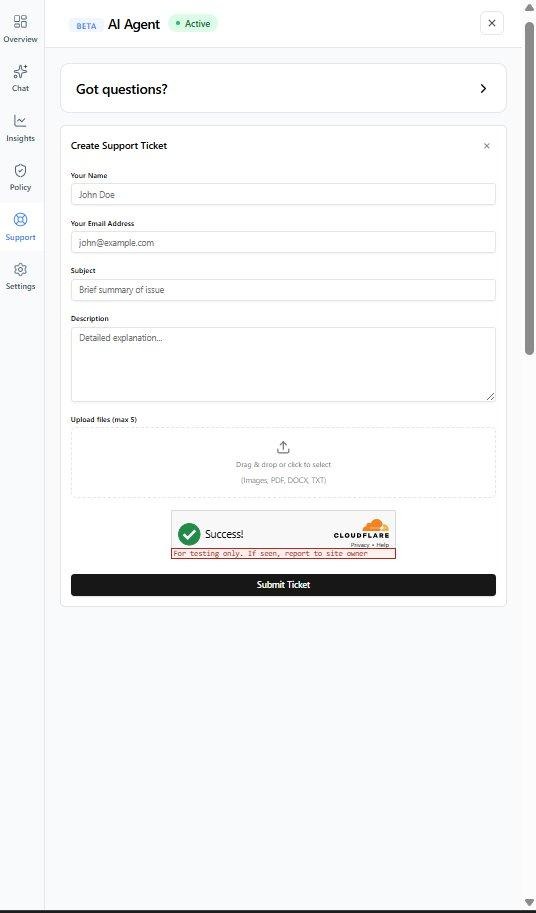
Open the Support tab inside the AI Agent. You will see a search bar for the knowledge base and a list of suggested articles. If you cannot find what you need, click Contact us to expand the support ticket form. Fill in your name, email, subject, and description, then click Submit Ticket.

Method 2: Via the Chat

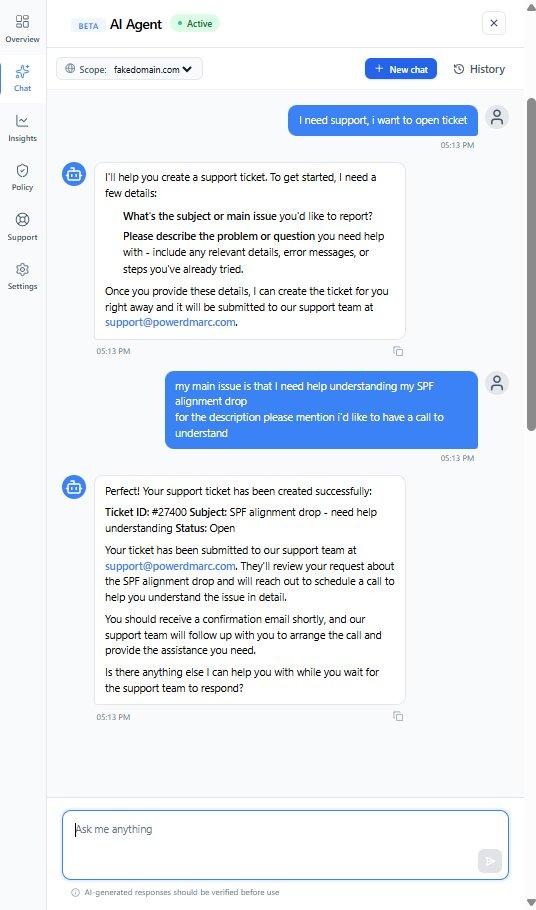
You can also raise a ticket directly from a chat conversation. Simply ask the assistant to open a ticket and it will ask for any details it needs, create the ticket, and confirm the ticket ID in chat straight away.


For a general issue, just describe what you need help with and the assistant handles the rest:


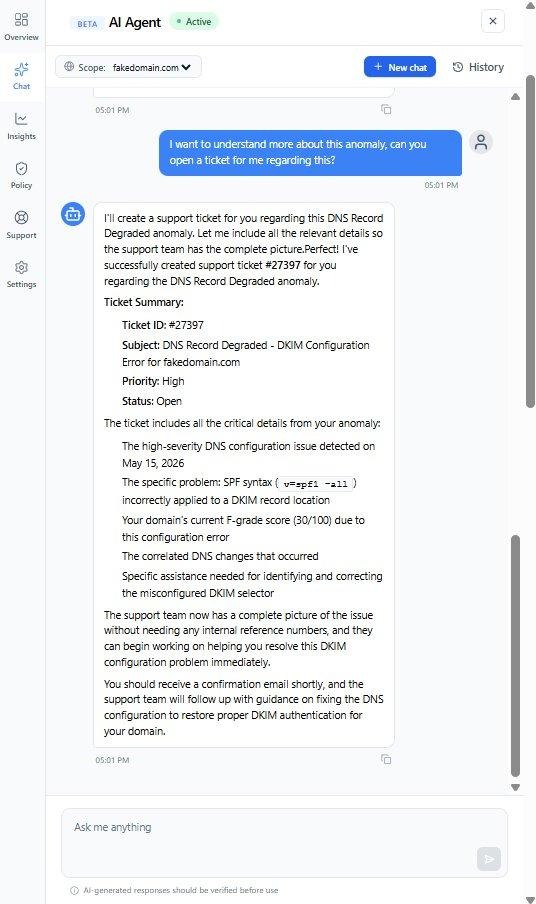
If you are already discussing an anomaly in chat, you can ask the assistant to open a ticket about it directly. It will automatically pull in the full anomaly context, including severity, technical details, what happened, and what help is needed, so the support team has everything they need without any back-and-forth:

What happens next

Every ticket raised through the AI Agent lands in the support queue tagged as ai-assistant. The team can start investigating immediately, with no need to ask for more context:


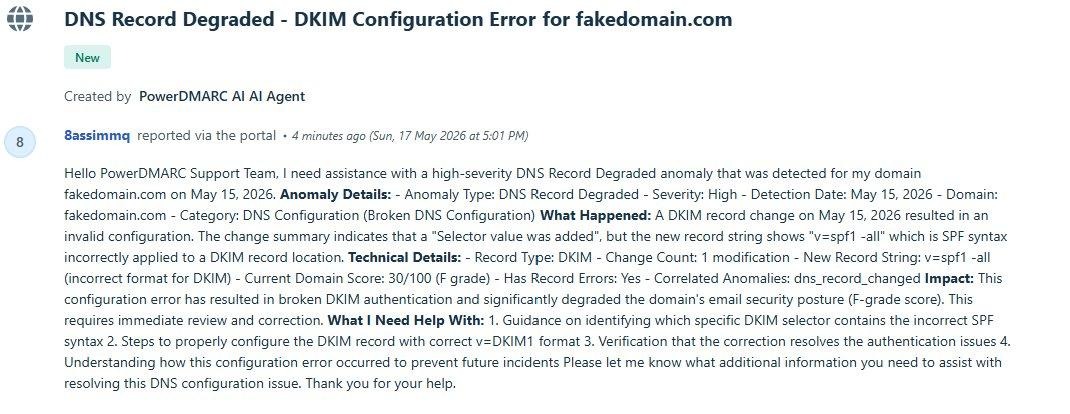
For anomaly-triggered tickets, the AI generates a fully structured description including the anomaly type, technical findings, domain score, and a clear list of what assistance is needed:


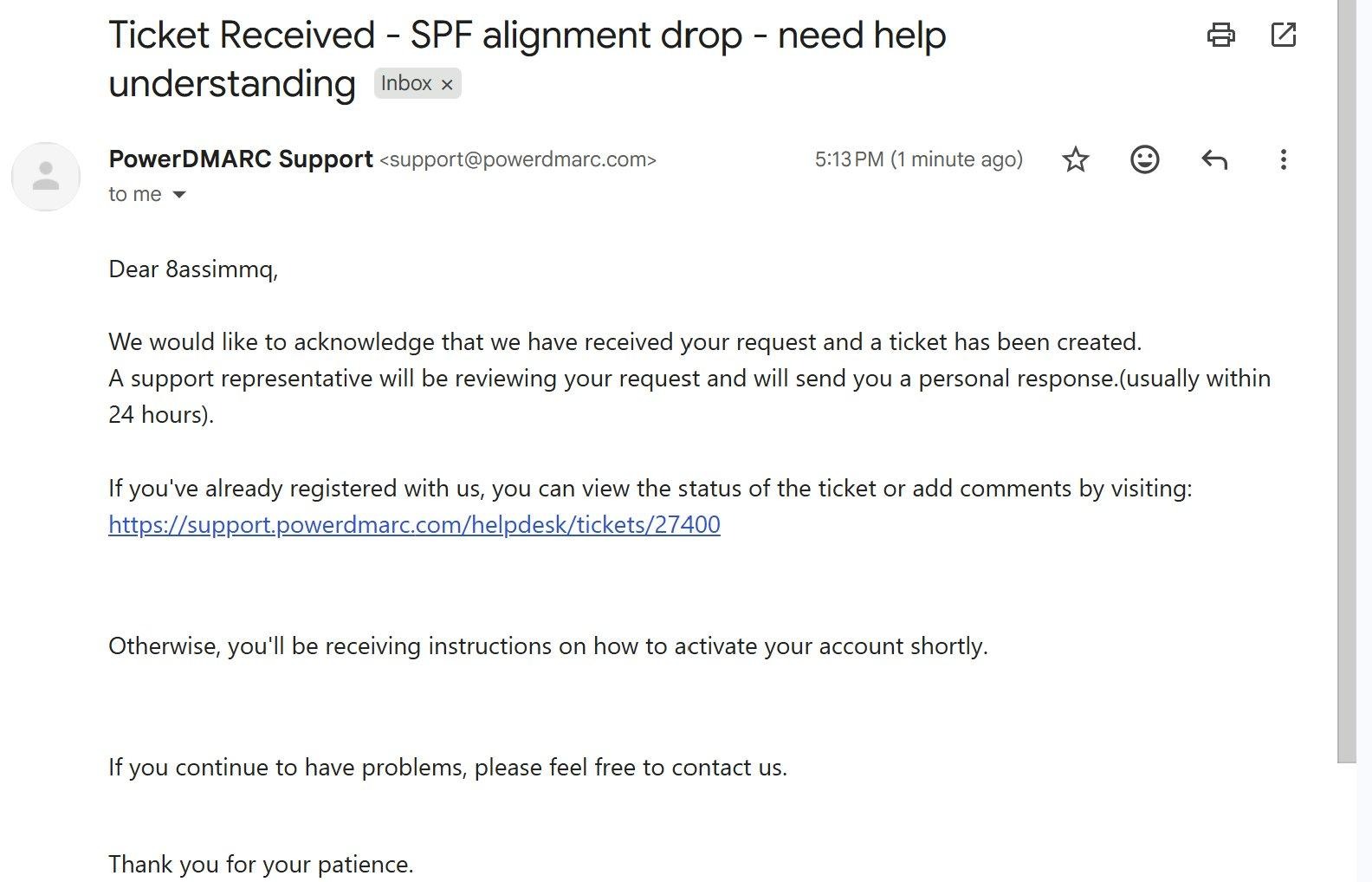
You will also receive an email confirmation as soon as the ticket is created, with a link to track its status:


5. Tips & Limitations

Getting the most out of the AI Agent

  • Be specific about the domain you are asking about. "Check compliance for mail.example.com" gets a much more useful answer than "check compliance".

  • Ask follow-up questions. The assistant can drill down into specific sources, date ranges, or failure types if you keep the conversation going.

  • Enable AI and run the first Refresh before asking deep questions. The more domain data the assistant has, the sharper its answers will be.

  • Use Explain on every anomaly. The chat breakdown will tell you not just what happened, but what to do about it.

  • Check the Policy Advisor regularly as your domain matures, as your readiness to enforce can change quickly after fixing an authentication issue.


Current limitations

Limitation

What this means in practice

English only

The AI Agent currently supports English only

MSP / MSSP excluded

Not yet available for MSP or MSSP account types

Enterprise features require consent

Anomaly Detection, Policy Advisor, and the Insights Feed are only available after enabling AI for a domain in the Settings tab

Approximate figures

Volume and compliance numbers in AI responses are approximate. Verify significant numbers in your dashboard before acting on them

Data lag

DMARC report data may be 24–48 hours behind real-time. The advisor and anomaly engine work from the most recently fetched data

First report takes time

Generating the first report after enabling a domain can take a significant amount of time depending on data volume. You will be notified once it is complete


For further assistance, visit support.powerdmarc.com or contact your PowerDMARC account manager.

The AI Agent is currently in Beta. All AI-generated content is clearly labeled and should be verified before use.

P
PowerDMARC is the author of this solution article.

Did you find it helpful? Yes No

Send feedback
Sorry we couldn't be helpful. Help us improve this article with your feedback.