Overview
The Anomaly Detection feature of the PowerDMARC AI Agent continuously monitors your domain's email authentication data and surfaces unusual activity before it becomes a problem. Once you enable AI processing for a domain and the first 30-day report is generated, the AI analyses your data and flags deviations — such as compliance drops, volume spikes, new sending sources, or DNS record changes — each with a severity level, confidence score, and plain-language explanation.
Why this matters: Most authentication issues go unnoticed until they affect deliverability. Anomaly Detection gives you early warning of misconfigurations, spoofing activity, and infrastructure changes, so you can act before your DMARC compliance or sender reputation is impacted.
Anomaly Detection
Once a domain report has been fetched, the AI analyses the last 30 days of data and surfaces anything that looks unusual. Each anomaly comes with a severity level, a confidence score, and a plain-language description of what changed, so you know at a glance whether something needs your attention.
What the AI looks for
Severity levels
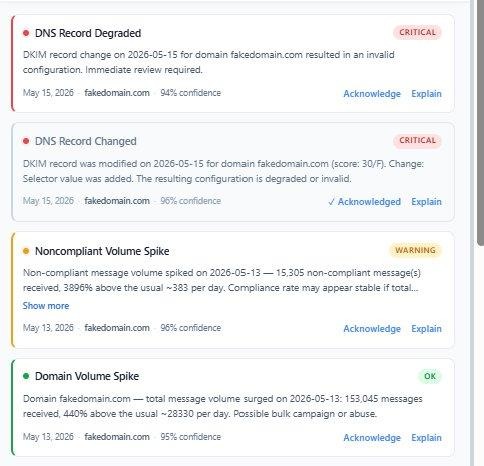
Every anomaly is assigned one of three severity levels so you can prioritise what to look at first:
The screenshot below shows all three severity levels in a live anomaly feed, including one anomaly that has already been acknowledged:
How to act on an anomaly
Open the Insights tab in the AI Agent to see your anomaly feed.
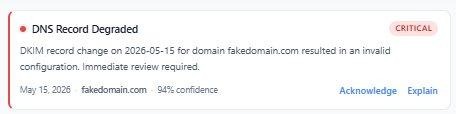
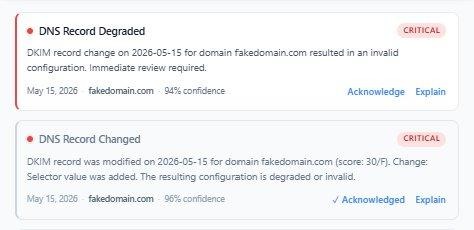
Each entry shows the anomaly type, a plain-language description of what changed, the date detected, and a confidence score.
Click Acknowledge once you have reviewed and addressed the anomaly. It will be marked as resolved in the feed.
Click Explain on any entry to open a full AI-generated breakdown in the Chat tab (see below for details).
Here is a close-up of a single anomaly card, showing the key information at a glance:
Once acknowledged, the anomaly is visually marked in the feed so you can distinguish reviewed items from ones still requiring attention:
Getting a full explanation in chat
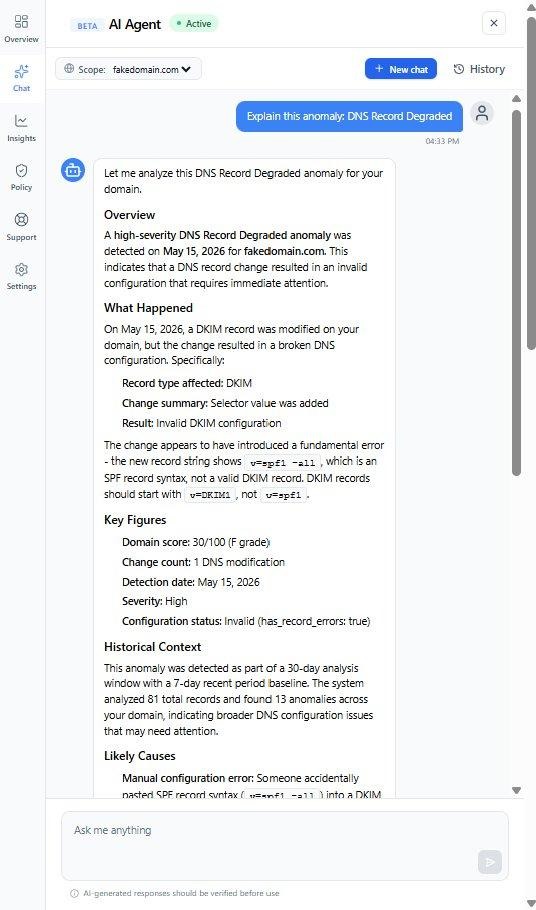
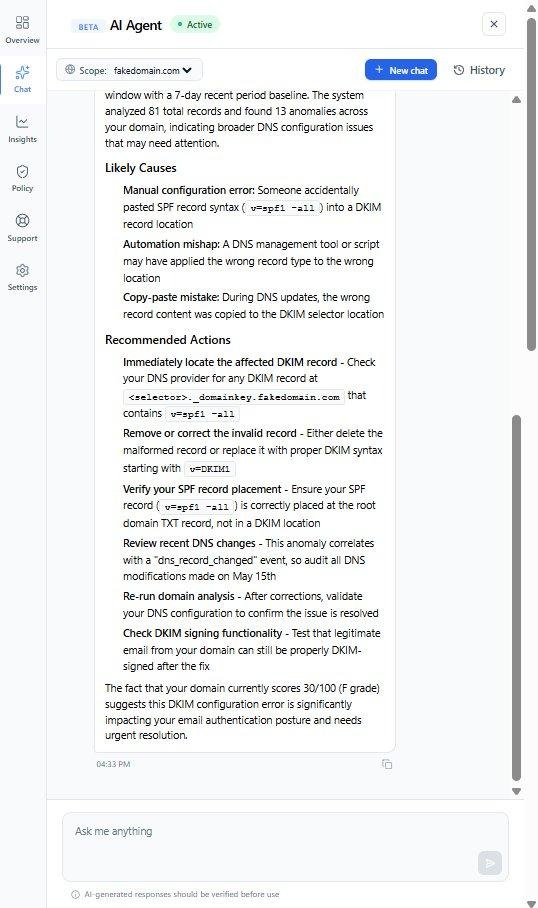
Clicking Explain on any anomaly opens the Chat tab with the full context already loaded. The AI provides a structured breakdown covering what happened, key figures, historical context, likely causes, and recommended actions. You do not need to type anything: