
PowerDMARC now supports domain group assignment through SCIM, allowing you to control which domain groups a user belongs to directly from your identity provider. This guide walks you through how to configure domain group mapping in Azure Entra ID so that group assignments are automatically synced to PowerDMARC during user provisioning and updates.
Step 1: Add the Custom Domain Groups Attribute
- In the Azure portal, go to Home > Enterprise applications and open your PowerDMARC application.
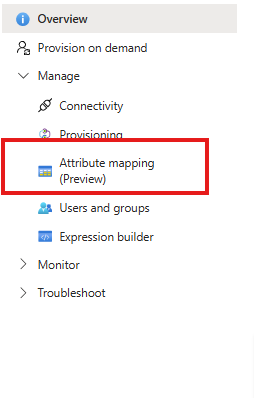
- Click Provisioning in the left pane, then click Attribute mapping.
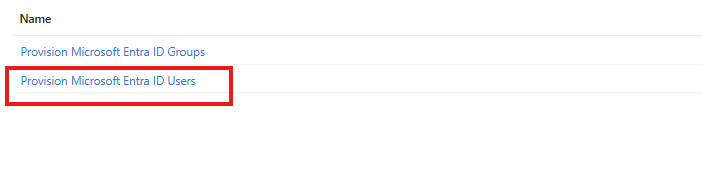
- Click the Provision Microsoft Entra ID Users link.
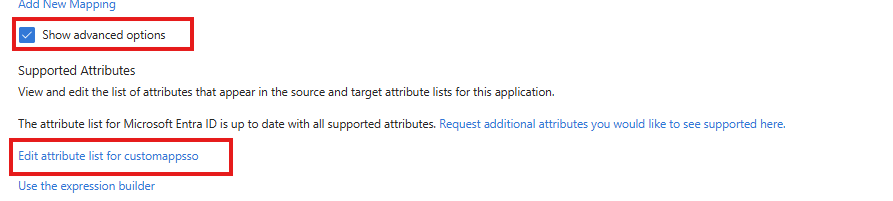
- At the bottom of the page, check the Show advanced options checkbox, then click the Edit attribute list for customappsso link.
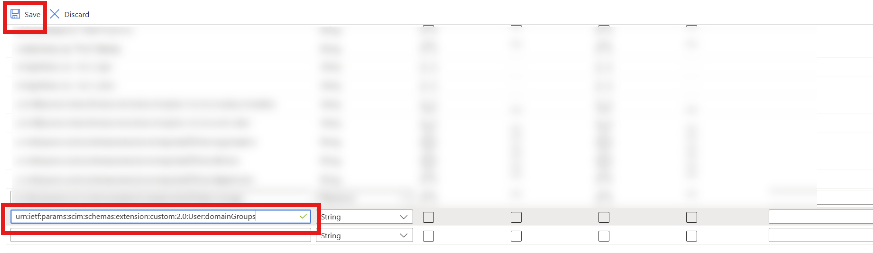
- Scroll to the end of the attribute list, enter the following value in the first empty column, and click Save:
urn:ietf:params:scim:schemas:extension:custom:2.0:User:domainGroups
Step 2: Map the Attribute to a Source Field
- After saving, you will be returned to the Attribute mapping page. Click the Add New Mapping link.
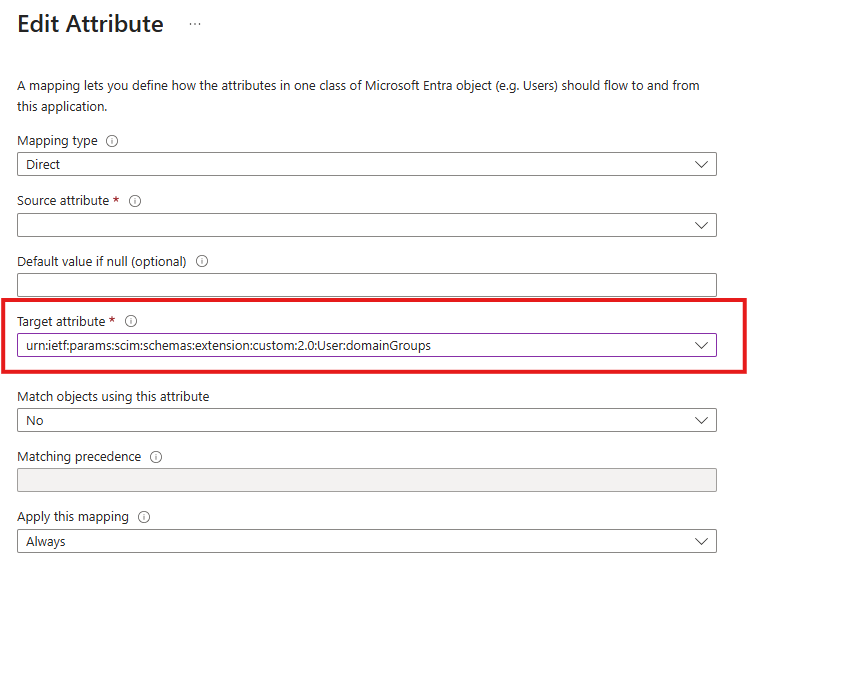
- In the Edit Attribute form, configure the mapping as follows:
- Target Attribute:
urn:ietf:params:scim:schemas:extension:custom:2.0:User:domainGroups - Source Attribute: Select any string-type field where you plan to enter domain group values — for example, department.
- Target Attribute:
Assigning Domain Groups to a User
Depending on which source attribute you chose, there are two ways to assign domain groups:
Via a Standard User Attribute (e.g., department)
- In the Azure portal, navigate to Home > Users and click the user you want to update.
- Click the Edit properties button.
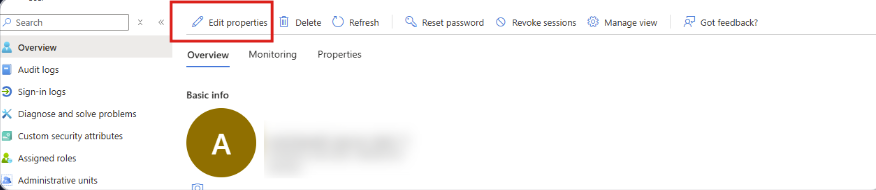
- Find the field you selected as the Source Attribute and enter the domain groups in a comma-delimited format — for example:
Group1,Group2.
Group1,Group2 not Group1, Group2.Via an Extension Attribute (extensionAttribute1–15)
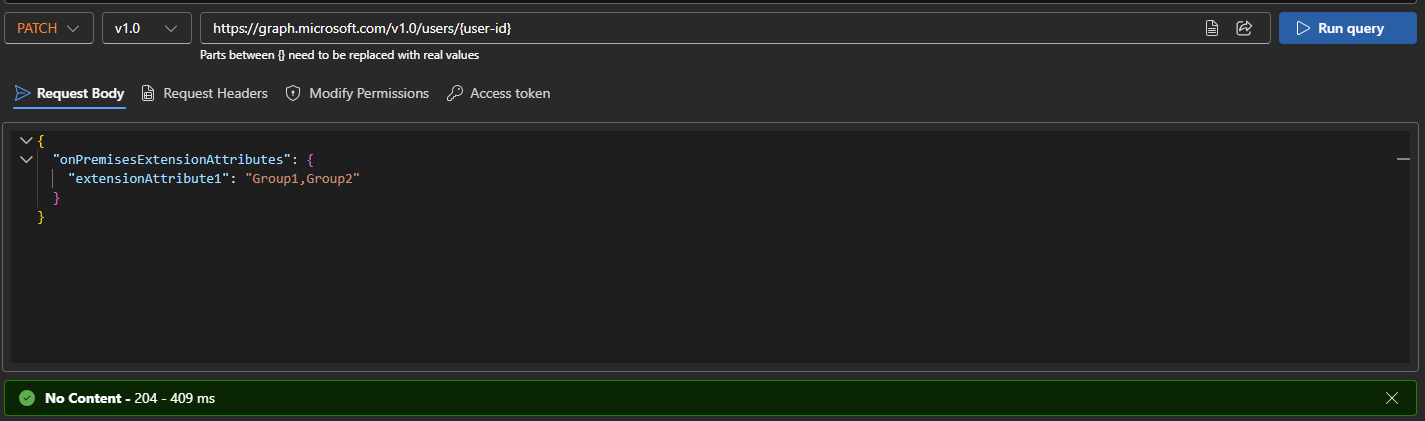
If you selected one of the extensionAttribute1–15 fields as your source attribute, update it using the Azure Graph API. The required permission is User.ReadWrite.All.
In this example, extensionAttribute1 is used as the source attribute:
PATCH https://graph.microsoft.com/v1.0/users/{user-id}
{  "onPremisesExtensionAttributes": {    "extensionAttribute1": "Group1,Group2"  } }
Removing All Domain Groups from a User
PowerDMARC will not take any action if the domain groups value is empty. If you want to remove all domain groups assigned to a user, set the value to -1 instead of leaving it blank. This applies to both the standard user attribute field and the Azure Graph API request body.
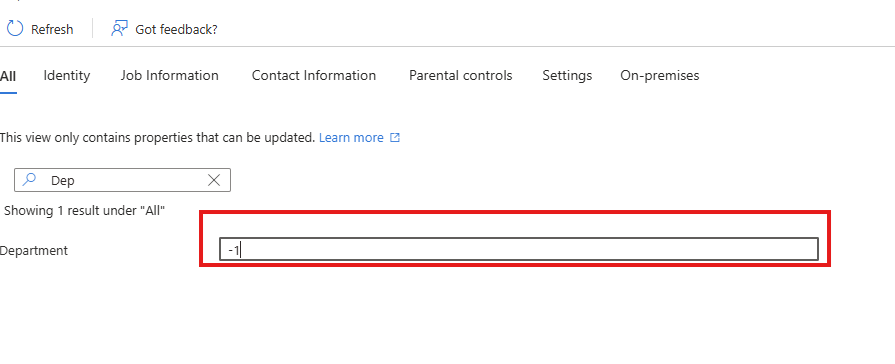
-1 is the correct way to fully unassign all domain groups from a user. An empty field will be ignored by PowerDMARC.