
PowerDMARC now supports domain group assignment through SCIM, allowing you to control which domain groups a user belongs to directly from your identity provider. This guide walks you through how to configure domain group mapping in Okta so that group assignments are automatically synced to PowerDMARC during user provisioning and updates.
Step 1: Add the Domain Groups Attribute to the Okta User Profile
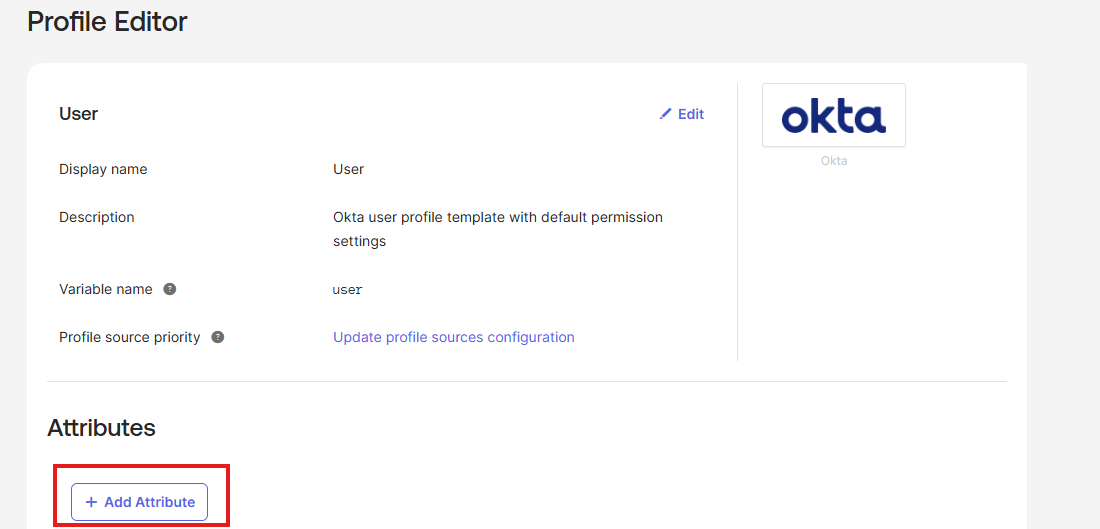
- In your Okta admin console, navigate to Directory > Profile Editor and select the User (default) profile.

- Click the Add Attribute button.
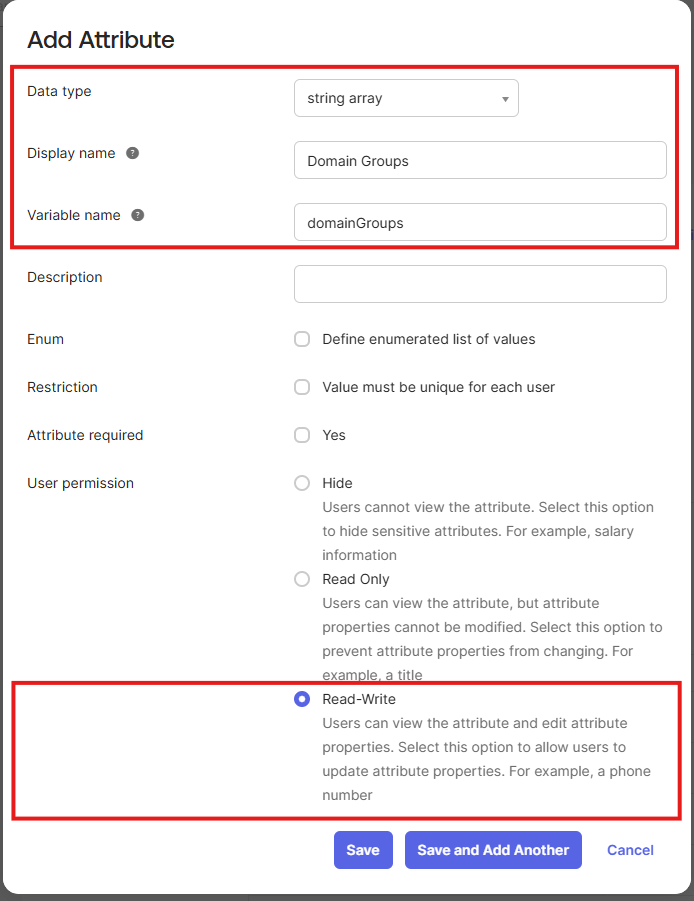
- Fill in the following values in the modal, then click Save:
- Data type: string array
- Display name: Domain Groups
- Variable name: domainGroups
- User permission: Read-Write
Step 2: Add the Domain Groups Attribute to Your Application Profile
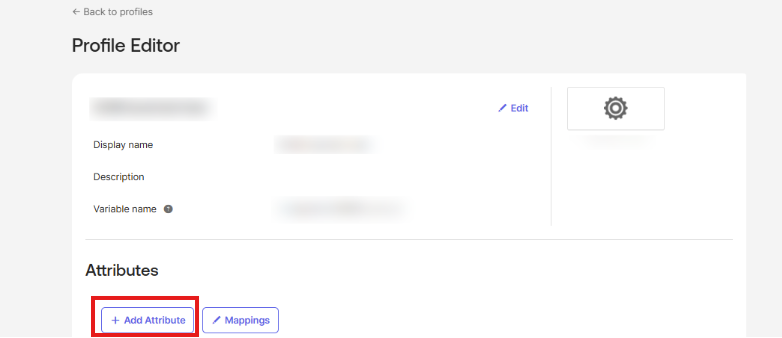
- Still in Directory > Profile Editor, find your PowerDMARC application and click its name.
- Click the Add Attribute button.
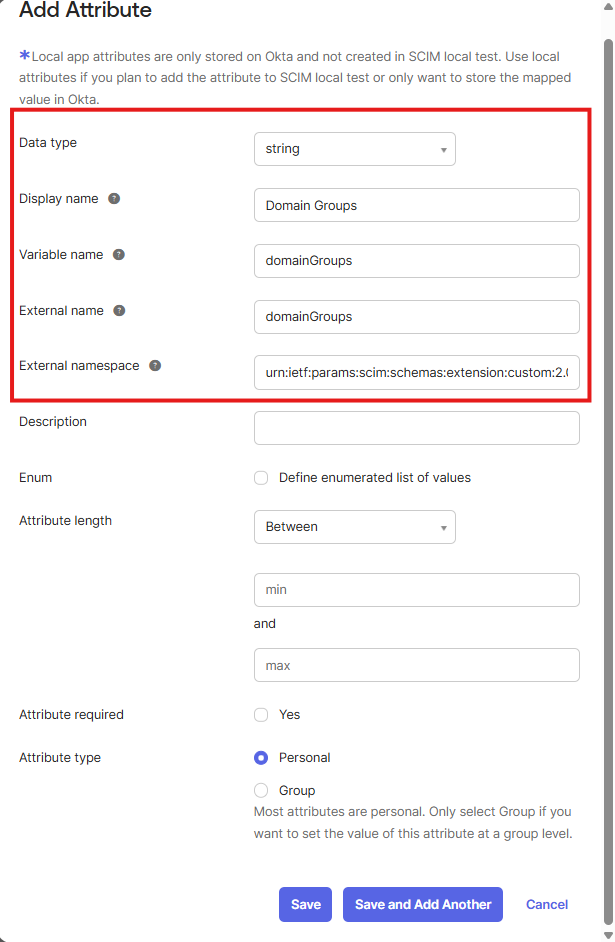
- Fill in the following values in the modal, then click Save:
- Data type: string
- Display name: Domain Groups
- Variable name: domainGroups
- External name: domainGroups
- External namespace:
urn:ietf:params:scim:schemas:extension:custom:2.0:User
Step 3: Configure the Attribute Mapping
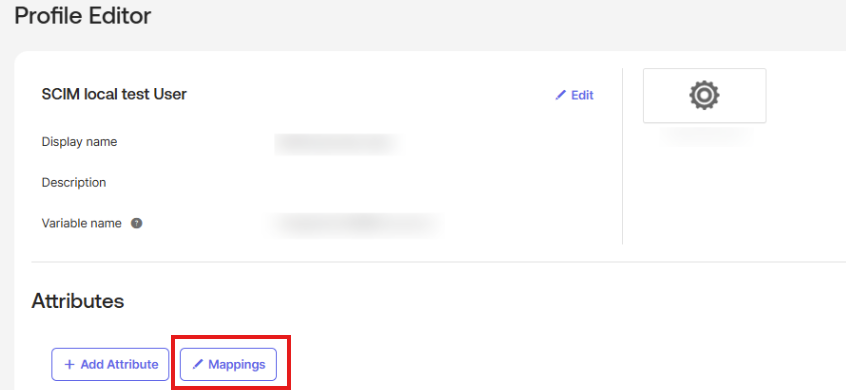
- After saving and closing the modal, click the Mappings button at the top of the application profile page.
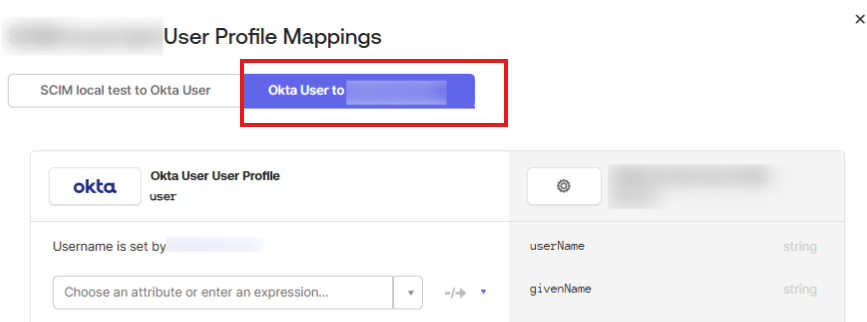
- In the mappings modal, select the tab labelled Okta User to "[Your Application Name]".
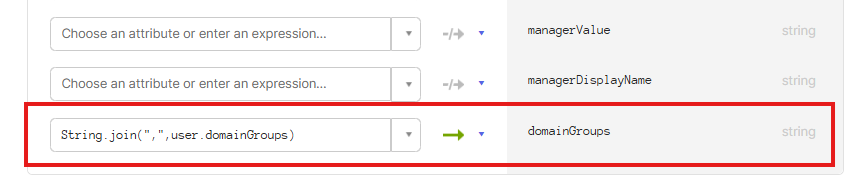
- Find domainGroups on the right side, enter the following expression in the input field, then click Save Mappings:
String.join(",",user.domainGroups)
Good to know: Once saved, the Domain Groups field will be available in both the user update form and the application assignment form.
Assigning Domain Groups to a User
There are two ways to assign domain groups to a user in Okta:
Via the User Update Form
- Go to Directory > People and click the user you want to update.
- Select the Profile tab, then click Edit.
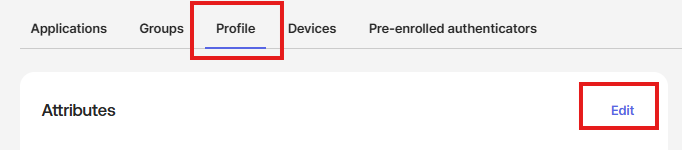
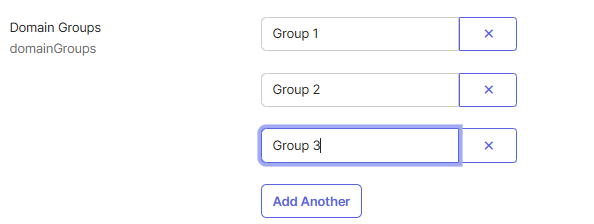
- Locate the Domain Groups field and enter the desired domain group name. To add multiple groups, click Add Another
Via the Application Assignment Form
- Navigate to Applications > Applications and open your PowerDMARC application.
- Select the Assignments tab and click the pencil icon next to the relevant user.
- In the Edit User Assignment form, locate the Domain Groups field and enter the group names in a comma-separated format — for example:
Group1,Group2.
⚠️ Note: Do not include spaces between domain group names and commas. For example, use
Group1,Group2 not Group1, Group2.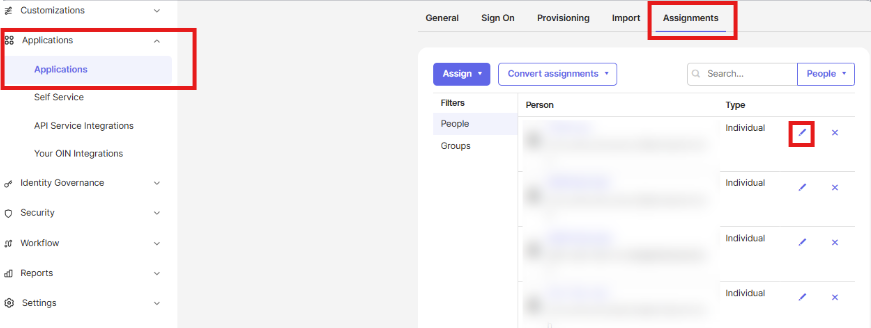

Removing All Domain Groups from a User
PowerDMARC will not take any action if the domain groups value is empty. If you want to remove all domain groups assigned to a user, set the value to -1 instead of leaving it blank. This applies to both the user update form and the application assignment form.

Good to know: Setting the value to
-1 is the correct way to fully unassign all domain groups from a user. An empty field will be ignored by PowerDMARC.