
Keeping your SAML SSO integration running without interruption depends on one thing that's easy to overlook: your certificate expiration date. An expired SAML certificate means your users can no longer log in via SSO — and in most cases, there's no warning until it's already broken. To help you stay ahead of this, PowerDMARC now gives you improved visibility into your SAML SSO certificate status directly from the portal.
What's New?
The PowerDMARC portal now displays your SAML SSO certificate's expiration date clearly within your SSO configuration settings. You can see at a glance when your current certificate is due to expire, giving you the time you need to renew it before any disruption occurs. This removes the guesswork and helps you manage certificate lifecycle as part of your regular admin routine.
Why This Matters
SAML certificates typically have a validity period of one to three years. When they expire, SSO login stops working immediately — users are locked out and your help desk takes the hit. By making expiration dates visible directly in the portal, PowerDMARC ensures you're never caught off guard by a certificate that's quietly counting down in the background.
How to Check Your Certificate Status as MSSP
- Log in to your PowerDMARC MSSP portal.
- From the left-hand menu, navigate to Administration and select SAML Single Sign On.
- Your current certificate's expiration date will be displayed in the SSO configuration panel.
- If your certificate is approaching its expiration date, download a new metadata file from your Identity Provider (IdP) — such as Azure AD or Okta — with an updated certificate.
- Upload the new metadata file to the PowerDMARC portal to complete the renewal.
How to Check Your Certificate Status as End user
- Log in to your PowerDMARC end user portal.
- From the left-hand menu, navigate to Settings and select SAML Single Sign On.
- Your current certificate's expiration date will be displayed in the SSO configuration panel.
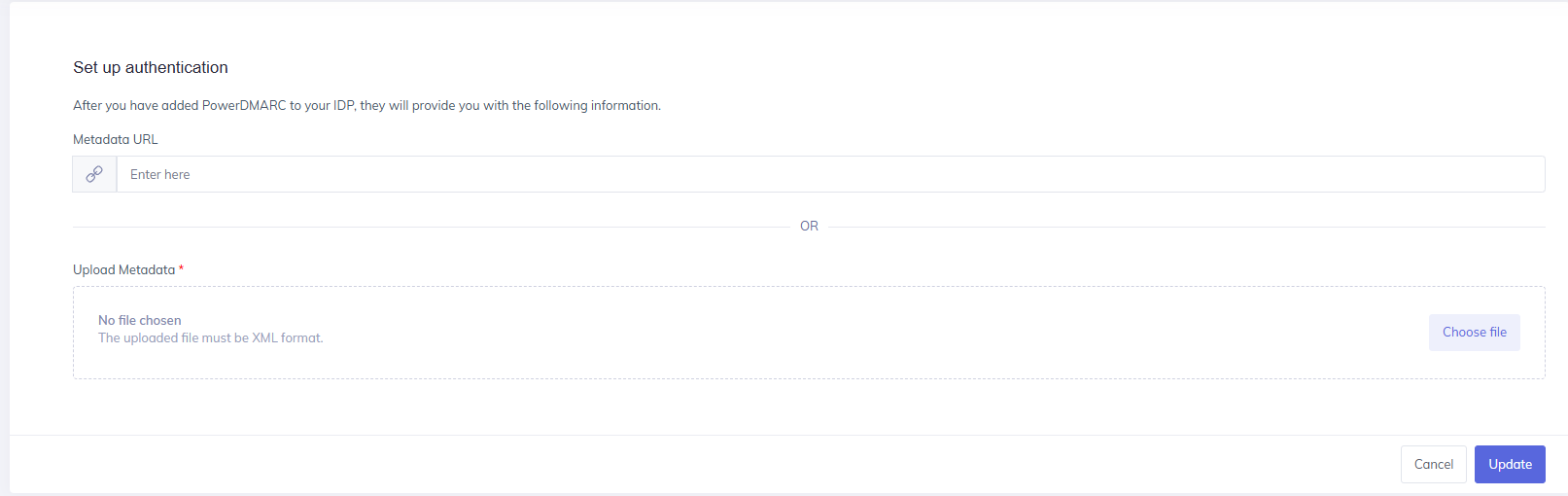
- If your certificate is approaching its expiration date, download a new metadata file from your Identity Provider (IdP) — such as Azure AD or Okta — with an updated certificate.
- Upload the new metadata file to the PowerDMARC portal to complete the renewal.
It's a good practice to check your certificate status periodically and renew well in advance of the expiration date to avoid any disruption to your users' login experience.