
1- To enable MFA/2FA on your account, you need to download google authenticator on your mobile device via the google play store or the App Store.
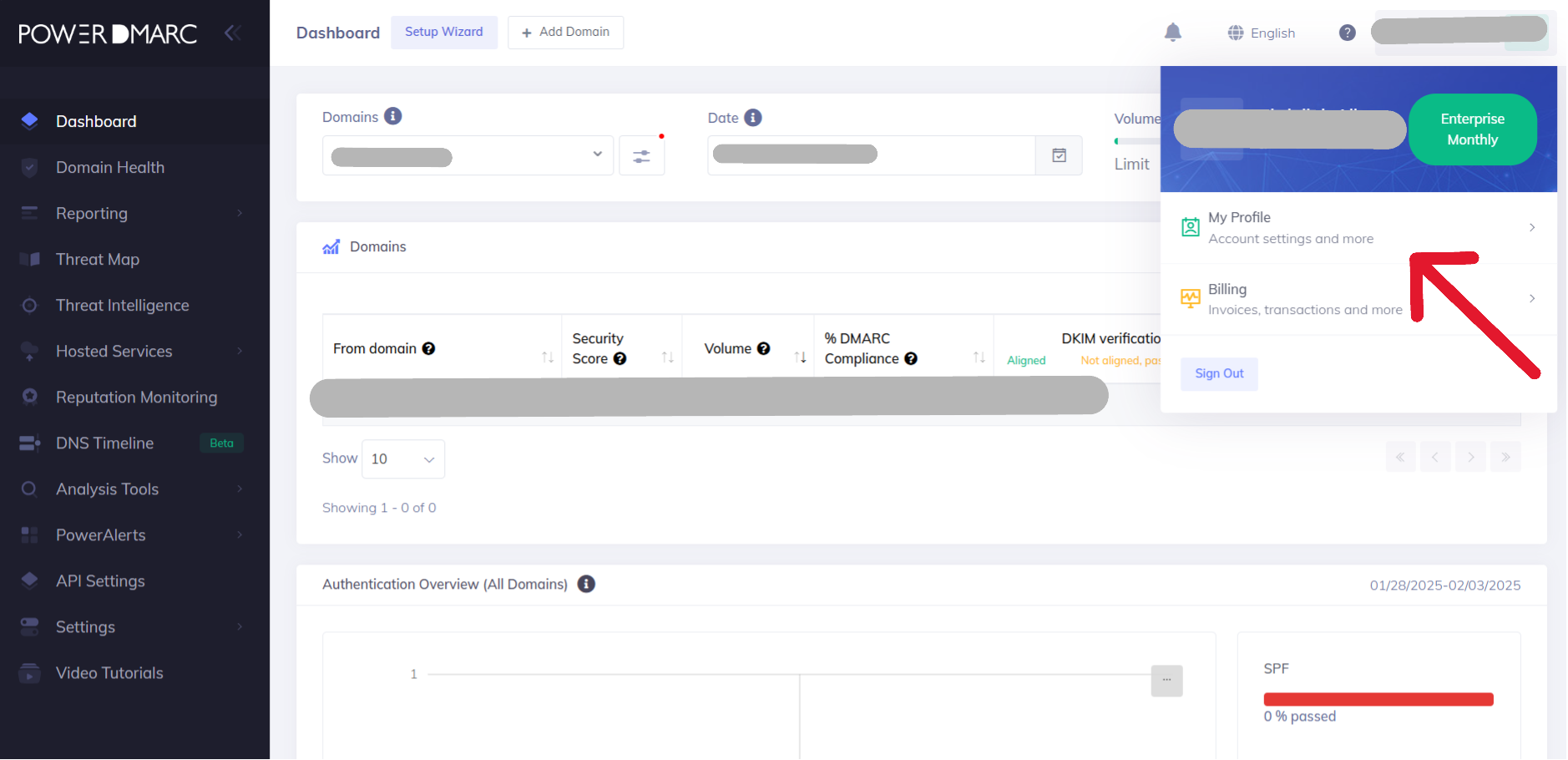
2- Log into your PowerDMARC account and navigate to the “my profile” page by clicking on your username > my profile (on the screen’s top right corner)
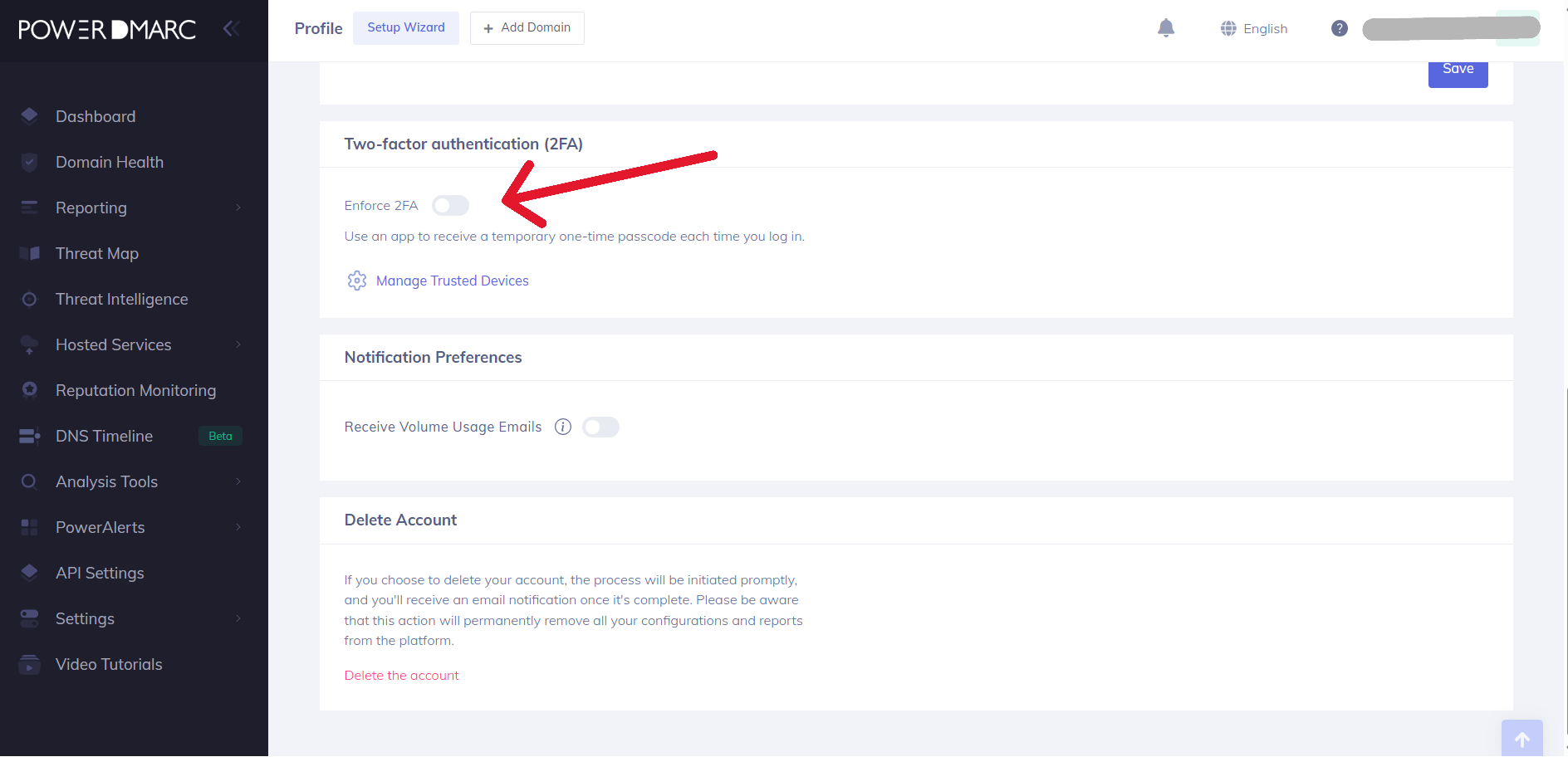
3- Toggle the switch to enable two-factor authentication or multi-factor authentication
4- Scan the code using the google authenticator app and record your secret key in a safe place (secret key can be used to restore your 2FA/MFA in case your device gets lost)
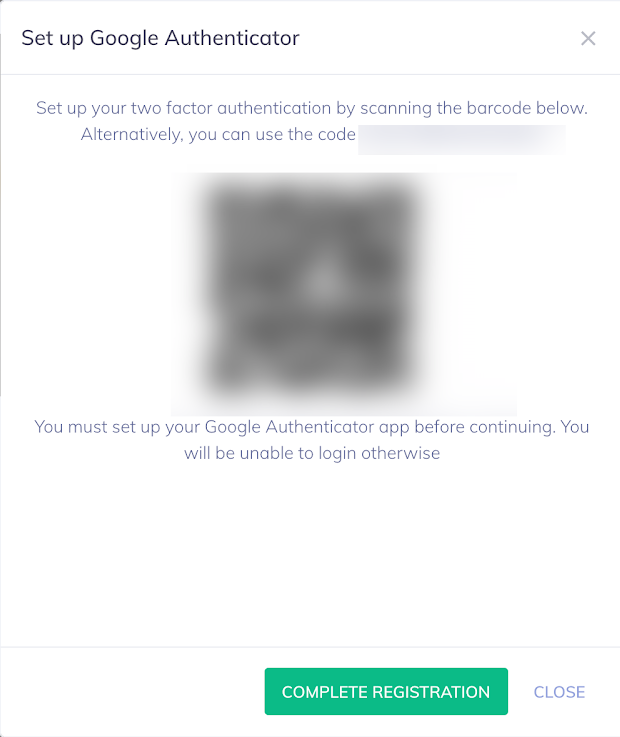
5- After scanning the barcode, make sure that your account has been added to the google authenticator app and you are able to view your OTP.
.

6- Click on “Complete registration”.
7- Next time you log in, you will be prompted to enter the OTP displayed on your google authenticator app.
