
With PowerDMARC’s Microsoft Sentinel integration, you can seamlessly ingest and monitor your email authentication and domain security data directly within your Sentinel workspace. By leveraging the PowerDMARC API, organizations can build a streamlined SIEM integration without complex configurations—simply connect, run, and gain centralized visibility into their email security posture across all domains.
The guide intentionally focuses on setup and ingestion. Sentinel dashboards/workbooks are out of scope.
API Documentation:
Swagger Documentation: https://app.powerdmarc.com/swagger-ui/index.html
Alternative Documentation: https://api.powerdmarc.com/
Note:
Naming convention is not restricted to the ones mentioned in this documentation
Architecture Overview
For this example, we are using the audit log endpoint for testing purpose and illustration
PowerDMARC API
↓
Azure Logic App (Scheduled)
↓
Azure Log Analytics Workspace
↓
Microsoft Sentinel (Analytics, Incidents, Hunting)
Sentinel does not receive data directly. It reads data from the Log Analytics workspace.
Prerequisites
Before starting, ensure you have:
· Azure subscription with permission to create:
o Resource Groups
o Log Analytics Workspaces
o Logic Apps (Consumption) (this was selected as preference to our testing environment)
o Microsoft Sentinel
· A PowerDMARC API Bearer Token with permission to access Audit Logs
Azure Resource Setup
Create Resource Group
1. Azure Portal → Create a resource → Resource group
2. Name: rg-powerdmarc-sentinel
3. Region: choose your preferred region (keep it consistent)
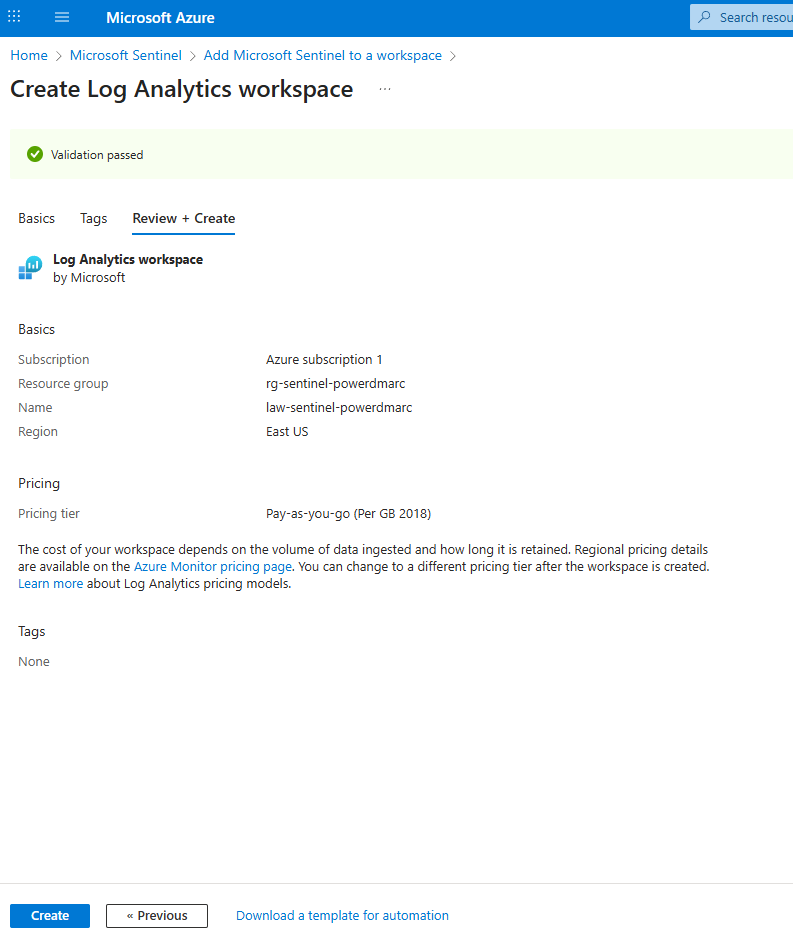
Create Log Analytics Workspace
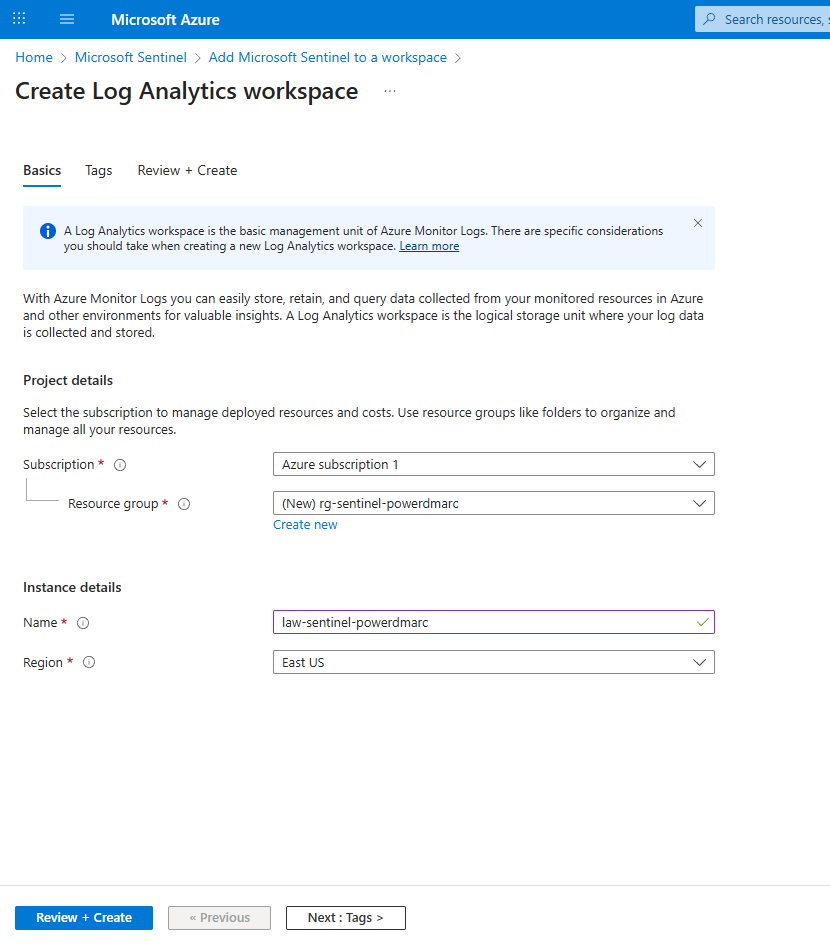
1. Azure Portal → Create a resource → Log Analytics workspace
2. Name: law-powerdmarc-sentinel
3. Resource Group: rg-powerdmarc-sentinel
4. Region: same as Resource Group
After creation: - Open the workspace - Confirm Logs blade opens successfully
Enable Microsoft Sentinel
1. Azure Portal → Microsoft Sentinel
2. Click + Create
3. Select workspace: law-powerdmarc-sentinel
4. Click Add
No data connectors are required for this integration.
Create Logic App
Create Logic App (Consumption)
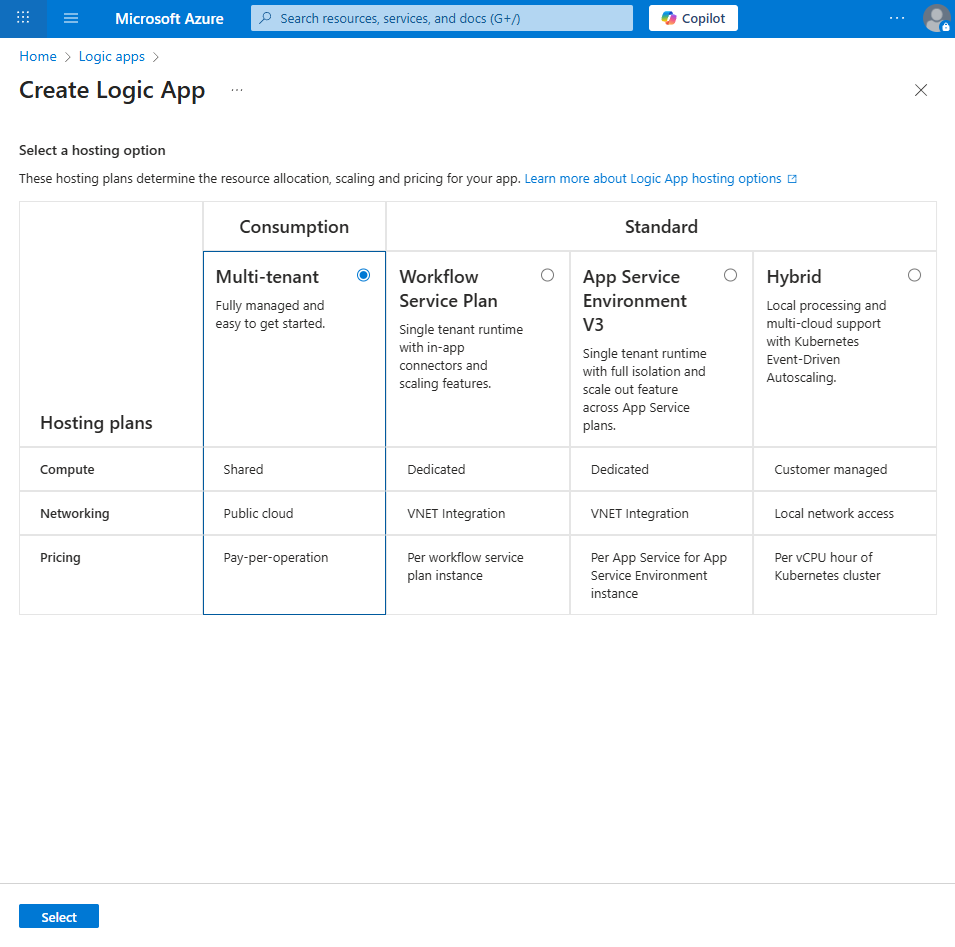
1. Azure Portal → Create a resource → Logic App (Consumption)
2. Name: la-powerdmarc-sentinel
3. Resource Group: rg-powerdmarc-sentinel
4. Region: same as workspace
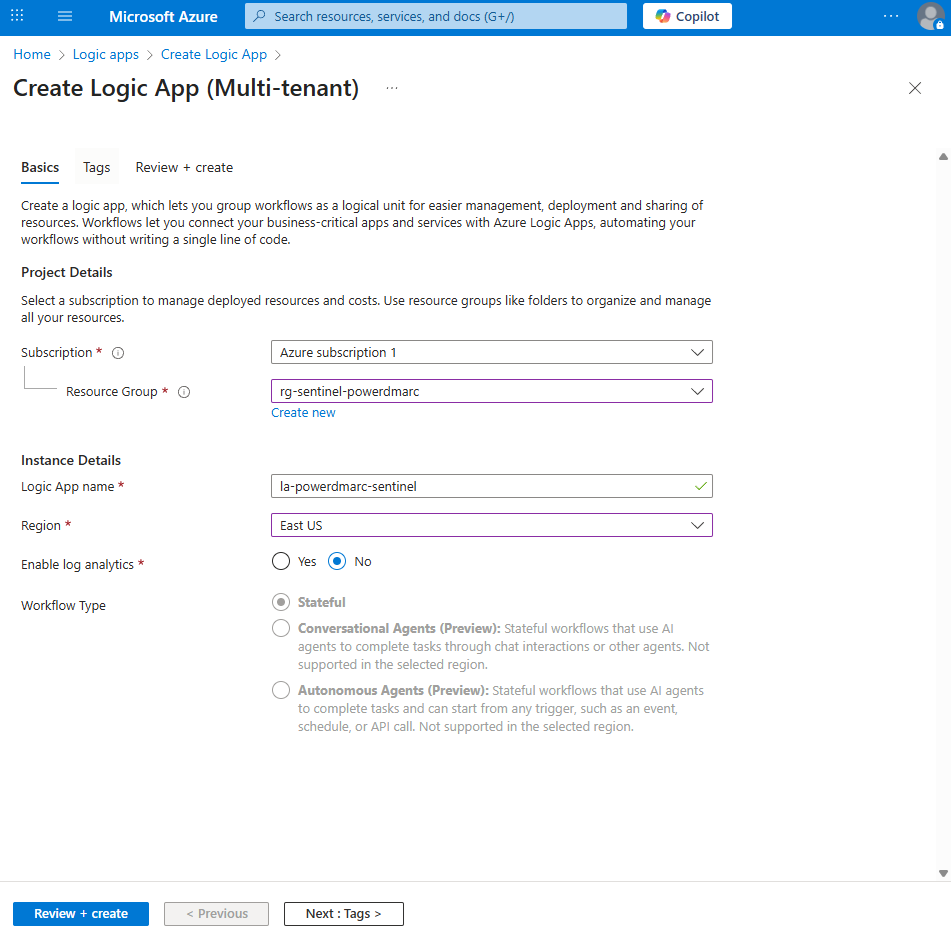
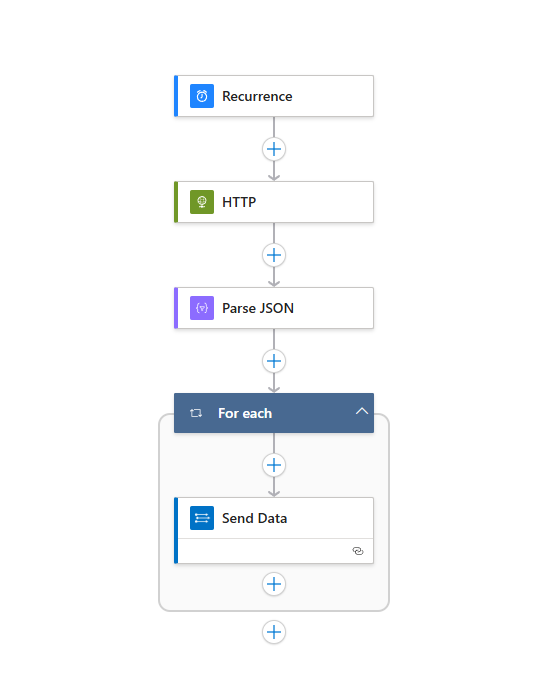
Add Trigger – Recurrence ( Optional)
1. Open Logic App → Logic app designer
2. Choose Recurrence trigger
PowerDMARC API Call
5.1 Add HTTP Action
Add action → HTTP
Method: GET
URI: https://app.powerdmarc.com/api/v1/audit-logs
Headers: Authorization: Bearer <POWERDMARC_API_TOKEN>
Accept: application/json
Query Parameters: From & To (These are required parameters for Audit log API, please refer to the PowerDMARC API documentation to review the formatting)
Save the Logic App after this step.
Parse JSON Response
Add Parse JSON Action
Add action → Parse JSON
Content - Select Body from the HTTP action (Dynamic content)
Schema Use “Use sample payload to generate schema” and paste: (This can be taken from the PowerDMARC API documentation samples):
{
"data": [
{
"user_name": "John Doe",
"action": "Updated attached domains",
"ip_address": "12.111.67.123",
"a_username": null,
"other": null,
"created_at": "2025-06-06 14:29:24"
}
]
}
Save the Logic App.
Loop Through Audit Log Entries
The PowerDMARC API returns an array of audit events. Each event must be sent individually to Log Analytics.
Add For each Action
Add action → For each
Select output from previous steps (Expression):@body('Parse_JSON')?['data']
Send Data to Log Analytics
Add Send Data Action
Inside the For each block:
Add action → Send Data (Azure Log Analytics)
Create Log Analytics Connection
When prompted:
Connection Name: powerdmarc-loganalytics
Workspace ID: from Log Analytics workspace → Overview
Workspace Key: Primary key from:
Log Analytics Workspace → Settings → Agents → Log Analytics agent (classic)
Send Data Configuration
JSON Request body (Expression):@items('For_each')
Custom Log Name: PowerDMARCAuditLog
Save the Logic App.
Validate Ingestion
Run Logic App
1. Click Run
2. Open Run history
3. Confirm all steps show Succeeded
o HTTP
o Parse JSON
o For each (iterations > 0)
o Send Data
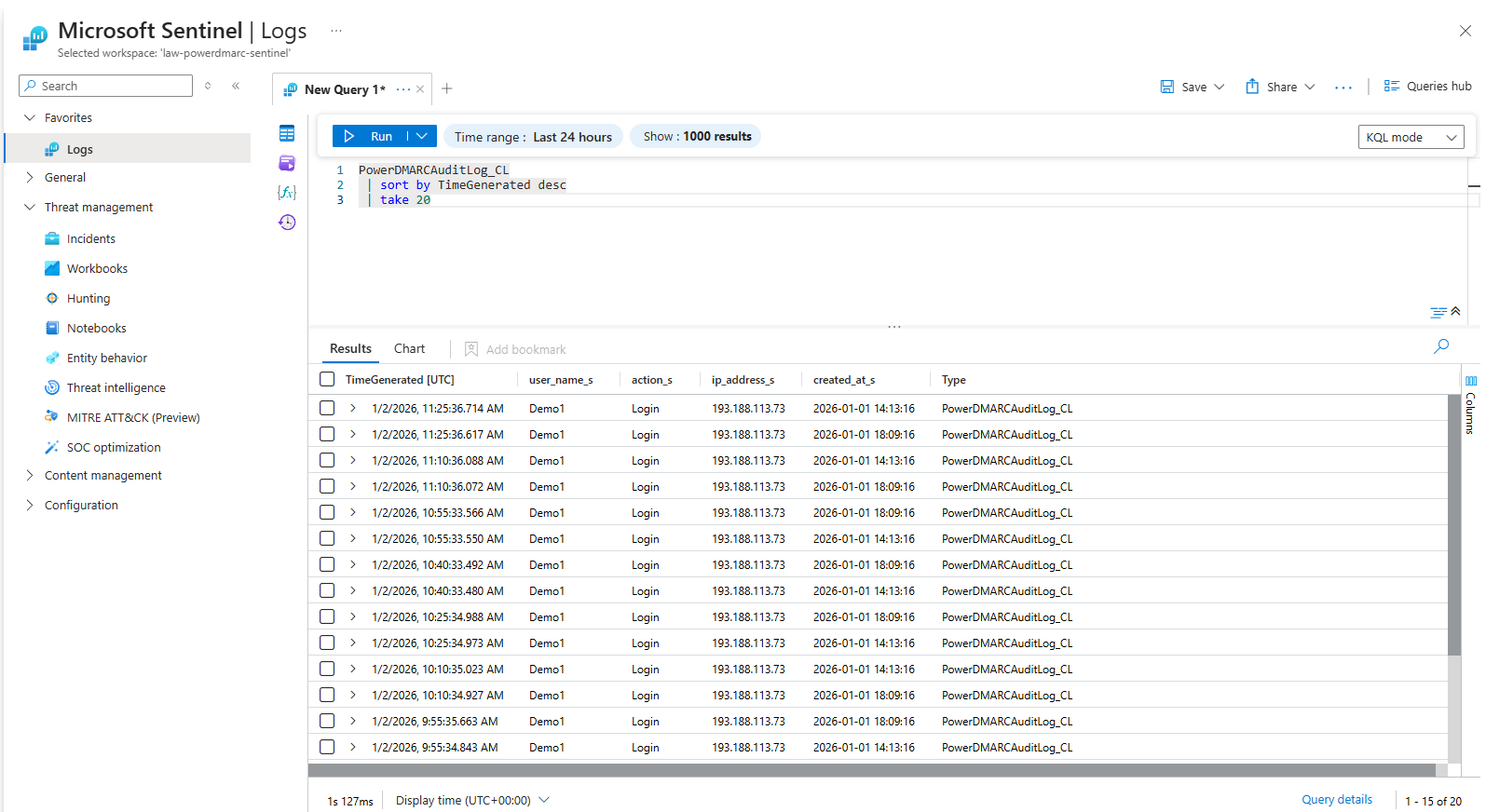
Verify Data in Log Analytics / Sentinel
Go to: Microsoft Sentinel → Logs
Using KQL Query Run:
PowerDMARCAuditLog_CL
| sort by TimeGenerated desc
| take 20
Expected Result
At this point: - PowerDMARC Audit Logs are ingested into Azure - Microsoft Sentinel can: - Query the data - Create Analytics Rules - Generate Incidents - Support Hunting and Investigations