
Overview
This guide walks you through connecting your HaloPSA instance to PowerDMARC and configuring customer mapping, subscription synchronization, and alert-based ticketing. The integration is completed through a three-step wizard inside PowerDMARC, with a short one-time setup required in HaloPSA beforehand.
1. Prepare HaloPSA Access
Before connecting PowerDMARC, complete this one-time setup inside HaloPSA. You will create a dedicated API agent and an API application to generate the credentials PowerDMARC needs to authenticate.
1.1 Create an API-Only Agent
Navigate to Configuration → Teams & Agents and click New Agent. Give the agent a clear name (e.g. PowerDMARC Sync) so it is easy to identify in audit logs — every ticket created by a DMARC alert will show this agent as the creator. Enable the Is an API-only Agent toggle. This ensures the account does not consume a license seat.
Assign the following permissions to the agent:
These permissions allow the integration to read customers and items, create and update subscriptions, and create tickets from alerts.
1.2 Create an API Application
Navigate to Configuration → Integrations → HaloPSA API → Applications and click New. Configure the application with the following settings:
Authentication Method: Client ID and Secret (Services)
Login Type: Agent
Agent: Select the PowerDMARC Sync agent created above
Save the application. HaloPSA will generate a Client ID and Client Secret — copy both immediately and store them securely.
Under the Permissions tab, assign the following to the application:
read:customers / edit:customers
read:softwarelicensing / edit:softwarelicensing
read:tickets / edit:tickets
read:items
2. Connect HaloPSA to PowerDMARC
In PowerDMARC, navigate to Integrations → HaloPSA and click Connect to HaloPSA to launch the three-step wizard.
Step 1 — Connection
Enter your HaloPSA credentials to authenticate the connection and allow secure data synchronization between the two platforms:
HaloPSA URL — your HaloPSA instance URL (e.g. https://yourcompany.halopsa.com)
HaloPSA Client ID — generated from your HaloPSA API application
HaloPSA Client Secret — generated from your HaloPSA API application
Click Connect & Continue. PowerDMARC will verify your credentials and move you to Step 2. Ensure all values are entered exactly as provided to prevent connection errors.
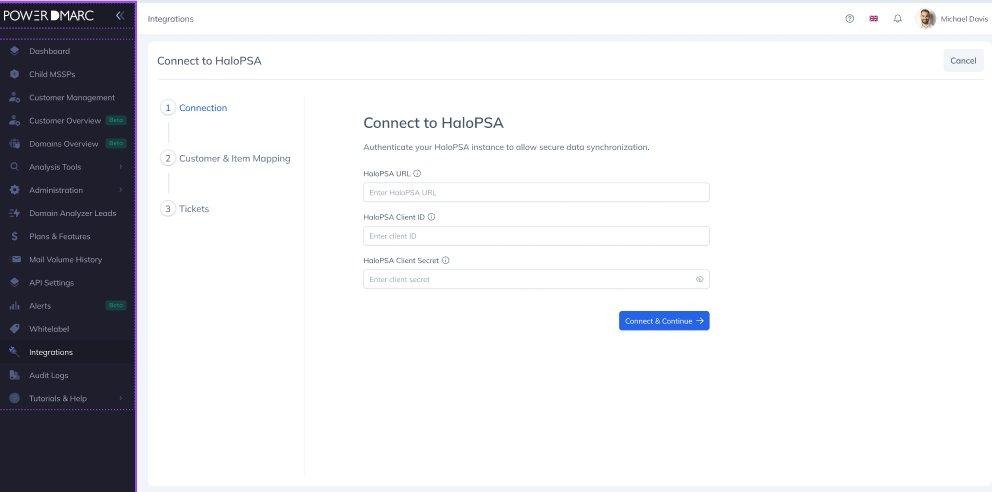
Step 1 — Connection screen
3. Map Customers & Items
Once connected, Step 2 lets you link each PowerDMARC customer account to the corresponding HaloPSA customer, and select the HaloPSA billing item that will be used to create a subscription.
Use the mapping table to set up each customer relationship:
PowerDMARC Accounts — select the PowerDMARC customer account
HaloPSA Customers — select the matching HaloPSA customer
HaloPSA Items — select the billing item to link to the subscription
Use Add New to add rows manually, or Add All Customers to pre-populate a row for every PowerDMARC account. Use Resync at any time to refresh the list of customers and items from HaloPSA — existing valid selections are preserved.
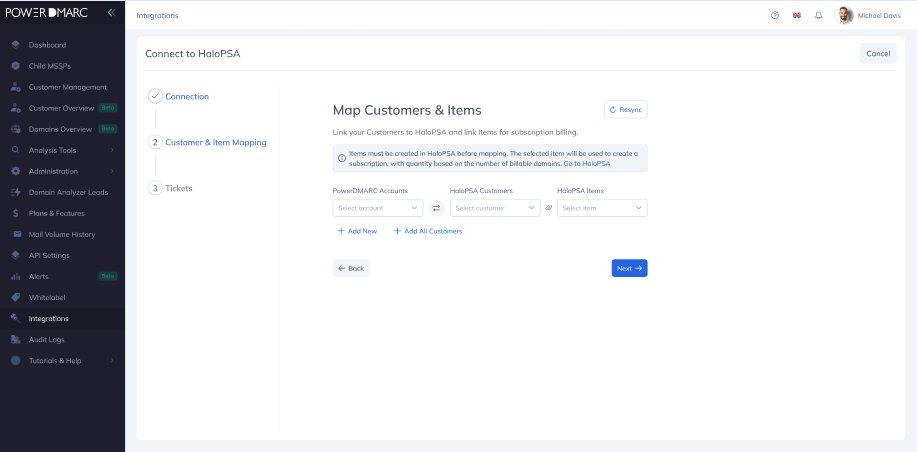
Step 2 — Map Customers & Items
Subscription Notes
One subscription is created per mapped customer. PowerDMARC keeps the subscription quantity updated automatically whenever a domain is added, removed, or changes status — no manual month-end reconciliation needed.
After configuring all mappings, click Next to continue to Step 3.
4. Map Alerts to Tickets
Step 3 lets you configure which DMARC alerts should automatically create tickets in HaloPSA, and set the ticket options for each customer.
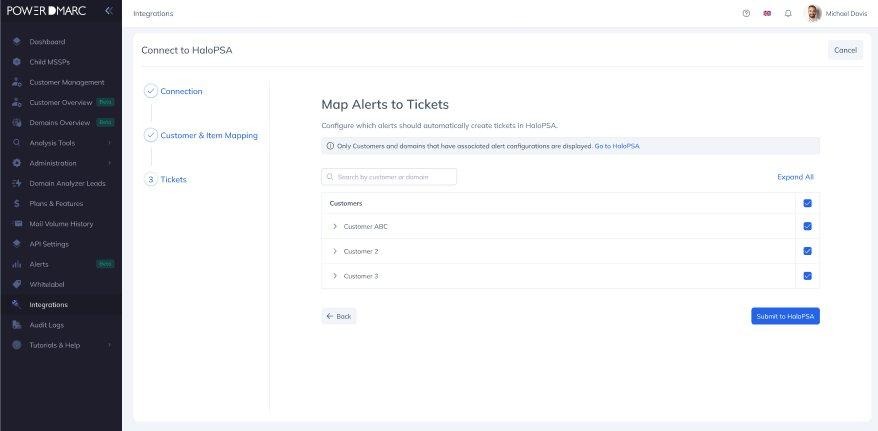
Step 3 — Map Alerts to Tickets (collapsed view)
Click the arrow next to a customer to expand their configuration, or use Expand All to open all customers at once. You can also use the search bar to filter by customer name or domain.
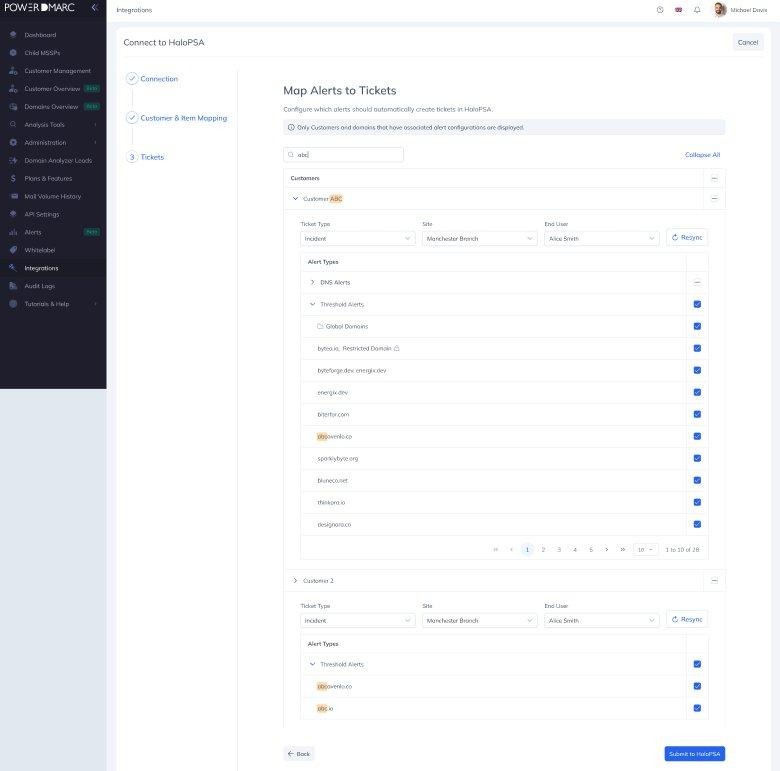
Step 3 — Expanded customer view with alert type and domain selection
For each customer, configure the following:
Ticket Type — required. Pre-selects a type named ‘Alert’ if one exists, otherwise defaults to the first available type.
Site — optional. Filters the End User dropdown to show only users at that site.
End User — optional. Only available after a Site is selected.
Then select which alert types and domains should trigger ticket creation:
DNS Alerts — triggered by changes to DMARC, SPF, or DKIM DNS records. One row per domain.
Threshold Alerts — triggered when email failure volumes exceed configured limits. Includes per-domain rows and aggregated domain group rows.
Forensic Alerts — triggered when a forensic (RUF) report is received. One row per domain.
You can select all domains for an alert type at once, or choose individual domains. Use the Resync button per customer to refresh domain and alert data from PowerDMARC.
When finished, click Submit to HaloPSA. This completes the initial setup.
5. Integration Summary
After submitting, you are taken to the HaloPSA integration overview page. A success notification confirms that all configurations and mappings have been submitted to HaloPSA.
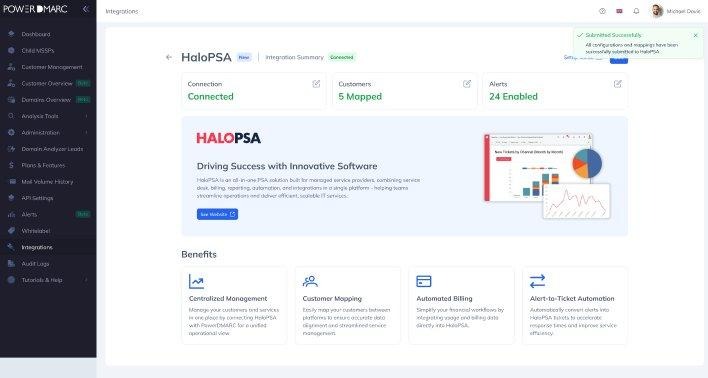
Integration summary — connected status with mapped customers and enabled alerts
The summary shows three status cards at a glance:
Connection — confirms the HaloPSA instance is authenticated and active
Customers — shows the number of customer accounts successfully mapped
Alerts — shows the number of alert types enabled for automatic ticket creation
Clicking any card takes you back to that step of the wizard to make changes. You can update your configuration at any time from Integrations → HaloPSA.
6. Access Control
The HaloPSA integration is available to MSSP accounts where the HaloPSA Integration toggle is enabled in account settings. Users must also have the Access HaloPSA Integration permission assigned to their role.
By default this is granted to MSSP Owner and MSSP Admin roles. It can also be extended to custom roles from the role management settings.
For further assistance, visit support.powerdmarc.com or contact your PowerDMARC account manager.