
Step-by-Step Guide to Viewing DNS Changes and Record Snapshots in PowerDMARC
DNS Timeline is a powerful feature in the PowerDMARC portal that allows you to track DNS record changes over time for your domains. Whether you're monitoring changes to SPF, DKIM, DMARC, MTA-STS, or BIMI records—or keeping an eye on your domain security score—DNS Timeline provides complete visibility and historical insights. And with Record Snapshots, you can also save a point-in-time baseline and compare it with your current DNS records.
Why Use DNS Timeline?
With DNS Timeline, you can:
Identify when DNS records were added, modified, or removed
View your domain’s security score history
Troubleshoot configuration issues with detailed record tracking
Gain visibility into potential risks and policy changes
Take a snapshot of your monitored DNS records and compare it with your current live records to easily identify changes.
Steps to Access DNS Timeline:
Step 1: Login to the PowerDMARC Portal
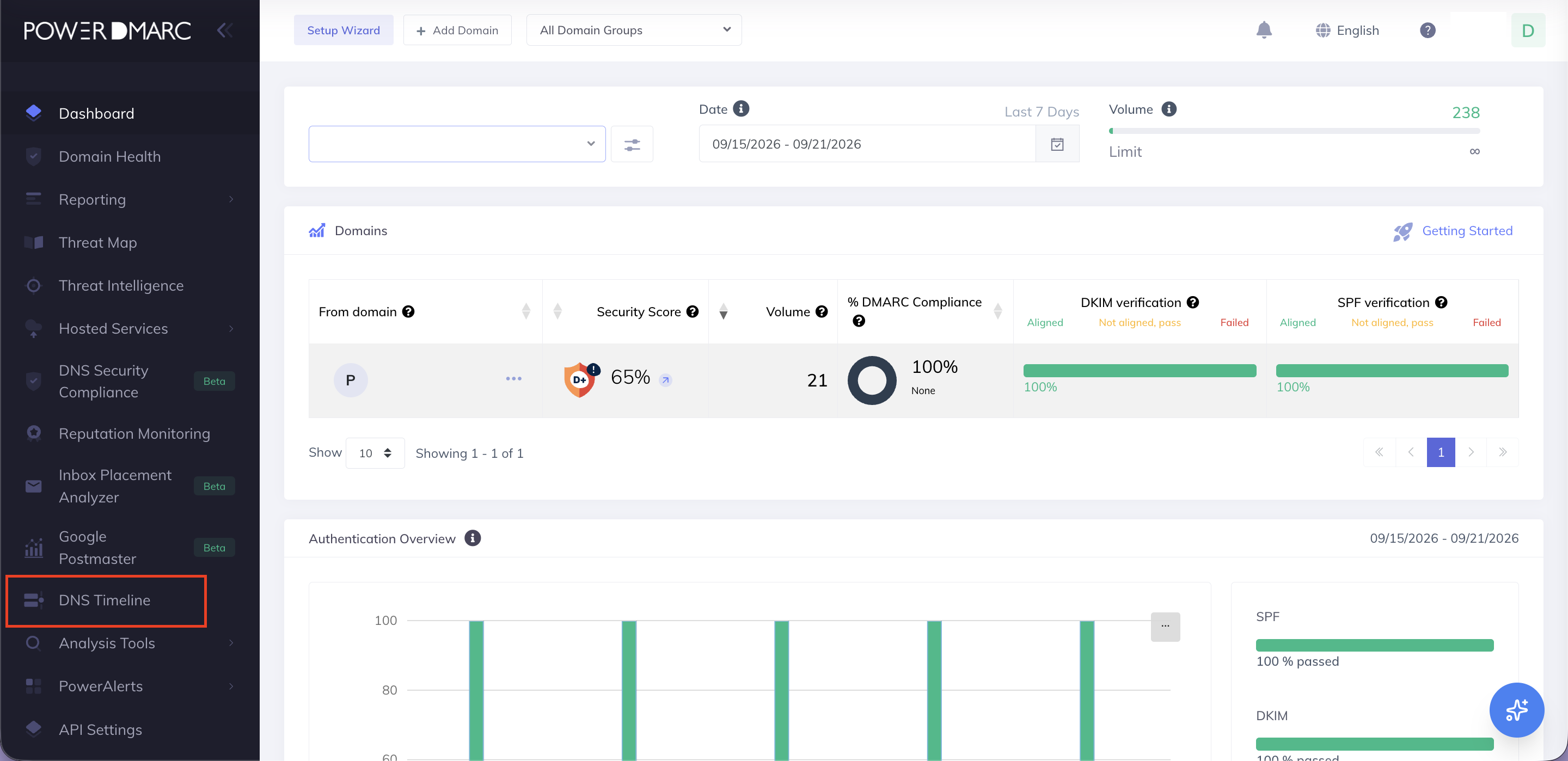
Step 2: From the left panel, click on DNS Timeline
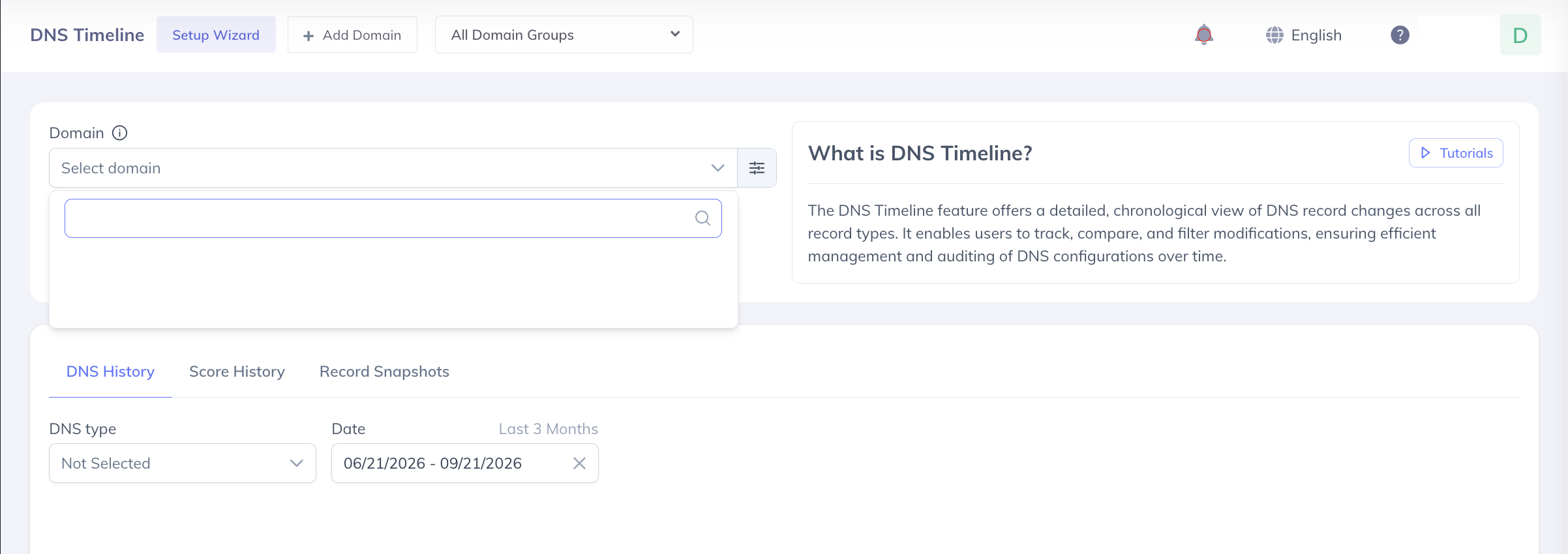
Step 3: Select your Domain Name from the dropdown
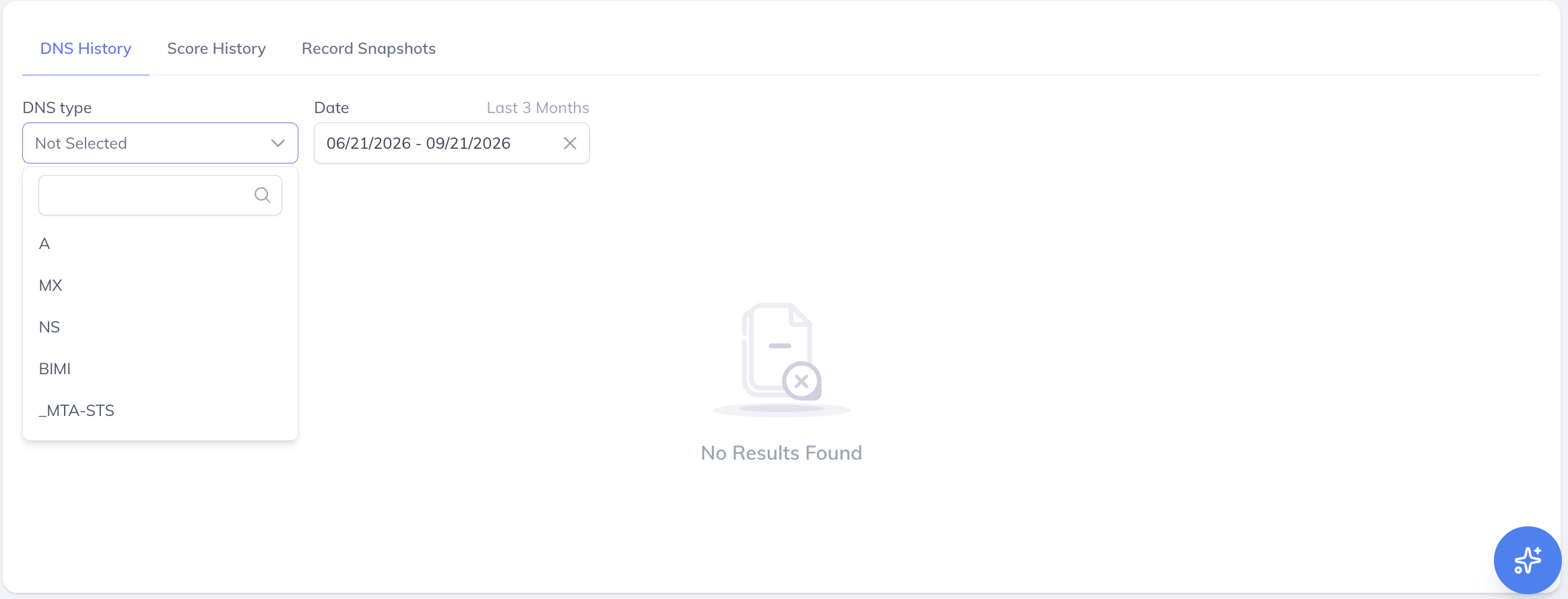
Step 4: Choose specific DNS record types and date range as needed
This allows you to narrow down the timeline based on changes in SPF, DKIM, DMARC, MTA-STS, or BIMI records.
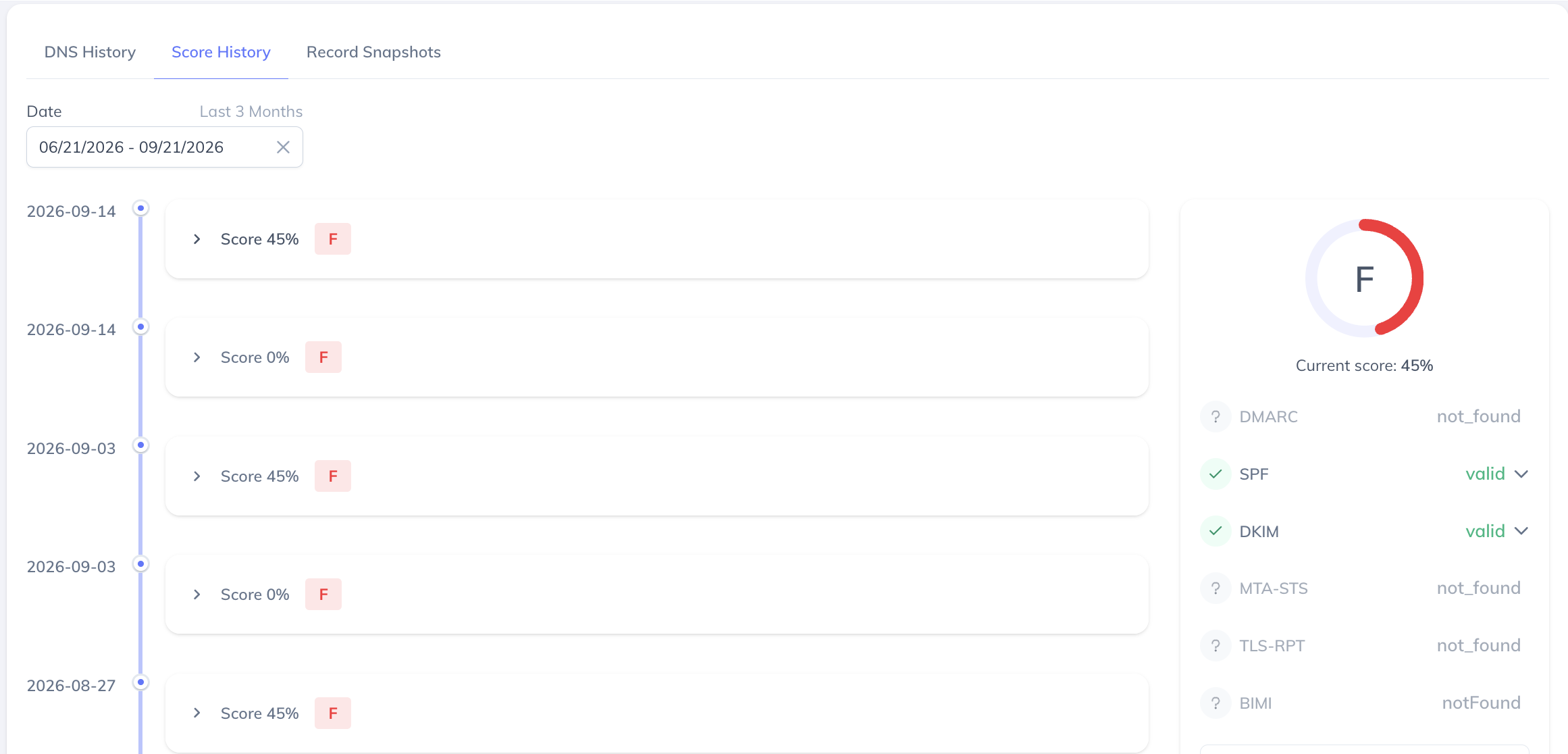
Step 5: Click on the Score History tab
This will show you a visual timeline of domain security score changes, helping you monitor improvements or identify any potential dips.
Step 6: Open the Snapshots Tab
Click on the Record Snapshots tab next to Score History to view and manage your saved DNS record snapshots.
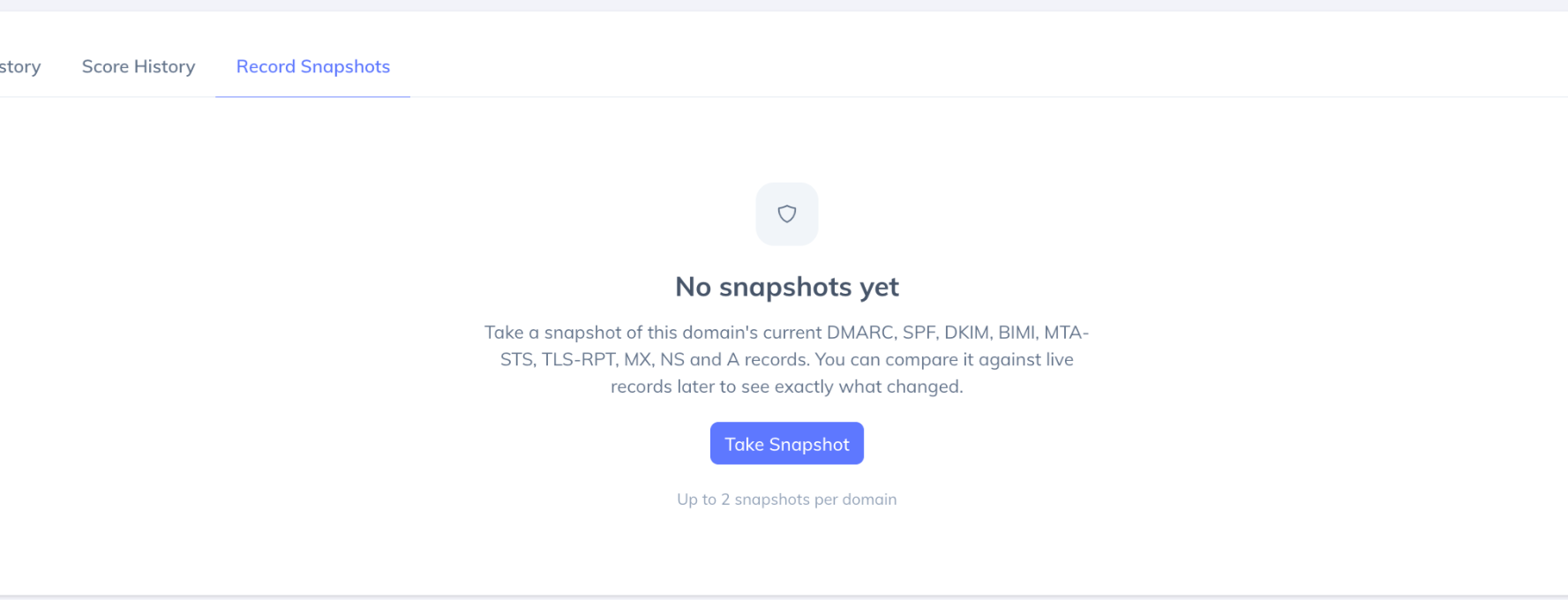
Step 7: Take a Snapshot
Click to take a snapshot of your current monitored DNS records. The snapshot includes DMARC, SPF, DKIM, BIMI, MTA-STS, TLS-RPT, MX, NS, and A records.
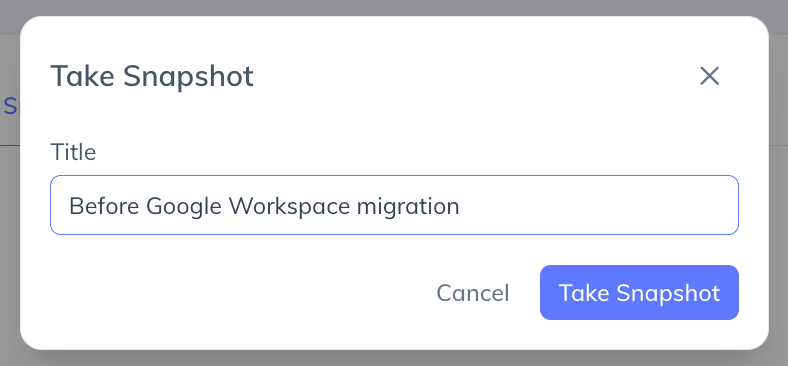
Step 8: Add a Snapshot Label
Give your snapshot a meaningful label, such as “Before Google Workspace migration.” You can also add or update the label later.
Step 9: Compare with Current Records
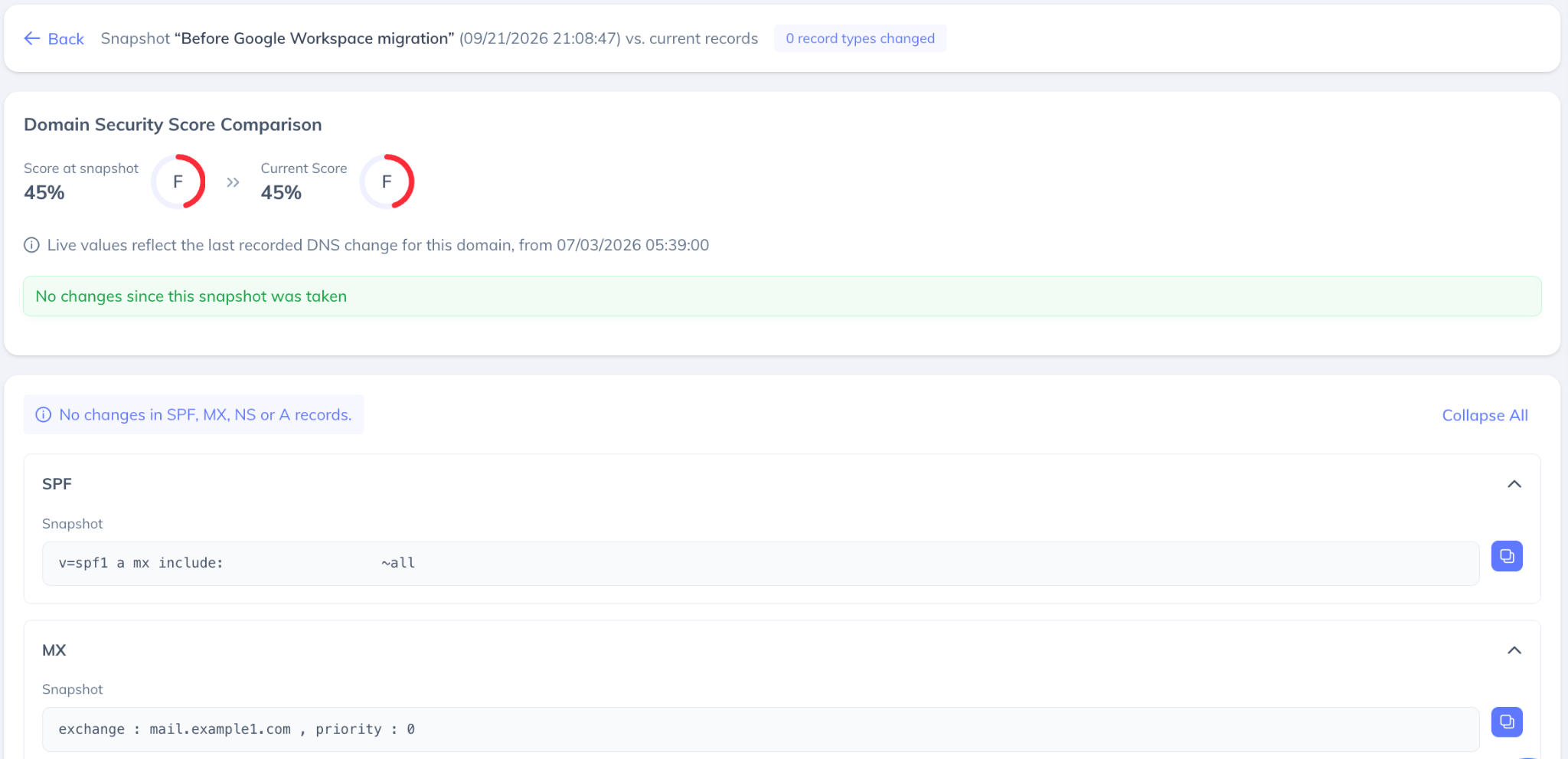
Select a saved snapshot and compare it with your current live DNS records using Differ. Added, removed, and changed records will be highlighted by record type.

Step 10: Review the Security Score
The snapshot also shows your Domain Security Score at the time it was taken alongside your current score, helping you understand changes in your domain security posture.
Note: Each domain can store up to two snapshots. Taking a third snapshot will replace the oldest one, with a confirmation shown before replacement.
Final Thoughts
The DNS Timeline is an essential tool for IT admins and security teams to maintain complete visibility over domain authentication posture and DNS changes. We recommend checking it regularly to ensure your configurations are always up to date and compliant.
Need help interpreting the timeline? Reach out to our support team—we’re here to assist!