
Inbox Placement Analyzer: Configuration and Test Setup
Overview
The Inbox Placement Analyzer helps you understand where your emails are likely to land before you send them to real recipients. By testing your emails against mailbox providers such as Gmail, Outlook, Yahoo, Zoho, Amazon WorkMail, and Apple iCloud, you can identify potential deliverability issues and make improvements before launching a campaign.
This article explains how to create and run an Inbox Placement test.
Important Note: The feature is available on the Enterprise Tier only.
Step 1: Create a New Test
To get started:
Navigate to Menu option on left panel > Inbox Placement Analyzer.
Open the Dashboard.
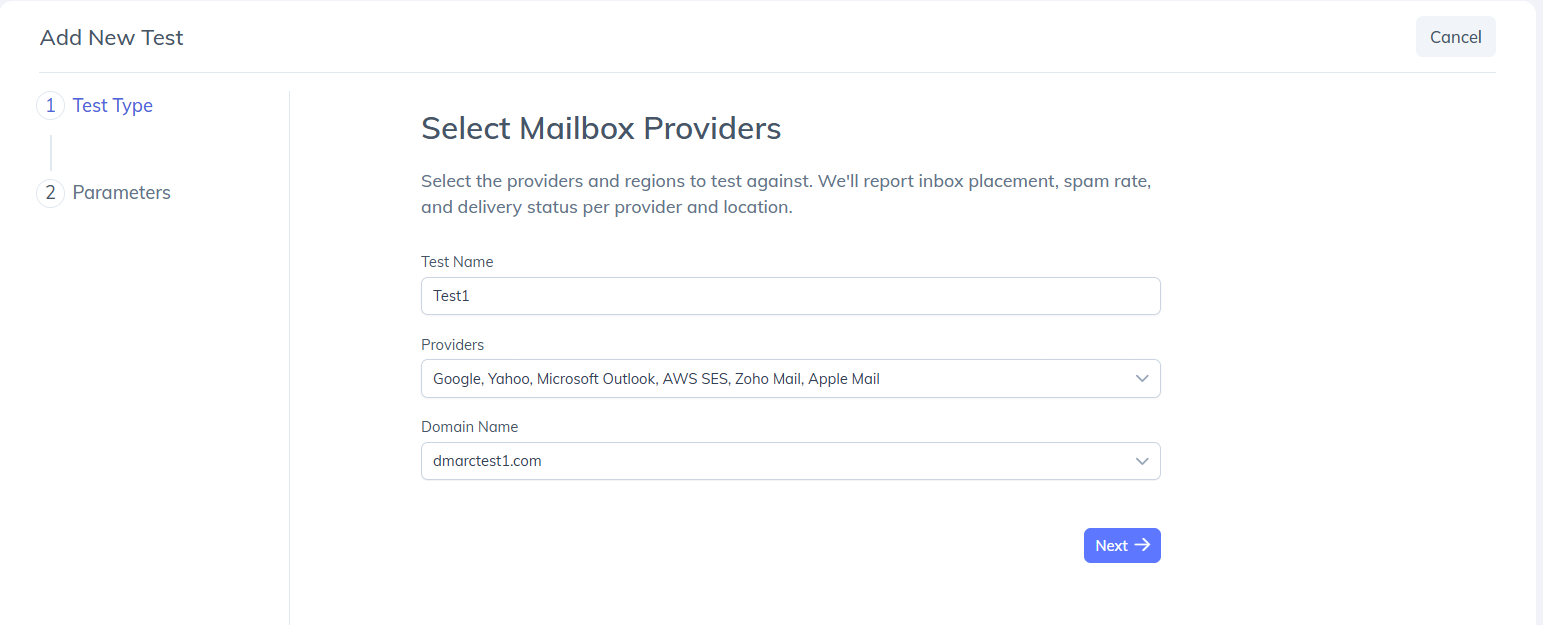
Click Add New Test.
You will be prompted to enter a few details about the test.
Provide:
A Test Name
The Domain Name you will be sending from
One or more mailbox providers you would like to test against
Once completed, click Next.
Step 2: Copy Your Seed Mailboxes and Tracking Seed ID
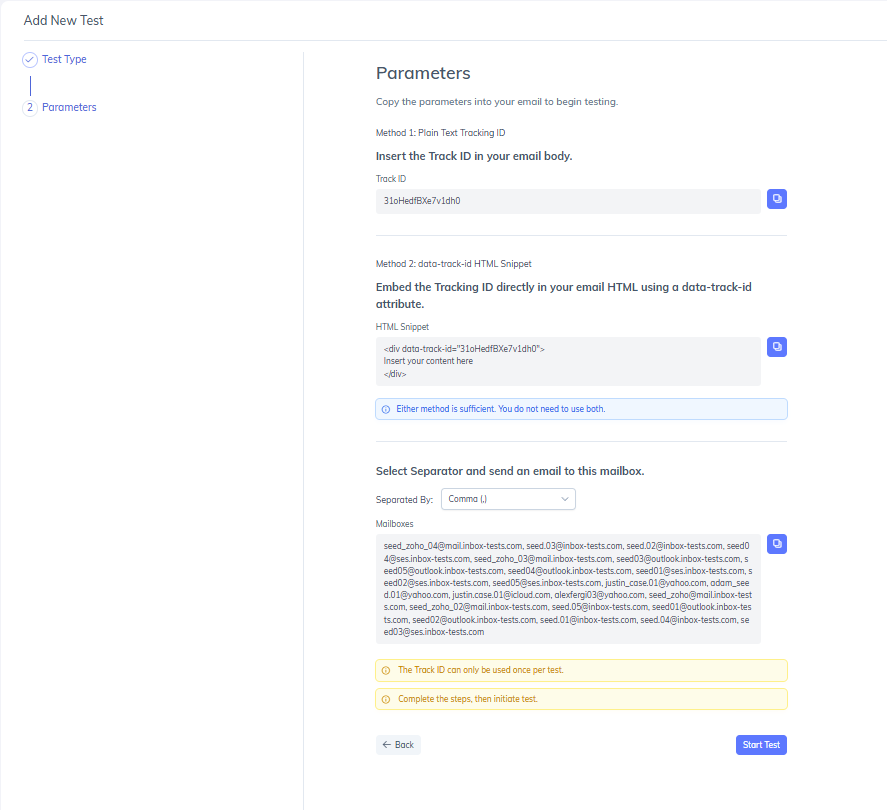
After the test is created, PowerDMARC generates:
A list of seed mailbox addresses
A unique Tracking Seed ID
The seed mailboxes are used to measure where your email is delivered, while the Tracking Seed ID allows PowerDMARC to identify and associate the received email with the correct test.
Keep this information available, as you will need it when sending your test message.
Step 3: Add the Tracking Seed ID to Your Email
Before sending the test email, you must include the generated Tracking Seed ID.
You can do this in either of the following ways:
Add the Tracking Seed ID to the Email Body
Paste the Tracking Seed ID anywhere within the email content.
OR Add the Tracking Seed ID to the Email HTML
If you are working with an HTML template, you can insert the Tracking Seed ID directly into the HTML source of the email.
Important: The Tracking Seed ID should be added exactly as generated. Any changes to the value may prevent the platform from identifying your test correctly.
Step 4: Send the Test Email
Send your email to all generated seed mailbox addresses using the same platform or infrastructure you normally use for email delivery.
This may include:
Marketing automation platforms
Email Service Providers (ESPs)
Corporate mail servers
Transactional email services
Using your actual sending environment ensures the results accurately reflect real-world delivery behavior.
Step 5: Start the Test
After the email has been sent:
Return to the Inbox Placement Analyzer.
Click Start Test.
PowerDMARC will begin checking the seed mailboxes and analyzing the results.
Most tests are completed within a few minutes.
What's Next?
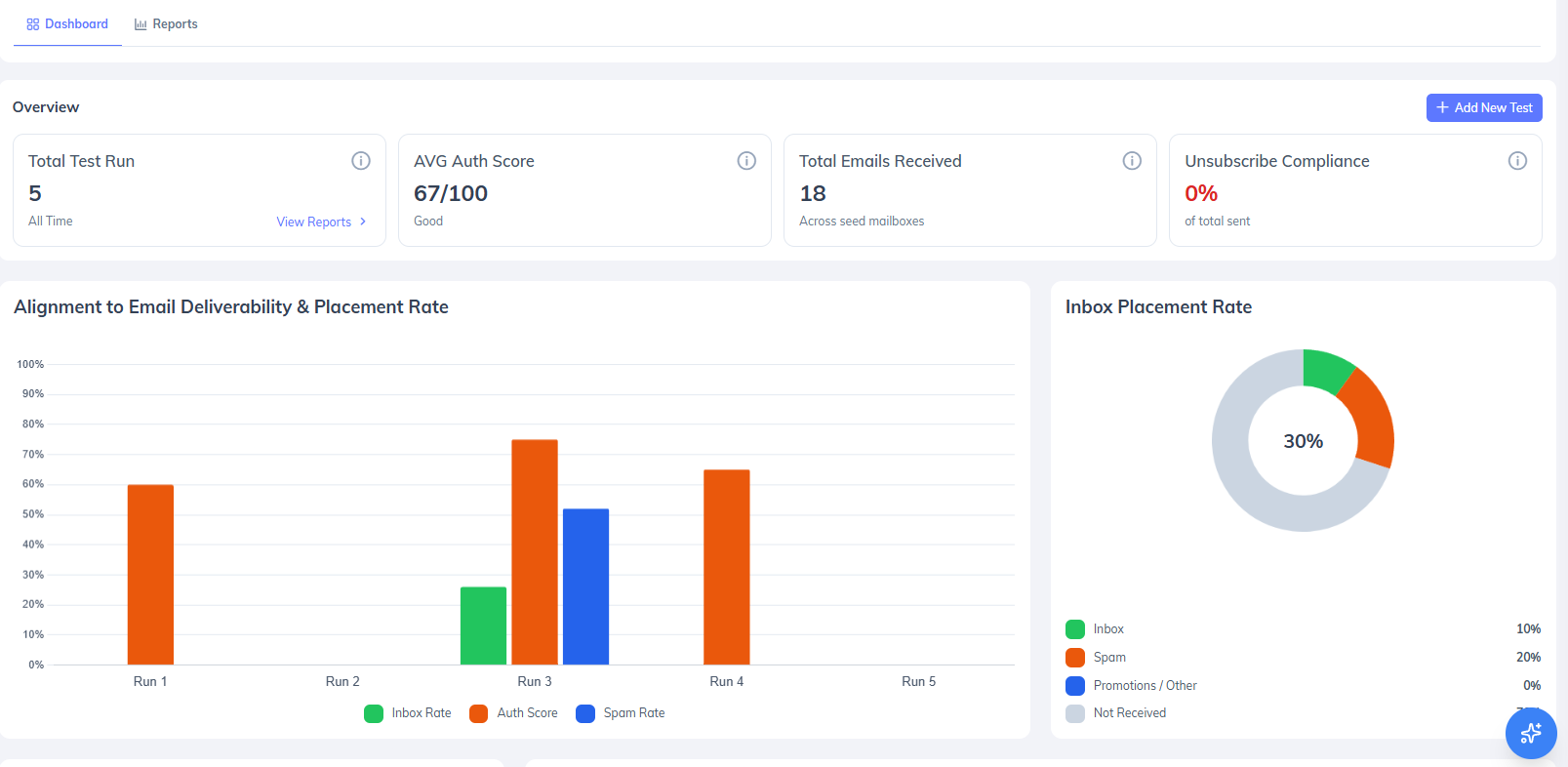
Once the analysis is complete, open the test report to review your results.
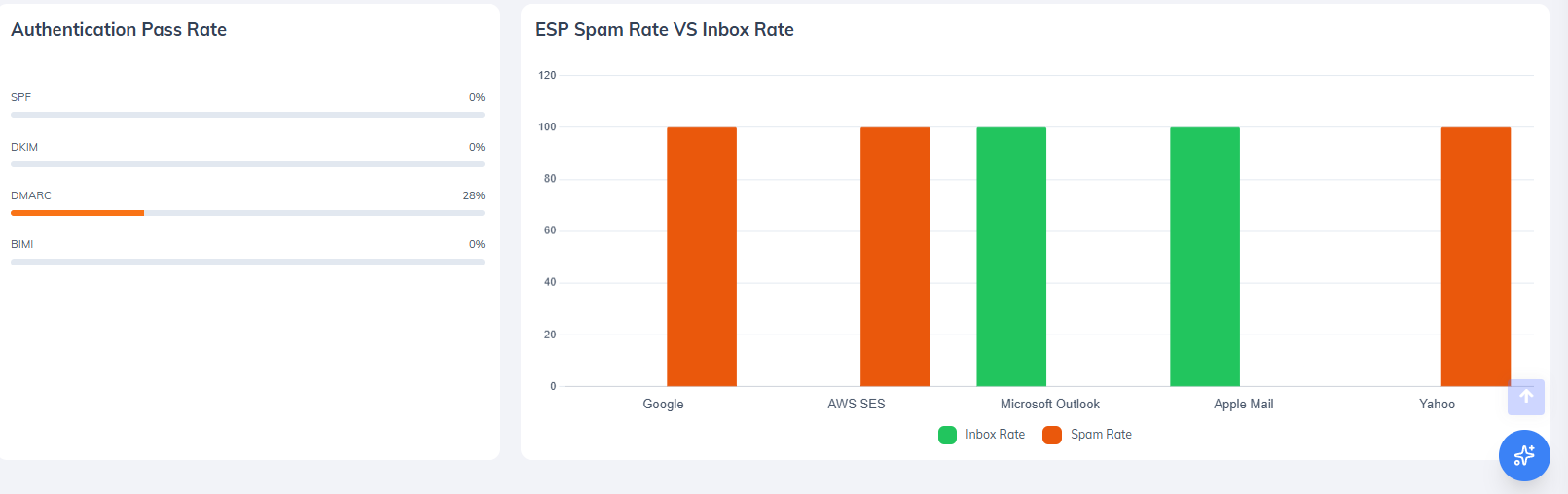
The report provides detailed information about:
Inbox placement performance
Authentication results
Content-related issues
HTML compatibility findings
Attachment risks
Recommended remediation steps
To learn how to interpret these results, refer to Inbox Placement Analyzer: Deliverability Analysis and Reporting.