
Overview
Security Health Event is a new alert type in PowerAlerts that helps you stay ahead of configuration and compliance issues on your monitored domains before they turn into delivery or brand trust problems. Unlike DNS, Threshold, and Forensic alerts, which focus on traffic and authentication activity, Security Health alerts focus on the underlying health of your email authentication setup, such as weak cryptographic DKIM keys or BIMI VMC certificates that’s about to expire.
This article walks you through everything you need to know to configure, manage, and monitor Security Health alerts in PowerAlerts for the 2 above categories, including a complete step-by-step configuration walkthrough.
What's New
New Security Health alert type: A fourth alert type, alongside DNS, Threshold, and Forensic, dedicated to proactive configuration health and compliance monitoring based on DKIM Key Size and BIMI Certificate Expiration, each with configurable severity and conditions.
Full Alert Logs integration: A dedicated Security Health Alerts tab, plus representation in the unified Incidents dashboard and the Logs by Alert Types chart.
Shared notification setup: Security Health alerts use your existing Notification Groups and there is nothing new to configure on the notification side.
Understanding Security Health Events
Before configuring an alert, let’s understand the two events currently available under the Security Health alert type.
DKIM Key Size
This event triggers when an active DKIM key on a monitored domain is identified as the weak 1024-bit size. Weak DKIM keys make a domain more vulnerable to spoofing, so catching this early lets you rotate to a stronger key before it becomes a risk.
BIMI Certificate Expiration
This event triggers when a domain's BIMI (Brand Indicators for Message Identification) certificate enters a configurable countdown window before expiration. This gives you advance notice so your brand logo doesn't silently disappear from inboxes when the certificate lapses.
Note: You can combine DKIM Key Size and multiple BIMI Certificate Expiration thresholds within a single alert configuration for the same domain or domain group, exactly as shown in the configuration walkthrough below.
Before You Begin
Make sure you have the following before you start configuring a Security Health alert:
Access to the PowerDMARC platform with permissions to manage PowerAlerts configurations.
At least one domain or domain group already added to your PowerDMARC account.
(Optional but recommended) A Notification Group already created, so alert notifications reach the right people as soon as the configuration goes live.
How to Configure a Security Health Alert
Security Health alerts are created using the same Add Alert Configuration wizard used for other alert types. The wizard has four steps: Monitoring Entities, Alert Type, Conditions, and Notification Groups.
Navigate to PowerAlerts > Configuration>New Version and click + Add Alert Configuration to open the wizard.
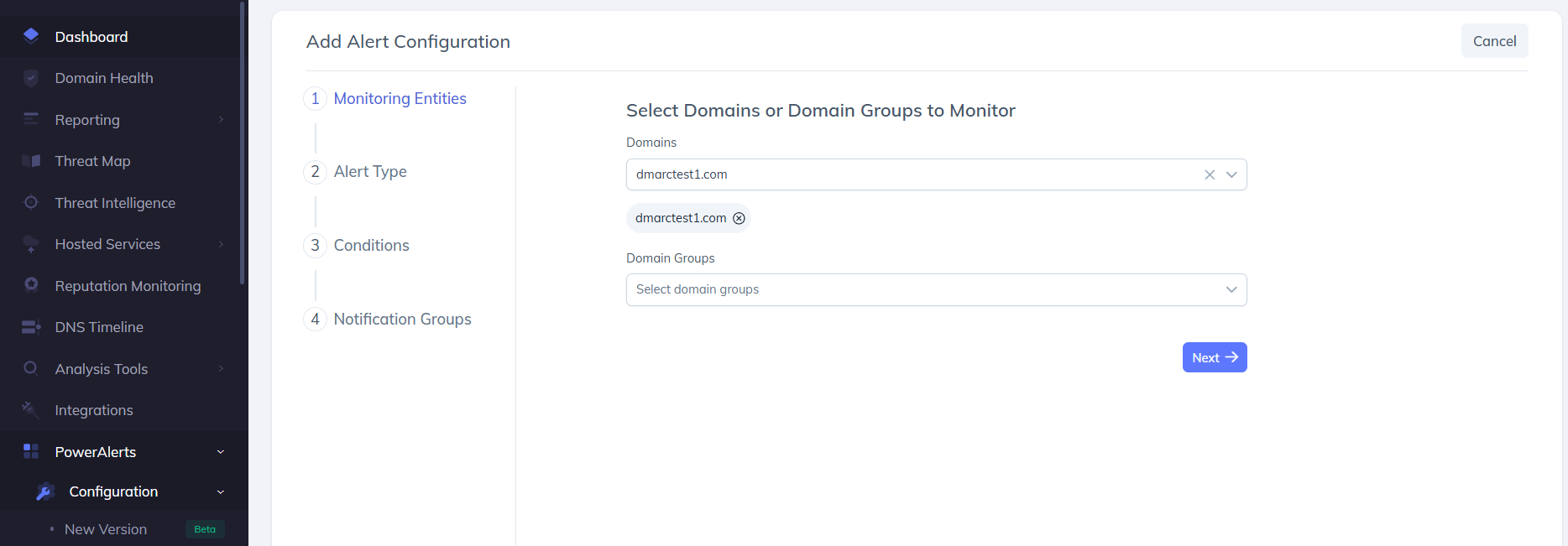
STEP 1 Select Monitoring Entities
In the first step of the wizard, choose which domains or domain groups you want this alert to monitor.
Under Domains, search for and select one or more domains you want to monitor (for example, dmarctest1.com).
Optionally, use the Domain Groups field to apply the alert to an entire domain group instead of, or in addition to, individual domains.
Click Next to proceed.
STEP 2 Select Alert Type
In the second step, choose the type of alert you want to configure.
Open the Alert Type dropdown and select Security Health.
Click Next to move to the Conditions step.
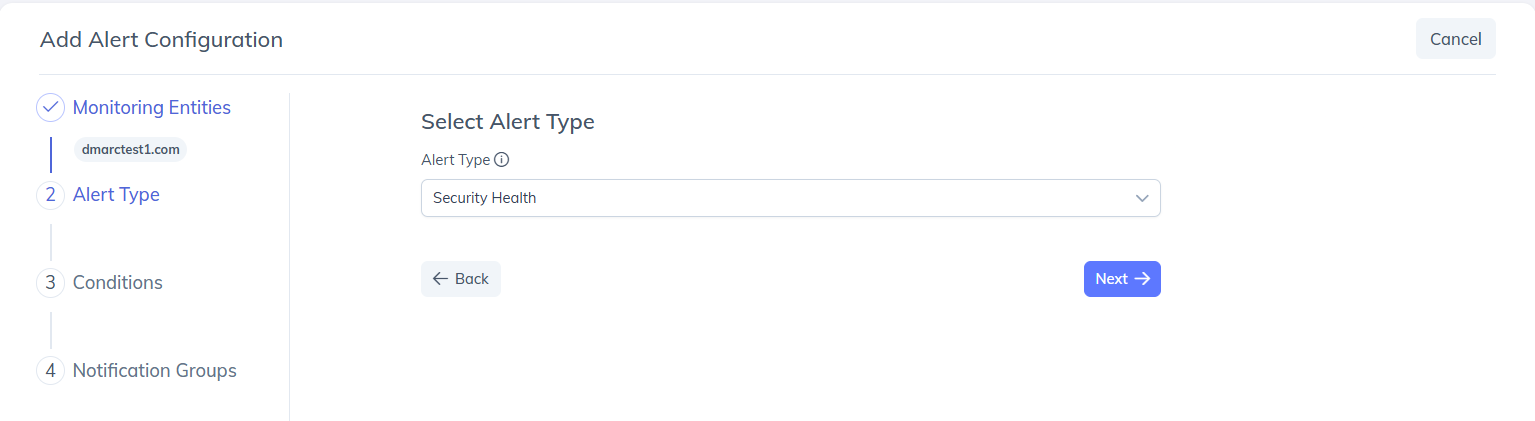
STEP 3 Set Alert Conditions
This is where you define exactly what should trigger an alert. The Conditions step presents three fields per row — Event Type, Condition, and Severity — and lets you stack multiple rows (events) into a single configuration.
From the Event Type dropdown, choose either DKIM Key Size or BIMI Certificate Expiration.
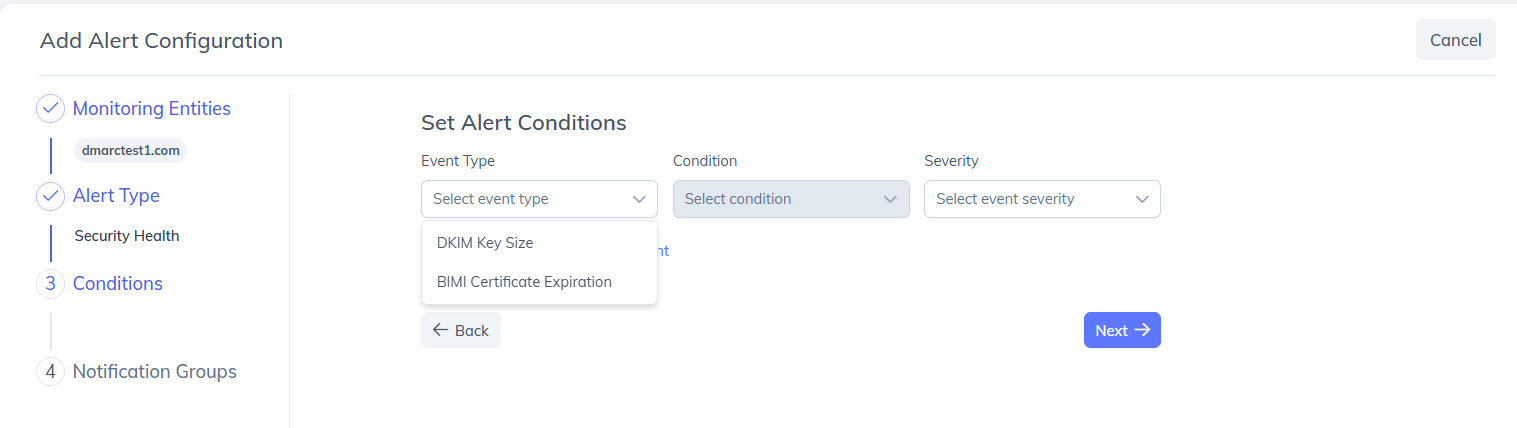
For DKIM Key Size, the Condition field is pre-set to Is 1024-bit; you only need to choose a Severity (Informational, Warning, or Critical).
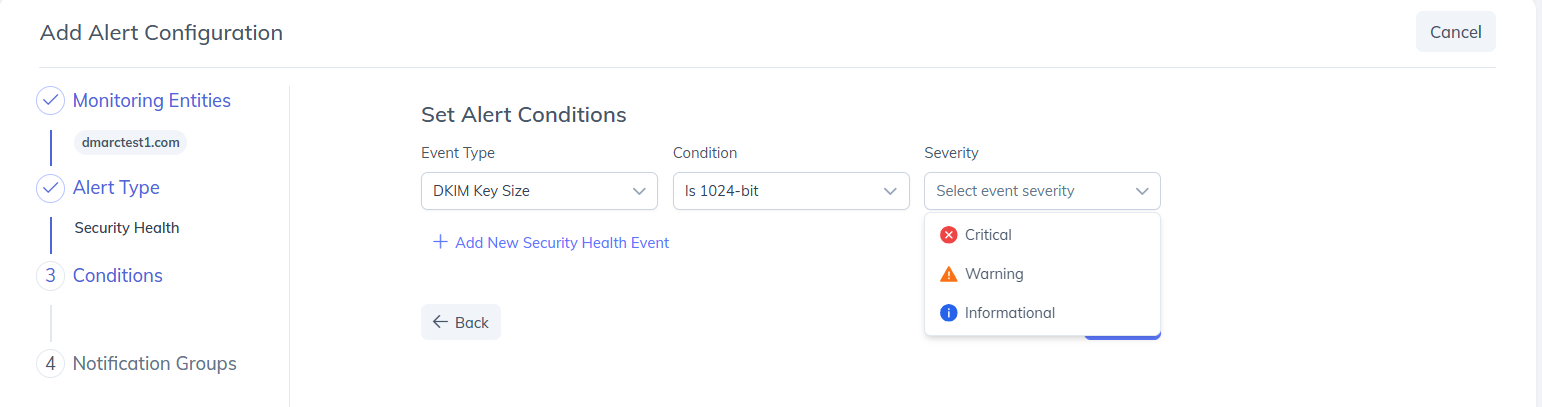
For BIMI Certificate Expiration, choose a Condition from the available countdown windows (90, 60, 30, or 10 days before expiration), then choose a Severity for that threshold.
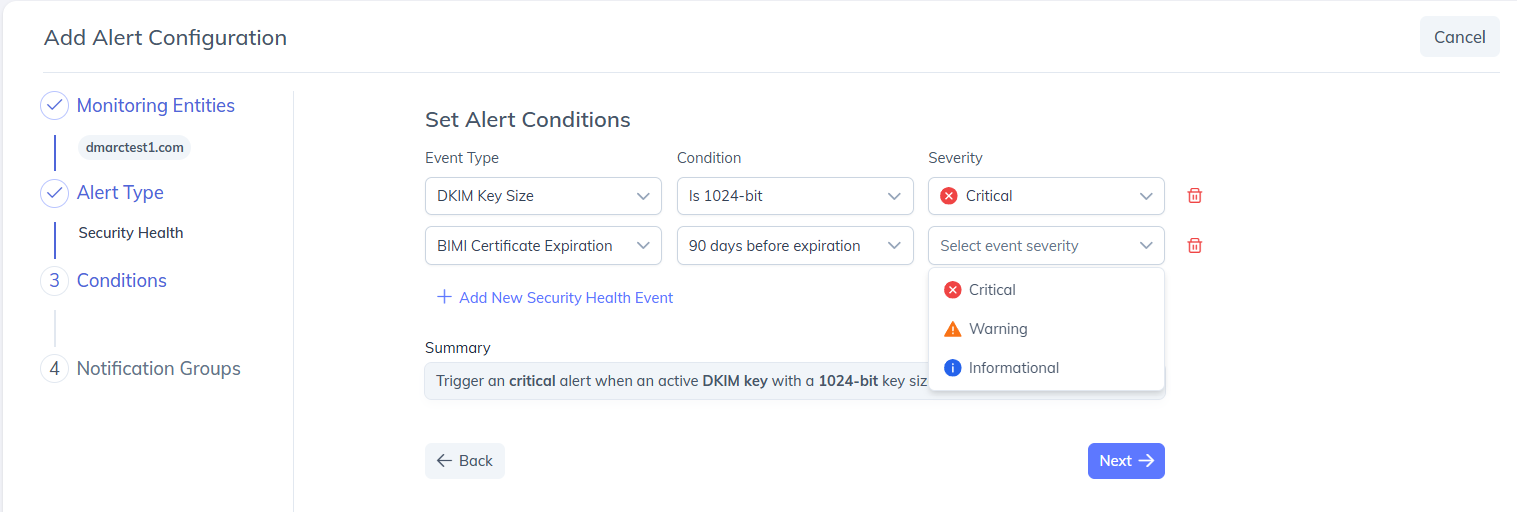
To monitor more than one event or threshold in the same configuration, click + Add New Security Health Event. This adds another row with its own Event Type, Condition, and Severity fields. Repeat as many times as needed, for example, one row for DKIM Key Size, plus separate rows for a 90-day and a 10-day BIMI Certificate Expiration threshold.
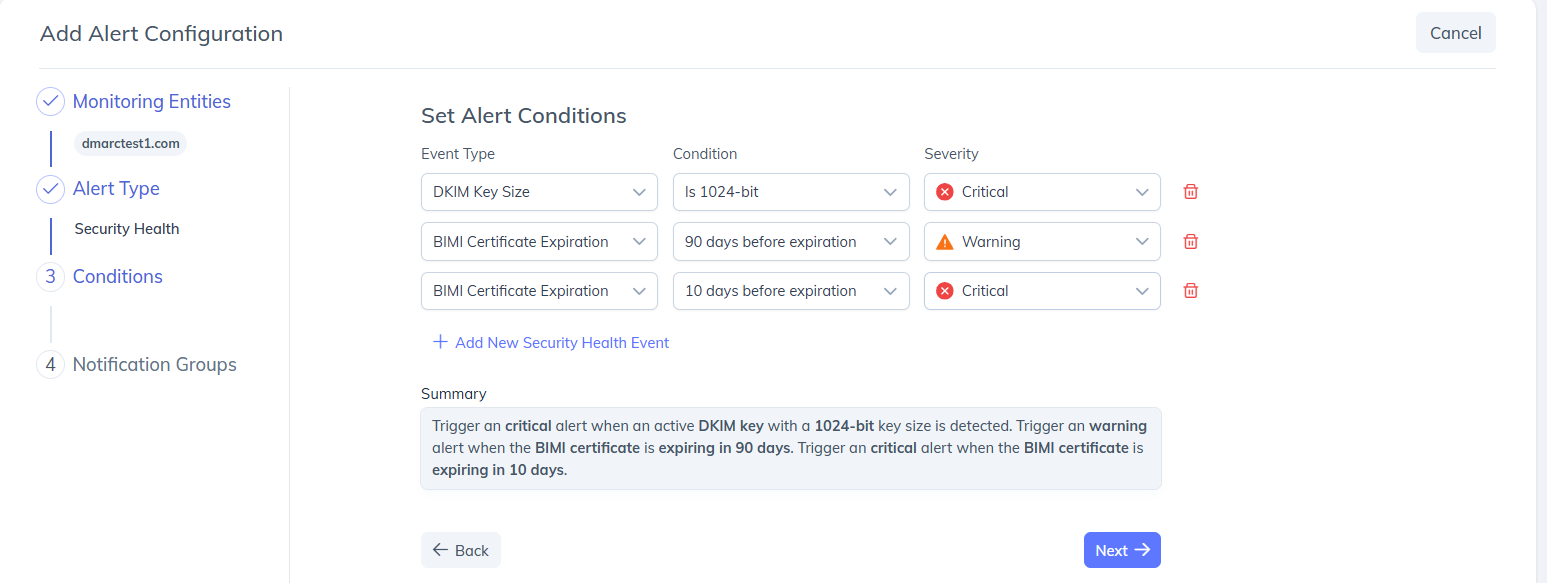
As you add events, a Summary panel automatically generates a plain-language description of the alert logic, for example, confirming that a critical alert fires when an active DKIM key with a 1024-bit key size is detected, a warning alert fires when the BIMI certificate is expiring in 90 days, and a critical alert fires when it is expiring in 10 days. Review this summary to confirm the logic matches your intent before continuing.
Click Next once all desired events are added.
Tip: Layer severities across thresholds for an early-warning system, for example, Informational at 90 days, Warning at 30 days, and Critical at 10 days for BIMI Certificate Expiration, so urgency increases as the deadline approaches.
STEP 4 Select Notification Groups
In the final step, choose who should be notified when this alert triggers.
From the Notification Groups dropdown, select an existing Notification Group (for example, Security Health Events). The selected group appears below the field as a tag.
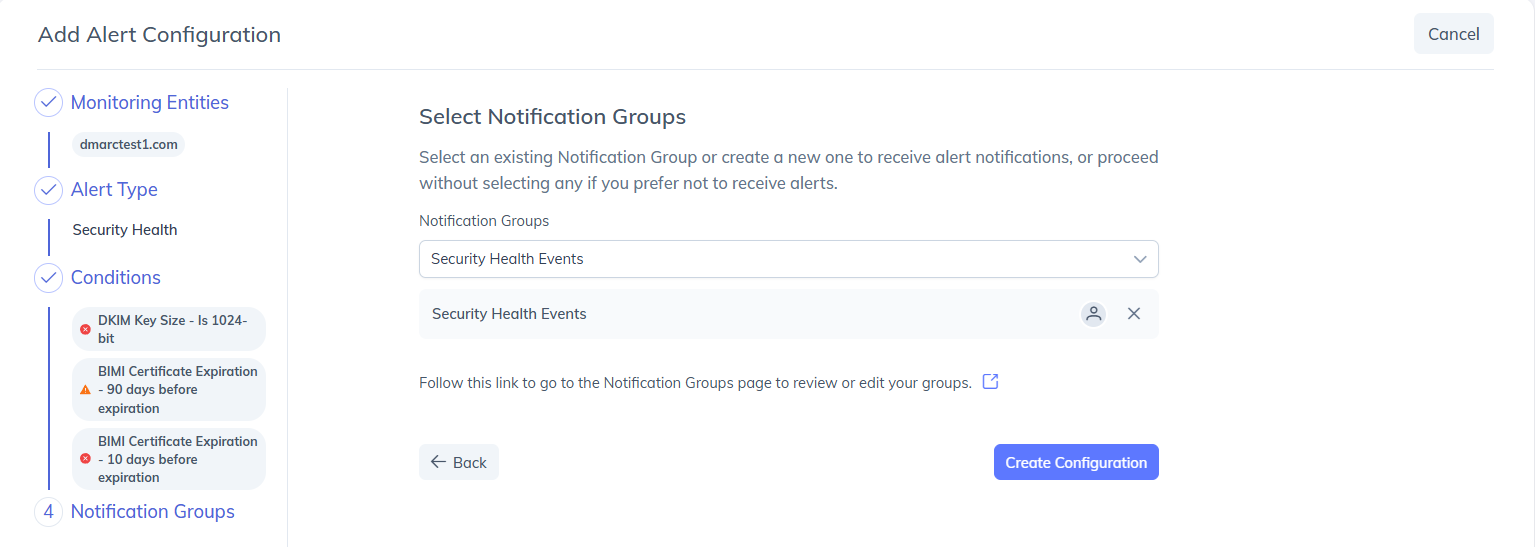
If you don't have a suitable group yet, use the Follow this link to go to the Notification Groups page link to create or edit a group, then return to the wizard.
Click Create Configuration to save and activate the alert.
Note: Notification Groups are shared across all PowerAlerts alert types (DNS, Threshold, Forensic, and Security Health). You do not need to create a separate notification setup specifically for Security Health alerts.
Managing Your Security Health Alert Configurations
Once created, your Security Health alert appears in the main Alert Configurations list alongside your other alert configurations, under PowerAlerts > Configuration.

Each row in this list shows:
Monitoring Entity — the domain or domain group the configuration applies to.
Alert Type — shown as Security Health.
Condition — a compact summary of all events configured (for example, DKIM Key Size – 1024, BIMI Certificate Expiration – 90, BIMI Certificate Expiration – 10).
Notification Group — the group that will be notified.
Status — whether the configuration is Enabled or disabled.
Monitoring Security Health Alerts in Alert Logs
Once a Security Health alert configuration is active, any triggered events are tracked under PowerAlerts >New Version>Alert Logs, alongside DNS, Threshold, and Forensic alerts.
Incidents Dashboard
At the top of the Alert Logs page, the Incidents panel gives you an at-a-glance summary across all alert types:
In Alarm — incidents currently active and unresolved.
Resolved — incidents that have returned to a healthy state.
Total — the combined count of all incidents tracked.
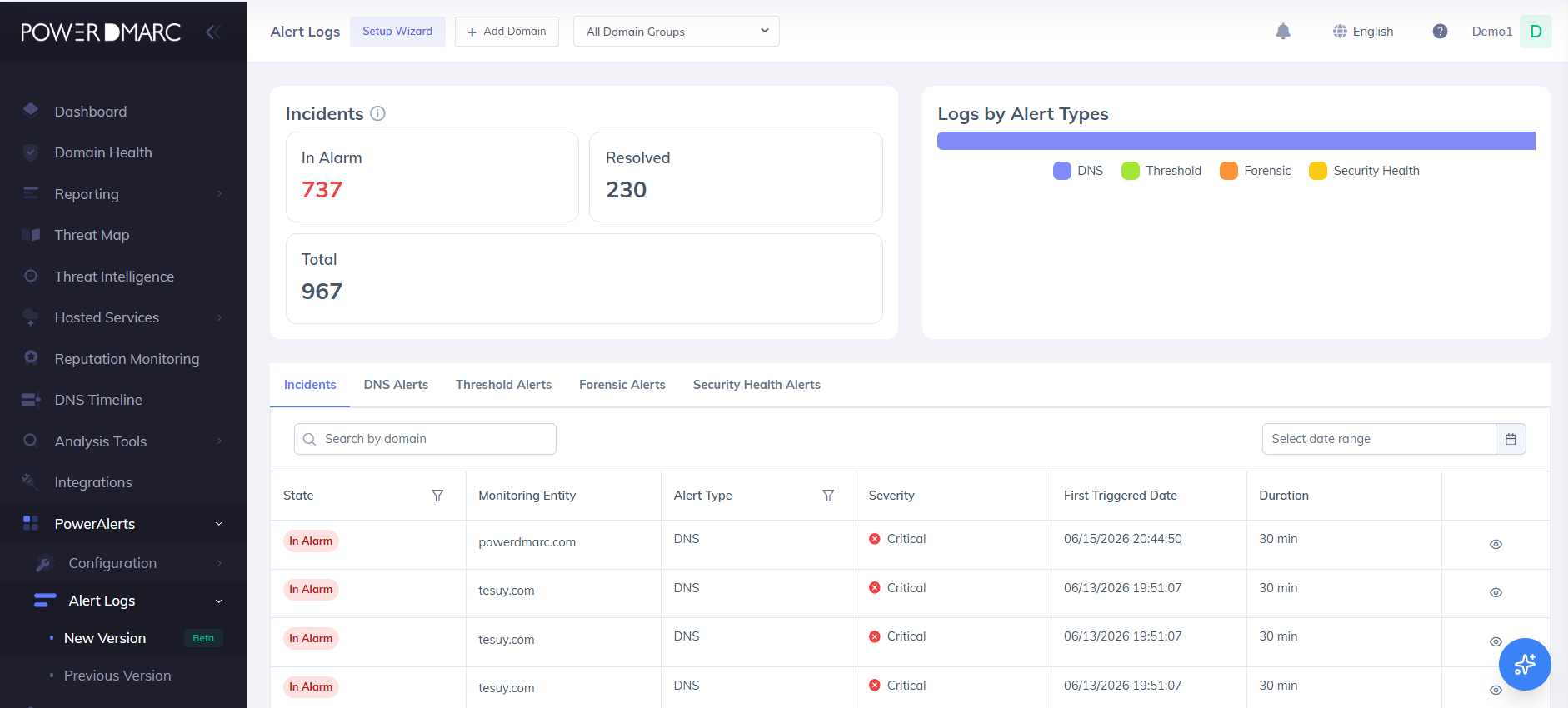
Security Health events are fully counted within these totals. The adjacent Logs by Alert Types chart breaks down incident volume by type DNS, Threshold, Forensic, and Security Health, represented as distinct, color coded segments, so you can see at a glance how much of your incident volume relates to configuration health issues.
Security Health Alerts Tab
The Incidents panel is followed by a row of tabs Incidents, DNS Alerts, Threshold Alerts, Forensic Alerts, and Security Health Alerts. Select the Security Health Alerts tab to view a log dedicated to DKIM Key Size and BIMI Certificate Expiration events.
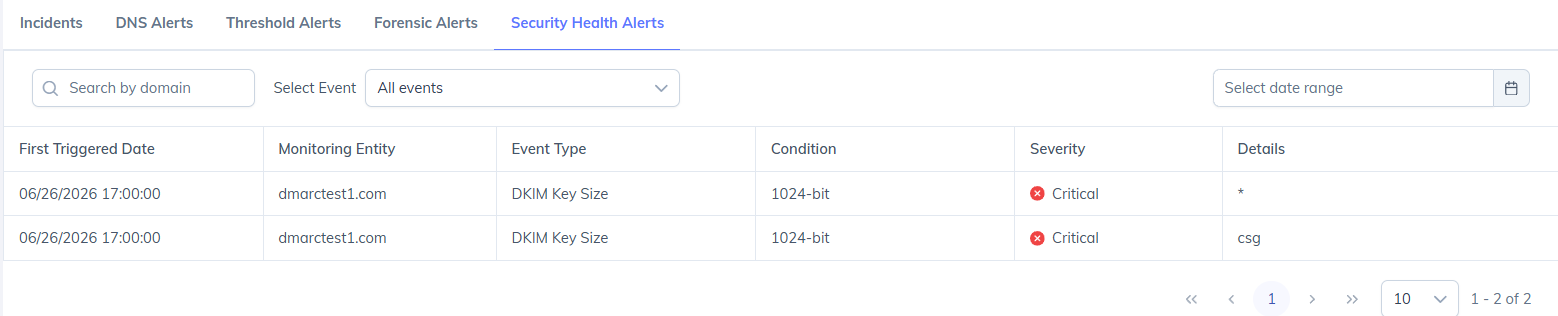
This tab provides the following controls and columns:
Note: If no Security Health events have triggered yet for your account, this tab will display No Data. This is expected until a configured condition is actually met on a monitored domain.
Important Notes
Shared notifications: Notification Groups configuration is shared with all other alert types there is no separate setup required for Security Health.
DKIM key size coverage: DKIM Key Size currently detects 1024-bit keys only as potential vulnerability.
Independent thresholds: Each BIMI Certificate Expiration threshold you configure fires independently and only once per countdown window reached, so layering multiple thresholds will not produce duplicate alerts for the same window.
Summary
Security Health alerts give you proactive visibility into configuration risks like weak DKIM keys and expiring BIMI certificates — before they affect deliverability or brand presentation. Configure them through the same Add Alert Configuration wizard you already use for DNS, Threshold, and Forensic alerts, then monitor results through the dedicated Security Health Alerts tab and the unified Incidents dashboard in Alert Logs.