
What Are Forensic Alerts and How Do They Help Protect Your Domain?
Email-based threats such as phishing, spoofing, and domain impersonation are becoming increasingly sophisticated. While DMARC aggregate reports provide a high-level overview, forensic (RUF) reports offer granular, near real-time insights into individual authentication failures. These reports deliver detailed information on failed emails, enabling administrators to make informed and timely decisions based on actionable data points.
PowerDMARC’s Forensic Alerts feature further enhances this capability by empowering organizations to instantly detect and respond to suspicious email activity, triggering alerts whenever a DMARC failure occurs.
Why Forensic Alerts Matter
With PowerDMARC Forensic Alerts, you can:
Detect impersonation attacks instantly – Get notified when spoofing or phishing attempts occur and you receive an email failure report
Gain deep visibility into incidents – Access detailed data such as:
Sender IP address
Geolocation (country)
Timestamp of the incident
Accelerate threat response – Act quickly to mitigate risks before they escalate
Preserve forensic data – Maintain RUF data for advanced investigation and compliance
Receive real-time alerts – Ensure no critical failure goes unnoticed
Key Features at a Glance
Easy alert configuration in just a few clicks
Multi-recipient notifications for better team collaboration
Enable/disable alerts instantly
Real-time alerting per RUF report
Structured email notifications and webhook integrations
User-friendly severity level selection
By leveraging forensic alerts, organizations can move from reactive email security to a proactive defense strategy.
How to Configure Forensic Alerts in PowerDMARC
Setting up forensic alerts in PowerDMARC is quick and straightforward. Follow these steps to enable real-time monitoring for your domains:
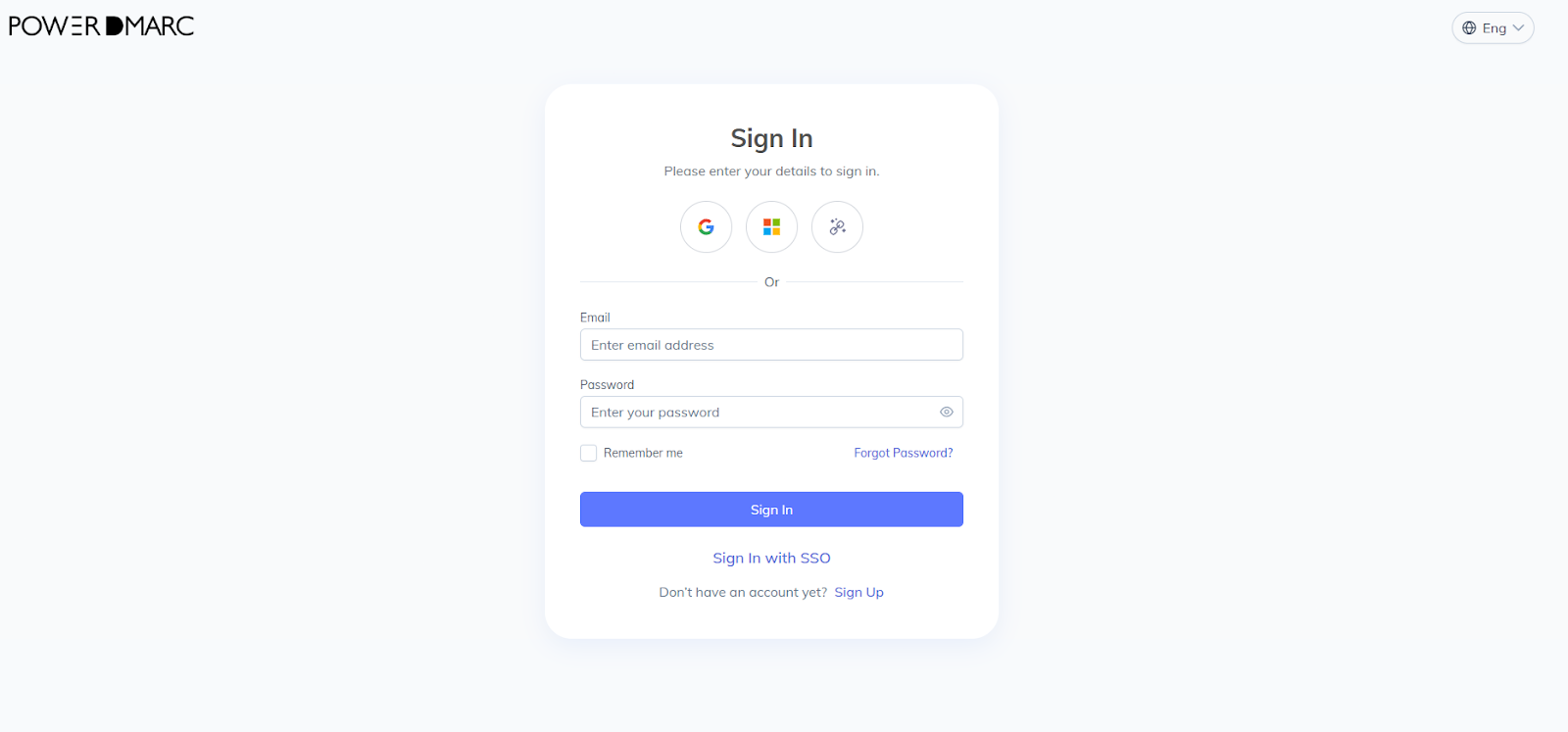
Step 1: Log in to the PowerDMARC Portal
Access your PowerDMARC dashboard using your credentials.
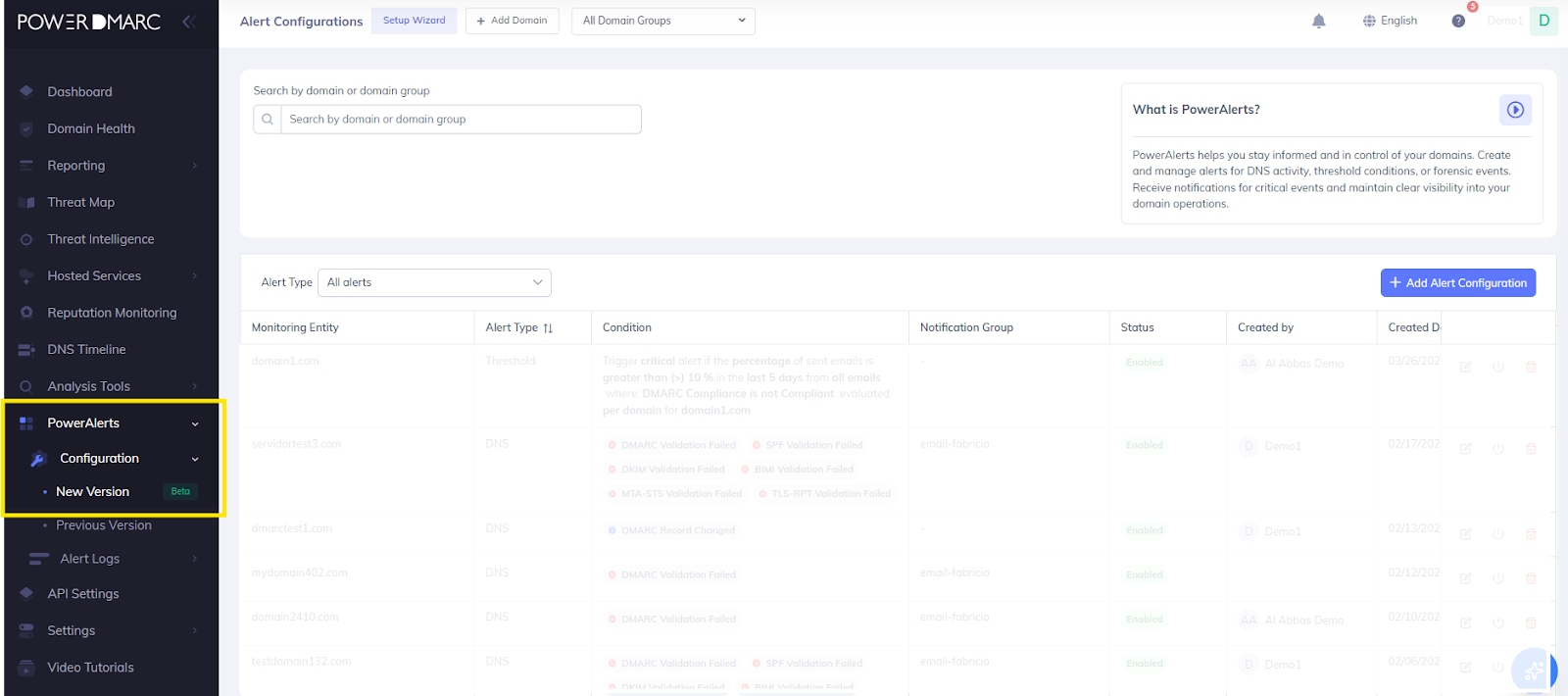
Step 2: Navigate to PowerAlerts Configuration
Go to: PowerAlerts → Configuration → New Version
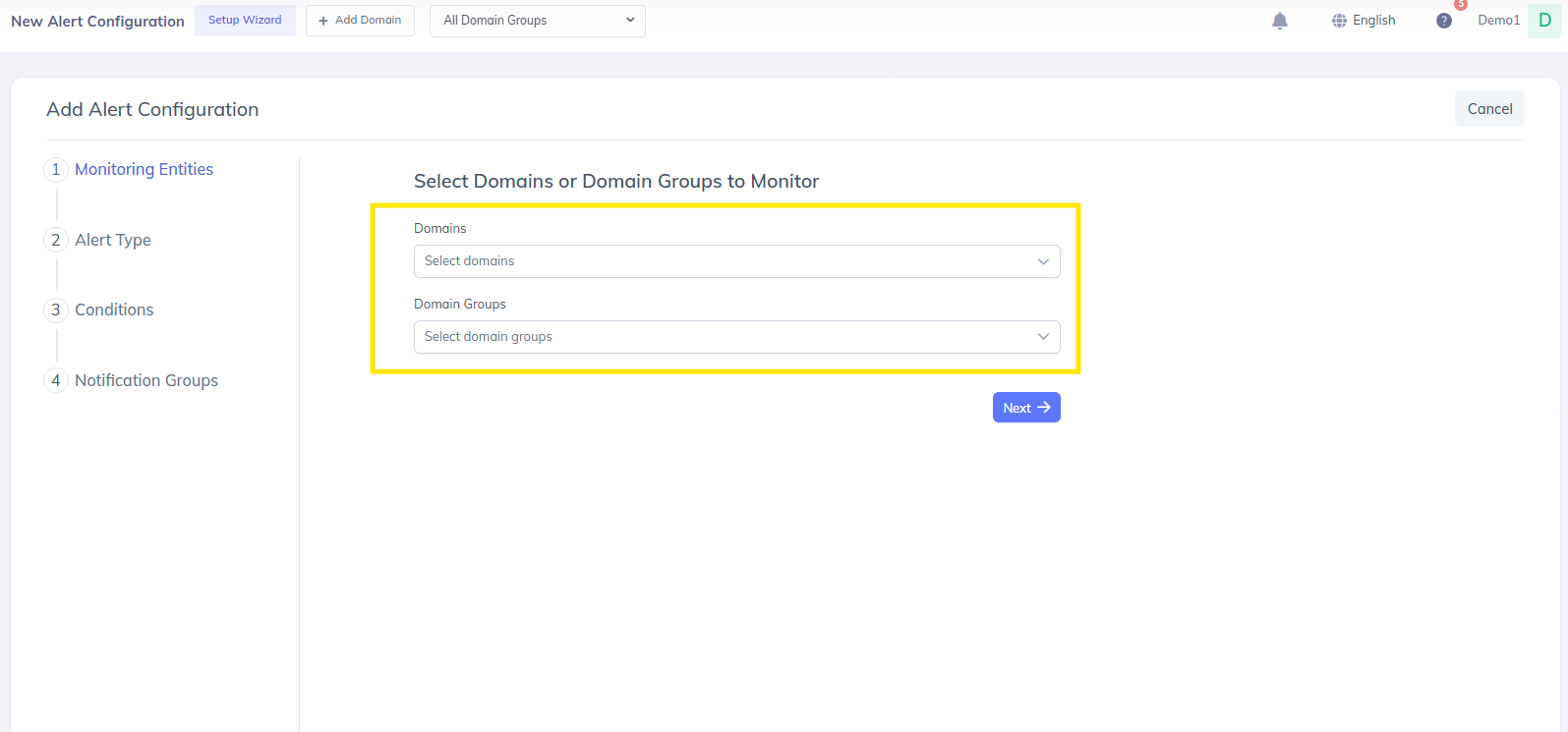
Step 3: Select Domains or Domain Groups
Choose the domains or domain groups you want to monitor and click Next.
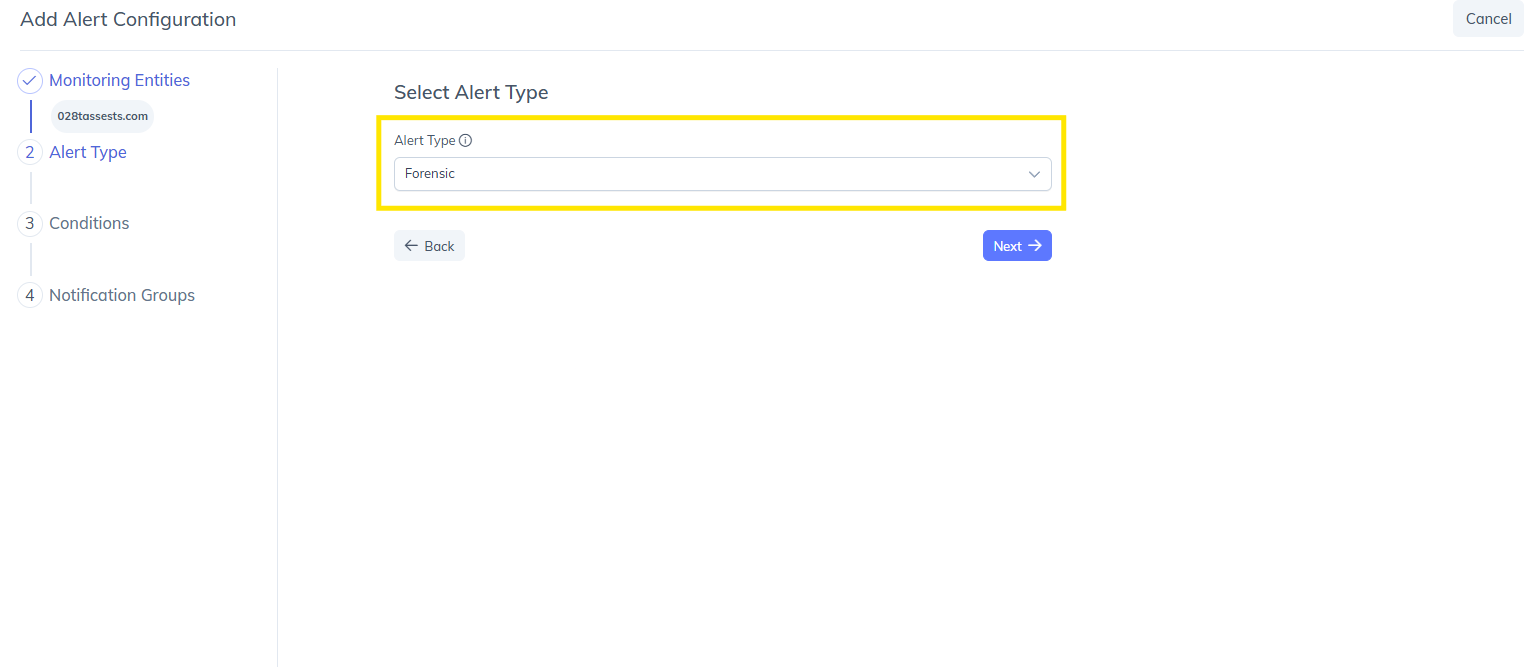
Step 4: Choose Alert Type
Select Forensic as the alert type and proceed by clicking Next.
Step 5: Set Severity Level
Choose the alert severity level.
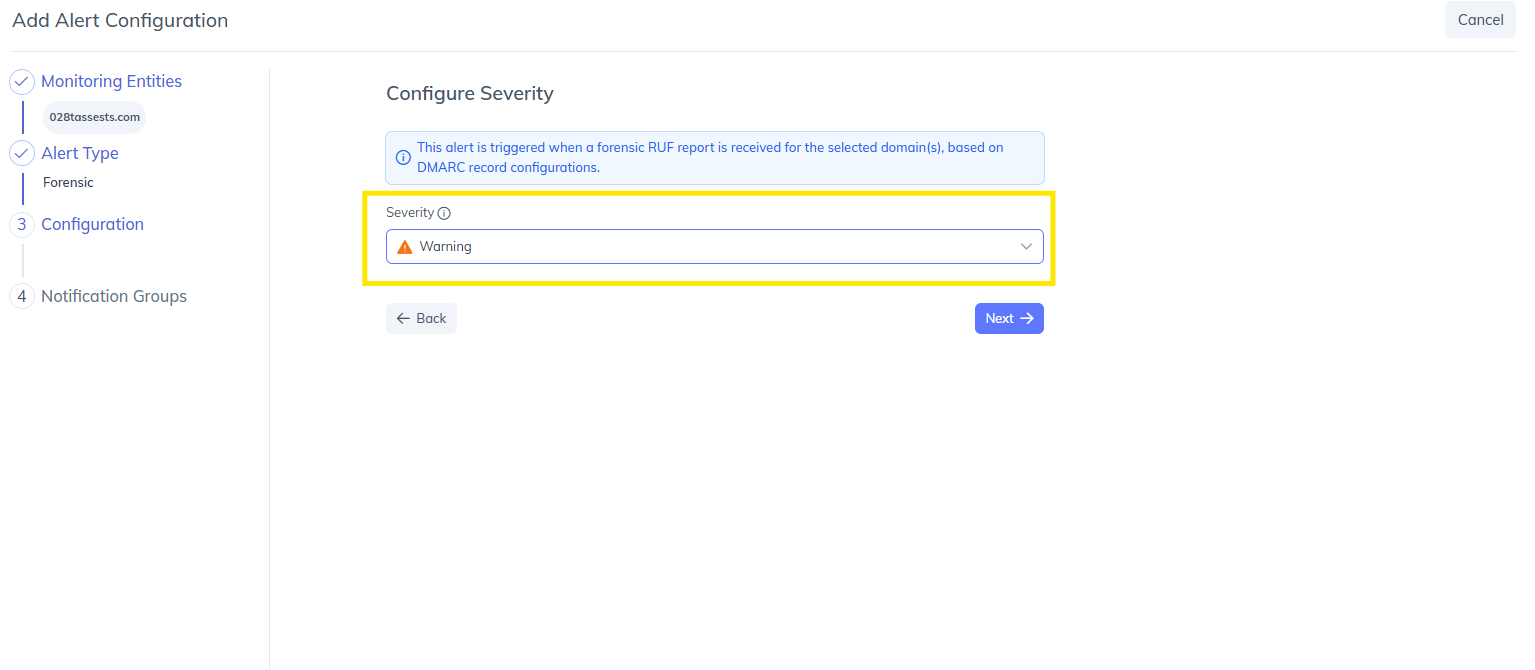
Recommended: Warning (for balanced monitoring without excessive noise)
Click Next to continue.
Step 6: Select Notification Group
Pick an existing notification group to receive alerts.
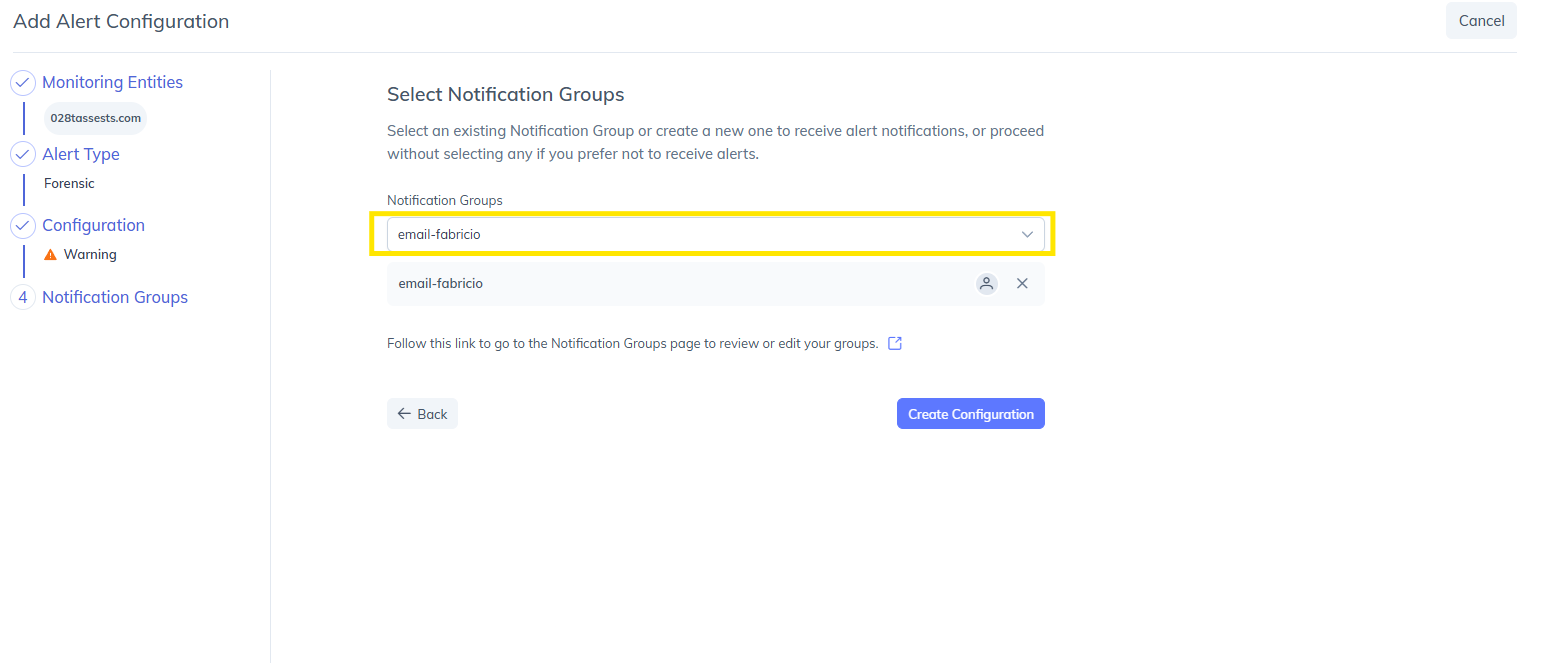
If you don’t have one:
Click on the provided link to create a new notification group
Add the required email recipients or available Webhook
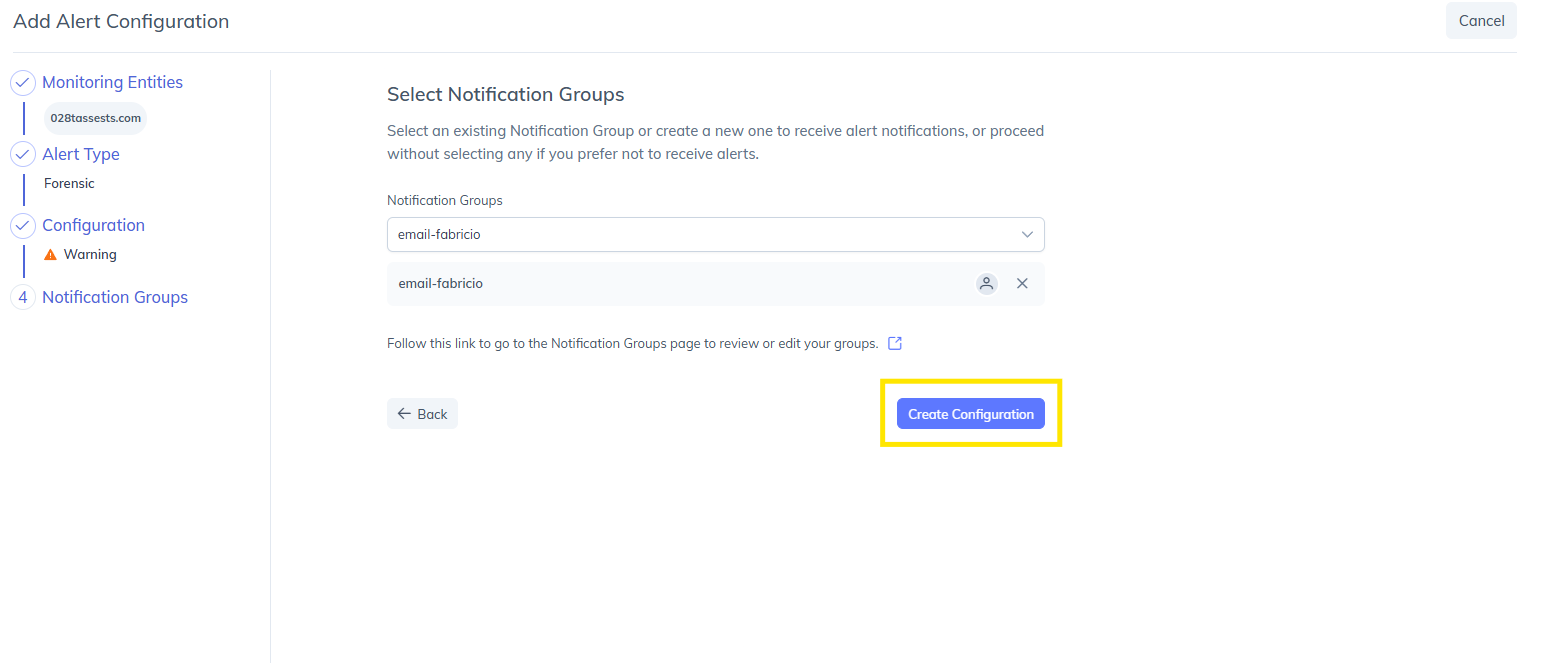
Step 7: Create Configuration
After selecting your notification group, click Create Configuration.
What Happens Next?
Once configured, PowerDMARC will:
Monitor incoming forensic (RUF) reports in real time
Trigger alerts instantly upon detecting DMARC failures
Notify your selected recipients via email or webhook
Provide actionable insights for faster incident response
This ensures that your team is always aware of potential threats and can take immediate action to protect your domain.
Conclusion: Strengthen Your Email Security with Real-Time Forensic Alerts
Forensic alerts are a critical component of modern email authentication and threat detection. By enabling this feature in PowerDMARC, organizations gain real-time visibility into DMARC failures, allowing them to detect and stop impersonation attacks before they cause damage.
With easy configuration, detailed insights, and instant notifications, PowerDMARC’s Forensic Alerts help you stay one step ahead of evolving cyber threats.
Start configuring Forensic Alerts today and take control of your email security posture.